7
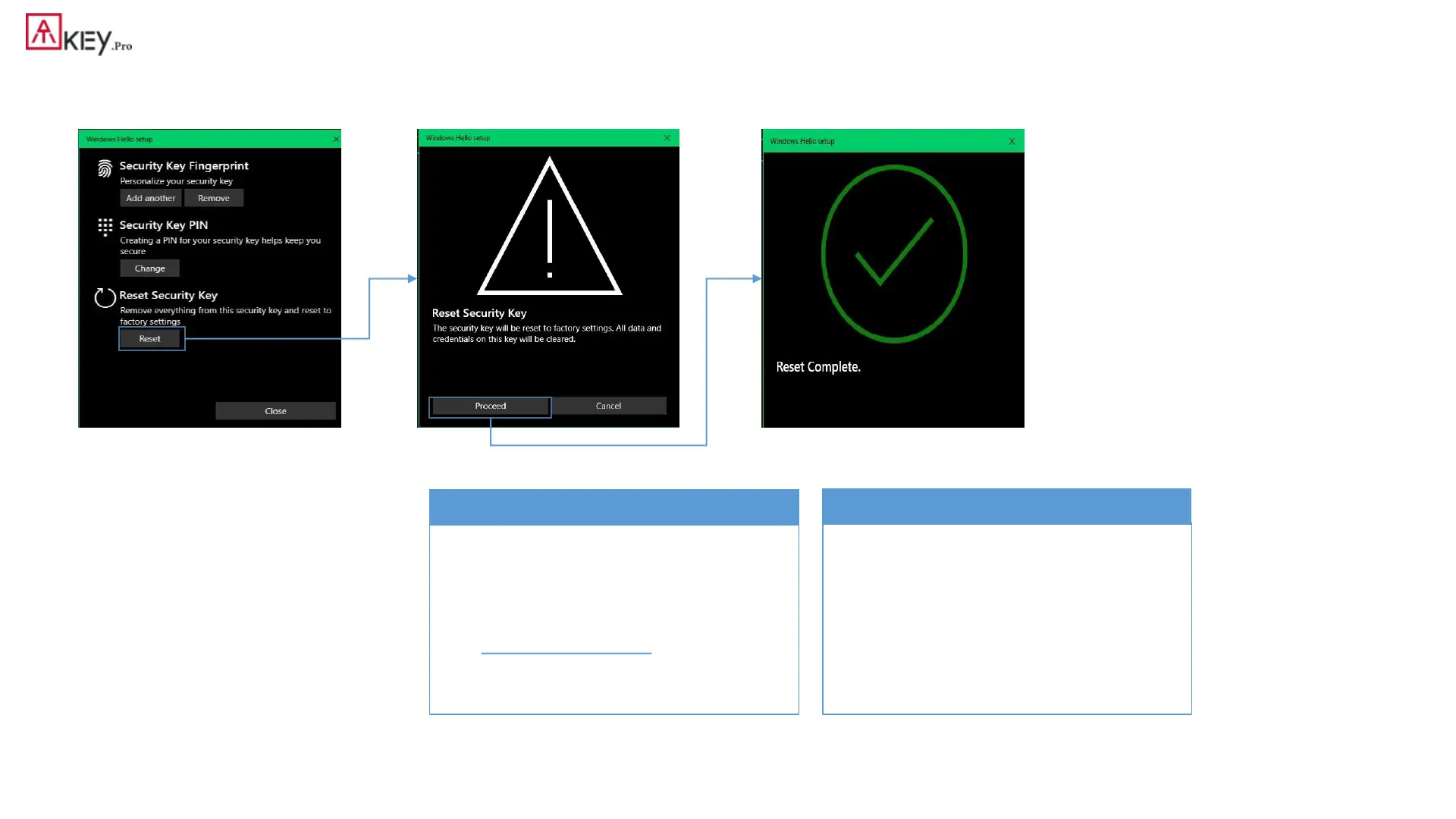
| (Step 1) Windows Settings (OS build is 1903 or later version) – Reset Key
• Windows Settings => Account => Sign-in options => Security Key => Reset Security key (Delete PIN code and erase all fingerprints)
1. Cyan LED is flashing
2. Remove ATKey.Pro and re-insert to
USB port
3. Cyan LED is flashing
4. Touch by any finger to reset or
cancel it - please make it done
(Reset) within 10 sec
1. Blue LED is flashing
2. Remove ATKey.Pro and re-insert to
USB port
3. Blue LED is flashing
4. Touch by any finger to reset or
cancel it - please make it done
(Reset) within 10 sec
Click “Process”
[firmware 1.00.6 or later version]
[firmware 1.00.5 or previous version]
Microsoft required spec.- for authenticator reset: in order to prevent
accidental trigger of this mechanism, user presence is required. In case of
authenticators with no display, request MUST have come to the
authenticator within 10 seconds of powering up of the authenticator.



 To Next Page