Trip Odometer This dash has two trip odometers, and a regular odometer. Both trips can be reset at any time by the user.
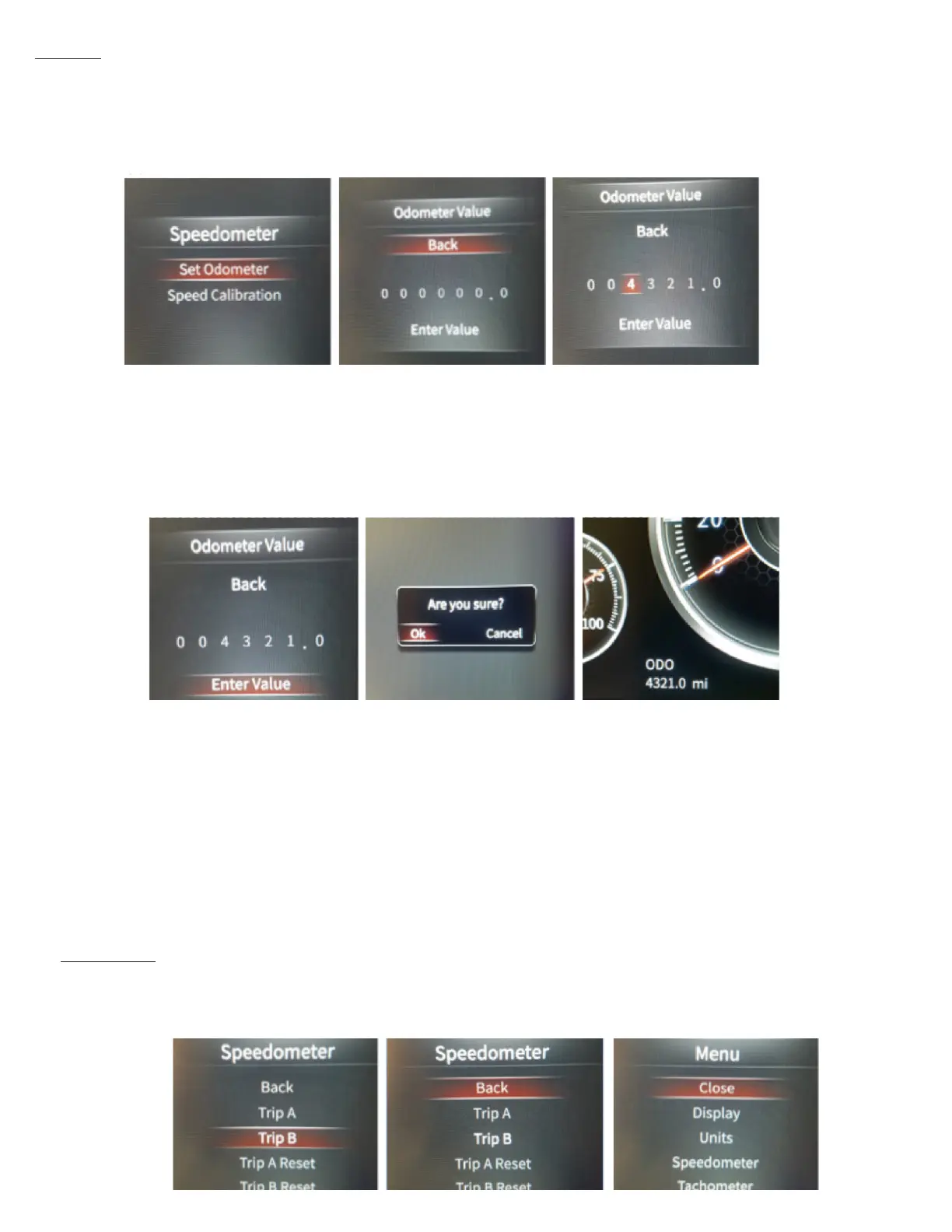
To choose which Trip Odometer is displayed, Enter into the Main menu, scroll to Speedometer, and press Enter. Here, you may choose
which Trip is displayed, and you may also clear (reset) the trip from this page as well. Simply scroll to which option you choose and press
Enter.
Once you have the odometer reading you desire, and have pushed Enter on the last digit, you can then scroll down to Enter Value and
press Enter. The Dash will ask you “Are you sure?”. You have the option to either press enter on OK, or scroll to Cancel and select Enter.
This window asking you “Are you Sure?” will pop up 3 times. If you answer OK all three times, the odometer is now permanently set, and
will only change by accumulating miles normally. This can not be changed again.
Odometer The odometer can be set to match your factory mileage on your vehicle. This can only be done one time, and within the rst 500
miles. After being set, or 500 miles have been accumulated, this option will disappear. It can not be set again.
To set your odometer, enter into the Main Menu, scroll to Speedometer, and push Enter. When in the Speedometer Menu, scroll down to
Set Odometer and press Enter. Now you will be in the Odometer Value screen. Scroll down to the odometer digits. When you get to the
particular digit that you want to change, press Enter, then scroll up or down with the Selector Knob until you get to the desired digit, and
press Enter.


 To Next Page
 Loading...