EasyManua.ls Logo

Avaya L129 - User Manual

Avaya L129
4 pages
Print Icon
To Next Page IconTo Next Page
Loading...
Avaya L129 Headset Quick
Reference Guide
Release 1
May 2020
©
2018-2020, Avaya Inc.
All Rights Reserved.
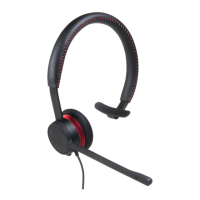
Avaya L129 Headset
Thank you for purchasing the Avaya L129 Headset. Read
the instructions carefully before using this product, and
retain them for future reference.
Part overview
1
2
3
4
1– Headband
2– Speaker
3– Microphone
4– Smart release
Features
Rotating microphone boom arm that can be worn on
the left or right side
Adjustable headband and microphone that provides
a customized fit
High resolution audio
Smart release connector
Bluetooth (only when connected to Avaya L100
Touch Controller with Bluetooth)
Connecting the headset to a phone
or a personal computer
Plug the connector cable into your phone or personal
computer.
You can use one of the following connector cables:
3.5mm for personal computers and smart phones
RJ9 for deskphones
USB with Bluetooth for personal computer and
some deskphone models
USB without Bluetooth for personal computer and
some deskphone models
Smart release connector
The Avaya L129 Headset has a magnetic smart release
option. With this option, you can disconnect and re-
connect the headset to your phone or personal computer.
Supervisory cable
The supervisory cable connects two headsets with a
smart release connector for supervision purpose. The
connector is attached to the lower part of a cord. One side
of the cord is unmuted, so you can use it for speaking and
listening. The other side of the cord is muted, so you can
only use it for listening.
Call control functionality
To use this functionality on the headset, you need support
for at least one of the following smart release connectors:
Avaya L100 Controller
Avaya L100 Touch Controller
Avaya L100 Touch Controller with Bluetooth
Bluetooth
The headset has built-in Bluetooth for pairing the headset
with a mobile device. When the headset is not paired with
a mobile device, the Bluetooth status remains off
.
You require Avaya L100 Touch Controller with Bluetooth to
use the Bluetooth functionality with the headset.
Pairing the headset with a mobile
device
1. On the Avaya L100 Touch Controller, press and hold
the Bluetooth logo for 5 seconds.
1
Question and Answer IconNeed help?

Do you have a question about the Avaya L129 and is the answer not in the manual?

Overview

The Avaya L129 Headset is a communication device designed for use with phones and personal computers, offering a range of features for enhanced audio experience and call control.

Function Description:

The Avaya L129 Headset serves as an audio input and output device, facilitating calls and audio playback. It can be connected to various devices, including deskphones, personal computers, and smartphones, through different connector cables. The headset features a rotating microphone boom arm, allowing it to be worn on either the left or right side, and an adjustable headband for a customized fit. High-resolution audio ensures clear sound quality for both speaking and listening. A key feature is the magnetic smart release connector, which enables easy disconnection and reconnection of the headset to the connected device. For advanced control, the headset can be paired with an Avaya L100 Touch Controller, which offers touch-sensitive functions for call management, volume adjustment, and Bluetooth connectivity.
Important Technical Specifications:

  • Microphone: Rotating boom arm, adjustable for optimal positioning (2-3 cm from mouth).
  • Audio: High-resolution audio.
  • Connectivity:
    • 3.5mm connector for personal computers and smartphones.
    • RJ9 connector for deskphones.
    • USB with Bluetooth for personal computers and some deskphone models.
    • USB without Bluetooth for personal computers and some deskphone models.
  • Bluetooth: Built-in Bluetooth for pairing with mobile devices (requires Avaya L100 Touch Controller with Bluetooth).
  • Control Interface: Avaya L100 Touch Controller (optional, but required for advanced features like call control and Bluetooth).
  • Supervisory Cable: Connects two headsets for supervision purposes, with one side unmuted for speaking/listening and the other muted for listening only.

Usage Features:

  • Wearing the Headset: Place the headset on the left ear for the best audio experience. The headband is flexible and adjustable, allowing the speaker and microphone to be positioned on either the left or right ear for comfort.
  • Microphone Positioning: Position the bendable boom arm 2-3 cm in front of the mouth for optimal sound quality. The boom arm can rotate up to 270 degrees.
  • Connecting the Headset: Plug the appropriate connector cable (3.5mm, RJ9, or USB) into your phone or personal computer.
  • Smart Release Connector: The magnetic smart release allows for quick and easy disconnection and reconnection of the headset.
  • Avaya L100 Touch Controller Functions:
    • Mute/Unmute: Touch the Mute key to mute or unmute the microphone. The logo turns red when muted.
    • Volume Control: Swipe up on the Avaya branding to increase volume, swipe down to decrease volume. Volume can also be controlled from the personal computer.
    • Answering/Ending Calls: Touch the Softhook key to answer or end a call.
    • Holding Calls: Double-press the Softhook key to hold an active call.
    • Redialing: Double-press the Softhook key to redial the last number.
    • Bluetooth Key (with Avaya L100 Touch Controller with Bluetooth): Switches between mobile device and personal computer. Double-press to hold an active call or redial the last number.
    • Play/Pause Key: Plays, pauses, and continues media playback.
    • Key Lock: Press and hold the Avaya logo for 10 seconds to enable or disable the key lock. A voice prompt confirms "Key locked" or "Key unlocked." The logo glows and dims repeatedly when locked.
  • Bluetooth Pairing:
    1. Press and hold the Bluetooth logo on the Avaya L100 Touch Controller for 5 seconds. The Bluetooth indicator flashes alternately blue and red, and a voice prompt "Pairing" is heard.
    2. Turn on Bluetooth on your mobile device.
    3. Search for and select the headset from nearby Bluetooth devices. A voice prompt "Connected" is heard, and the indicator changes to solid red.
  • Toggling Between Personal Computer and Mobile Device: Press and hold the Bluetooth logo on the Avaya L100 Touch Controller for 2 seconds. A beep is heard, and the Bluetooth logo changes from blue (mobile device active) to red (personal computer active).
  • Making Calls on Mobile Device (when connected to PC): Ensure the headset is paired and the Bluetooth logo is blue. Dial the number on the mobile device or double-press the Bluetooth logo to redial the last number.
  • Receiving Calls on Mobile Device (when connected to PC): Beeps are heard in the headset, and the Bluetooth symbol blinks blue. Press the Bluetooth logo to switch to the mobile device, and the call is automatically answered. If listening to audio, the audio pauses, and the Play/Pause key turns orange.
  • Audio Playback: When wearing the headset, audio from the preferred audio player can be heard. The Play/Pause key on the Avaya L100 Touch Controller can control playback. Incoming calls automatically pause audio. For streamed audio during calls on a computer, navigate to Control Panel > Sound > Communication and select the preferred volume option.
  • Headset Compatibility: Avaya Setup Tool provides call control functionality with Avaya Equinox®, Avaya one-X® Agent, and Avaya Agent for Desktop. Compatibility with other products can be checked on the Avaya support website.

Maintenance Features:

  • Cleaning: Clean the headset only with a dry and soft cloth.
  • Environmental Care: Always keep the headset dry and do not expose it to low and extreme temperatures.
  • Hearing Protection: To avoid damage to hearing, do not listen at high volume for prolonged periods.
  • Intended Use: Not for domestic use.

Avaya L129 Specifications

General IconGeneral
BrandAvaya
ModelL129
CategoryHeadsets
LanguageEnglish

Related product manuals