22
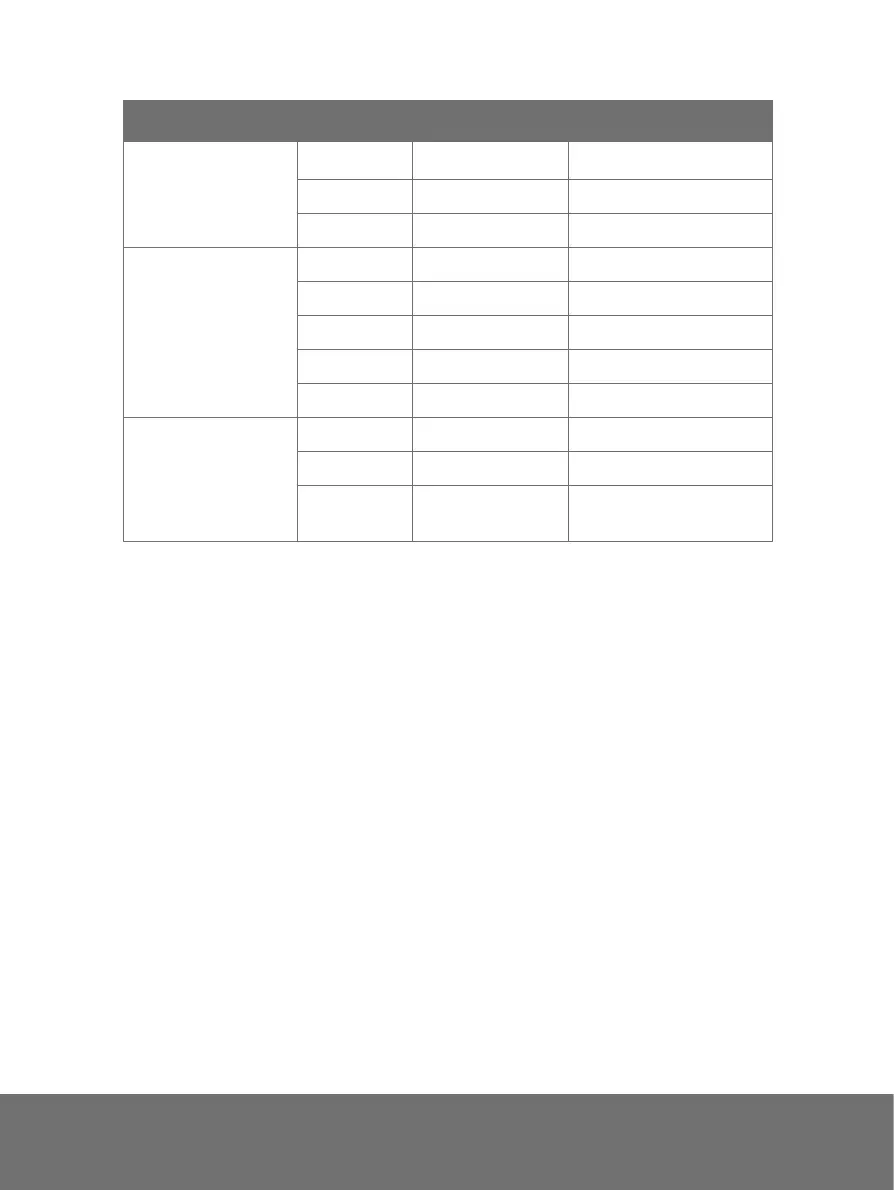
FUNCTION DATA CODE CHECKSUM CODE
FOCUS
AUTO
FOCUS
0x97 0xE6
NEAR 0x9B 0xEA
FAR 0x99 0xE8
OSD
MENU 0x94 0xE5
UP 0x92 0xE3
DOWN 0x96 0xE7
RIGHT 0x95 0xE4
LEFT 0x93 0xE2
EFFECT
MIRROR 0x8B 0xFA
ROTATE 0x89 0xF8
COLOR /
B.W /
NEGATIVE
0x86 0xF7
T
T
r
r
o
o
u
u
b
b
l
l
e
e
s
s
h
h
o
o
o
o
t
t
i
i
n
n
g
g
This section provides many useful tips on how to solve common problems while using
the AVerVision300AF+.
There is no picture on the presentation screen.
al. 1. Check all the connectors again as shown in this manu
evice. 2. Check the on/off switch of the display output d
3. Verify the setting of the display output device.
4. If you are presenting from a notebook or computer through the display output device,
please check and switch the document camera source to PC Mode.
I have set up the AVerVision300AF+ and checked all the connections as
specified in the manual, but I cannot get a picture on the preferred
epr sentation screen.
1. Once the power cords are connected, the LED light turns RED as standby mode.
Simply switch the AVerVision300AF+ “ON" by pressing the on/off switch until the LED
light is blanking and turns GREEN.
2. The default camera display resolution setting is on 1024x768. If your output device
does not support this resolution; no image can be projected. Simply press the MENU
and RIGHT or LEFT button to the increase or decrease the resolution setting.
3. If your display output device is TV or any analog device, make sure the TV/RGB
display switch is set to TV.


 To Next Page