Customizing the Picture Setting/
/
自行调整影像设定
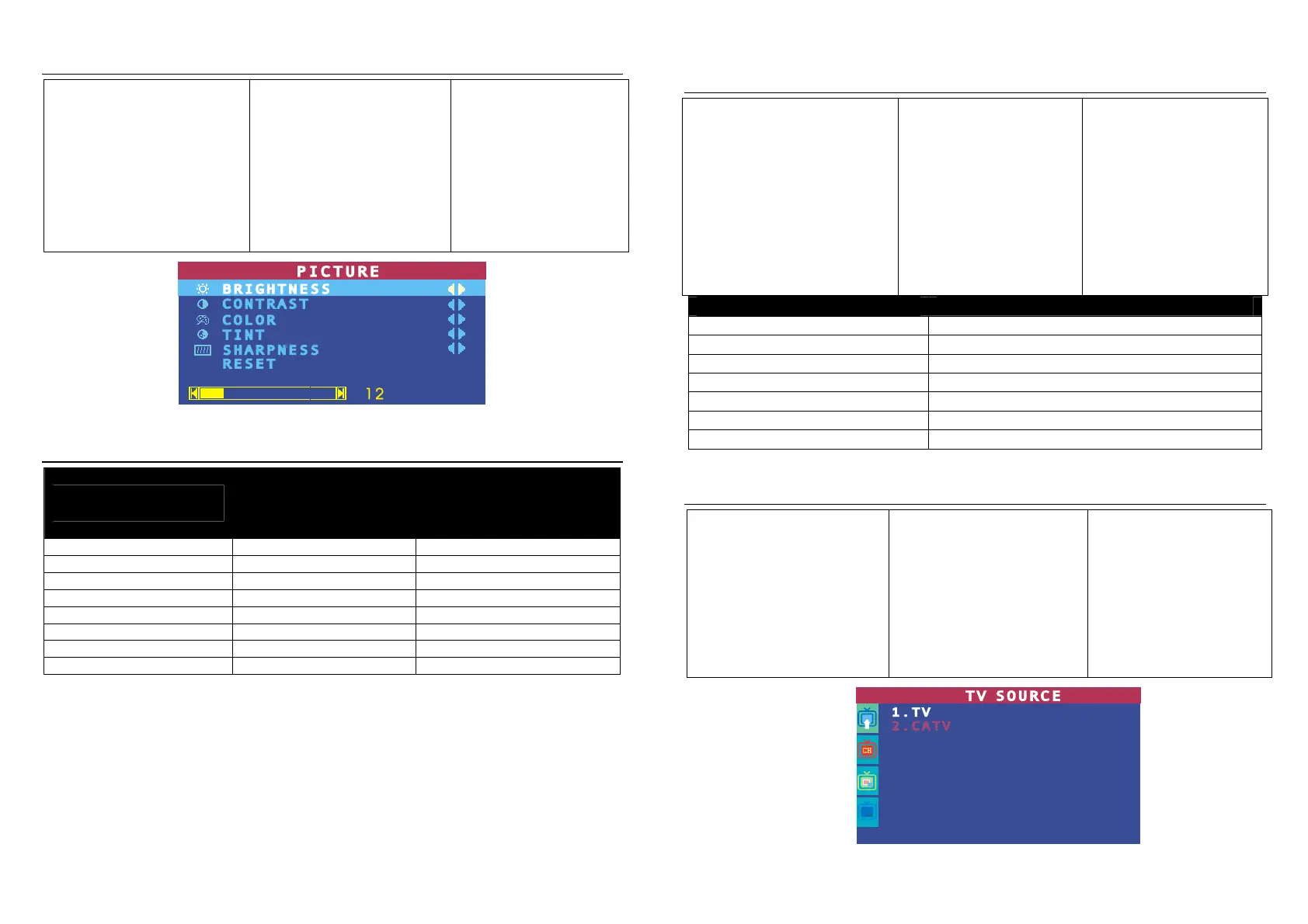
If you want to adjust the picture
quality, press the PICTURE
button on the remote. Then, you
can use the CH▲ or CH▼
buttons to select the items in the
PICTURE menu; and the Vol◄
or Vol ► buttons to make the
adjustment.
To restore the picture default
setting, select RESET and
then press Vol ►.
PICTURE CH▲
CH▼
如果您想自行调整影像的画
质,您可以在遥控器上按下
PICTURE 键,然后使用 CH▲
或 CH▼键选定想要调整的项
目,另外使用左或右键来调
整。若您想还原影像画质的原
始出厂值,请选择最下面的重
设即可(已扫描及记忆的频道
不会消除)。
Supported Display Setting/
/
Resolution/
电脑分辨率
4:3 and PANORAMA
support/
4:3
PANORAMA /
支持 4:3 和
PANORAMA
Refresh Rate (Hz)/
更新频率
1024x768
1280x768
1280x1024
1360x768
1440x900
1600x1200
1680x1050
1920x1200
*Only AVerTV DVI Box9 supports 4:3 and PANORAMA mode.
* DVI Box9-3D Y/C DVI Box9 4:3 PANORAMA .
*只有圆刚 DVI Box9-3D Y/C 与圆刚 DVI Box9 支持 4:3 和 PANORAMA 模式.
Supported Display Setting in PIP Mode/
(PIP)
/ /
使用画中画
(PIP)
功能时,电脑分辨率设定注意事项
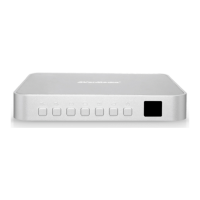
The reference table below lists the
monitor display resolution and
refresh rate settings that AVerMedia
TV Box supports when viewing in
PIP mode:
1. If the monitor does not support
or is not set to the following mode
listed below, it will switch back to
TV/Video mode.
2. If the computer switches to
sleep mode, it will change back to
TV/Video mode.
圆刚电视盒使用画中画功能
时,请按照下表调整每个分辨
率之下所支持的更新频率
1.电脑换的
/更新频率时,原本的 PIP
的模式(按 PIP 键后)过几秒后会
自动跳回 TV/VIDEO 模式
2.若在使用 PIP 时,将 VGA 线
拔掉或电脑进入休眠状态,一样
会有上述 1.的情况
Resolution/电脑分辨率 Refresh Rate (Hz)/更新频率
Calling Up a Menu Display /
/
开启菜单
Press the MENU button on the
remote control to call up and exit
the main menu or submenu
dis-play. Then, you can use the
CH▲ or CH▼ buttons to select
the items in the menu list; and
the Vol◄ or Vol►/OK buttons to
adjust or to make a selection.
The table on the next page lists
the different functions you will
find in the menu.
MENU
CH S
CH T
Vol X/OK Vol W
按下遥控器上的 MENU 键开
启菜单,然后使用 CHS 或
CHT 键选定所欲设定的项
目,并且使用 VolXor VolW 做
调整。下表所列的是菜单中各
项不同的功能及说明。
5




 To Next Page