The controller will reboot. You should be able to see “192.168.5.100 Visca! ” on the screen when the
controller finishes rebooting. It's the controller’s IP information.
b. Set up camera connection
Press【IP】-> enter the IP address of the controlled camera: 192.168.5.163-> press【ENTER】to go to
the next section;
Port (UDP): 1259-> press【ENTER】to go to the next section;
Cam Num: choose any number from 1-255. This Cam Num will be assigned to the current camera.
2 -> press【ENTER】.
You’ll see “Succeed” shown on the screen. Press 【CAM2】, the button will light up, and
“192.168.5.163 Visca: ” will show on the screen. It's the IP information of the controlled camera.
You should be able to control the camera now.
3. ONVIF (via Ethernet port)
To properly set up the connection, you need to make sure that the camera supports ONVIF and the
keyboard is within the same LAN as the camera.
• CAMERA:
Before setting up the connection on the keyboard, you’ll need to get some information of your camera:
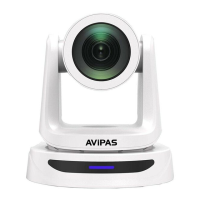
Camera IP Address: take AV-1280 as an example, its IP address is 192.168.5.163.
Subnet mask: 255.255.255.0 (AV-1280)
Gateway: 192.168.5.1 (AV-1280)
ONVIF Port: 2000 (AV-1280)
ONVIF Username & Password: admin
*Please refer the table on Page.5 for all AViPAS cameras port information.
• KEYBOARD:
c. Set up controller IP:
Press【SETUP】-> push the joystick down to select the submenu, until “Setup 05/08” shows on the
screen for Mode selection;
Push the joystick rightward to choose the protocol: “ONVIF”-> press the button on the joystick to enter,
or press【ENTER】;


 To Next Page
 Loading...