3. Press (Scan button), the paper starts feeding into the
scanner and the scanned image will be sent to your
specified destination.
Refer to chapter 6 – Using the Buttons on how to press the
button to complete a scan.
Note:
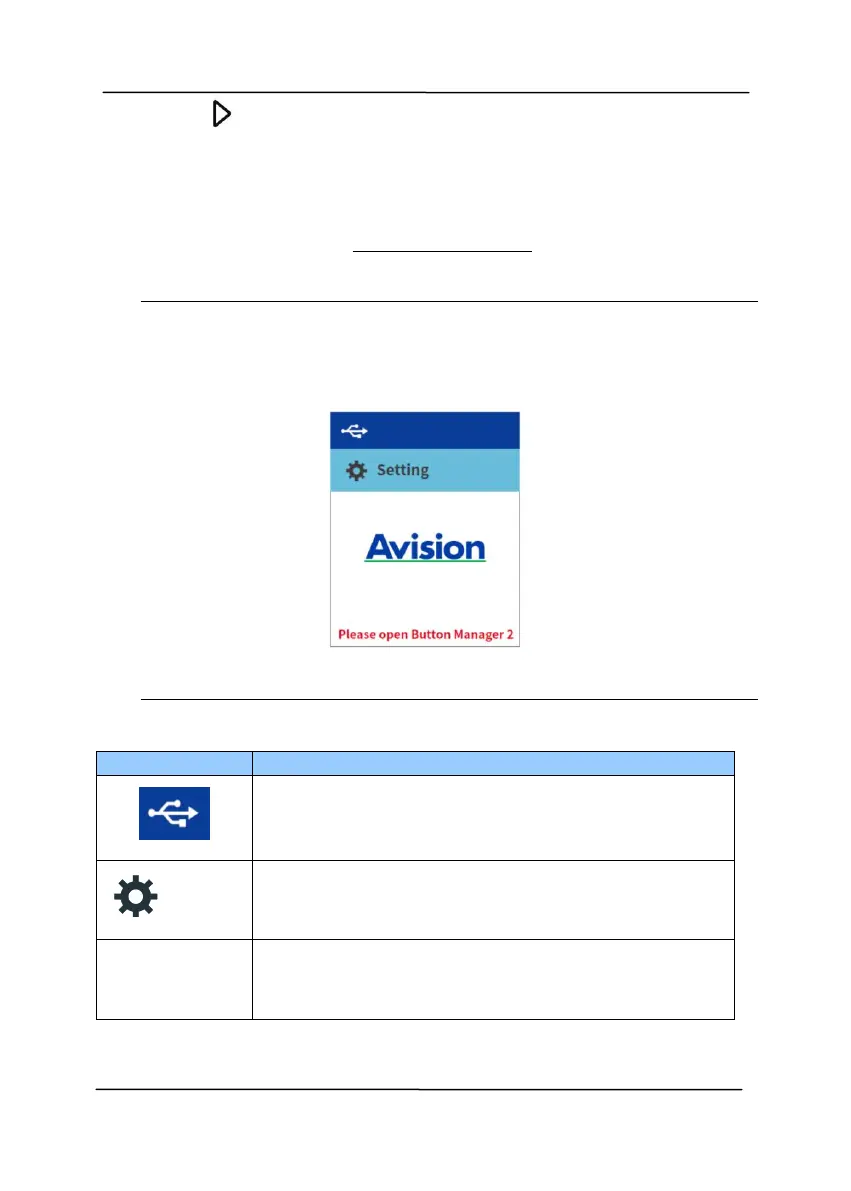
The following error will be prompted if Button Manager has
not been opened.
Status Bar/Options
Successful USB connection between PC and
scanner
Select to access more settings.
Display the scanner’s basic information.


 To Next Page