Need help?
Do you have a question about the Avision FS-0913B and is the answer not in the manual?
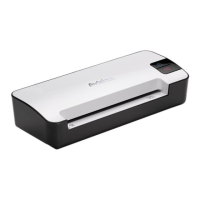
Introduces the portable handheld scanner and its basic functions.
Lists all the items included in the scanner package.
Details the components and buttons on the top surface of the scanner.
Identifies the ports and markings on the rear of the scanner.
Describes the rollers and glass on the bottom of the scanner.
Explains the icons and indicators shown on the scanner's LCD screen.
Details the meaning of the scanner's LED indicator lights.
Provides steps and precautions for installing the scanner unit.
Provides important precautions for installing the scanner unit.
Step-by-step guide on how to install the rechargeable battery.
Instructions on how to charge the scanner's battery using a USB cable.
Guide on inserting a micro SD card for storing scanned images.
Covers the basic operational procedures for the scanner.
Lists document types that should not be scanned to avoid malfunction.
Instructions on how to power the scanner on and off.
Explains how to select file format, color mode, and resolution for scanning.
Step-by-step guide on how to perform a scan with the handheld scanner.
How to transfer scanned images from the scanner to a computer or iPad.
Instructions for viewing and downloading scanned images to an iPad.
How to rotate scanned images by 90 degrees for PDF files.
Guidance on creating multi-page PDF files from scanned documents.
Highlights the key features and capabilities of the Presto! PageManager software.
Lists the minimum hardware and software needed to run Presto! PageManager.
Step-by-step instructions for installing the Presto! PageManager software.
How to launch and navigate the Presto! PageManager application.
Guide on using OCR to convert scanned text into editable text.
Details how to use tools to adjust brightness, contrast, and color of scanned images.
Instructions on how to add text, lines, seals, and sticky notes to images.
Procedure for uninstalling the Presto! PageManager software.
Steps to calibrate the scanner for optimal image quality and sensor precision.
Instructions on how to clean the scanner's rollers and glass for better scans.
Answers common questions about scanner operation and issues.
Lists common error codes and their solutions during scanning.
Explains the meaning of information codes like SP0, SP1, SP2.


 To Next Page
 General