4
450041000513 A1
8. DDNS & UPnP Setup
►Quick DDNS Setup
You may set up DDNS to be used in connection when
your DVR is set to use PPPoE as its network connection.
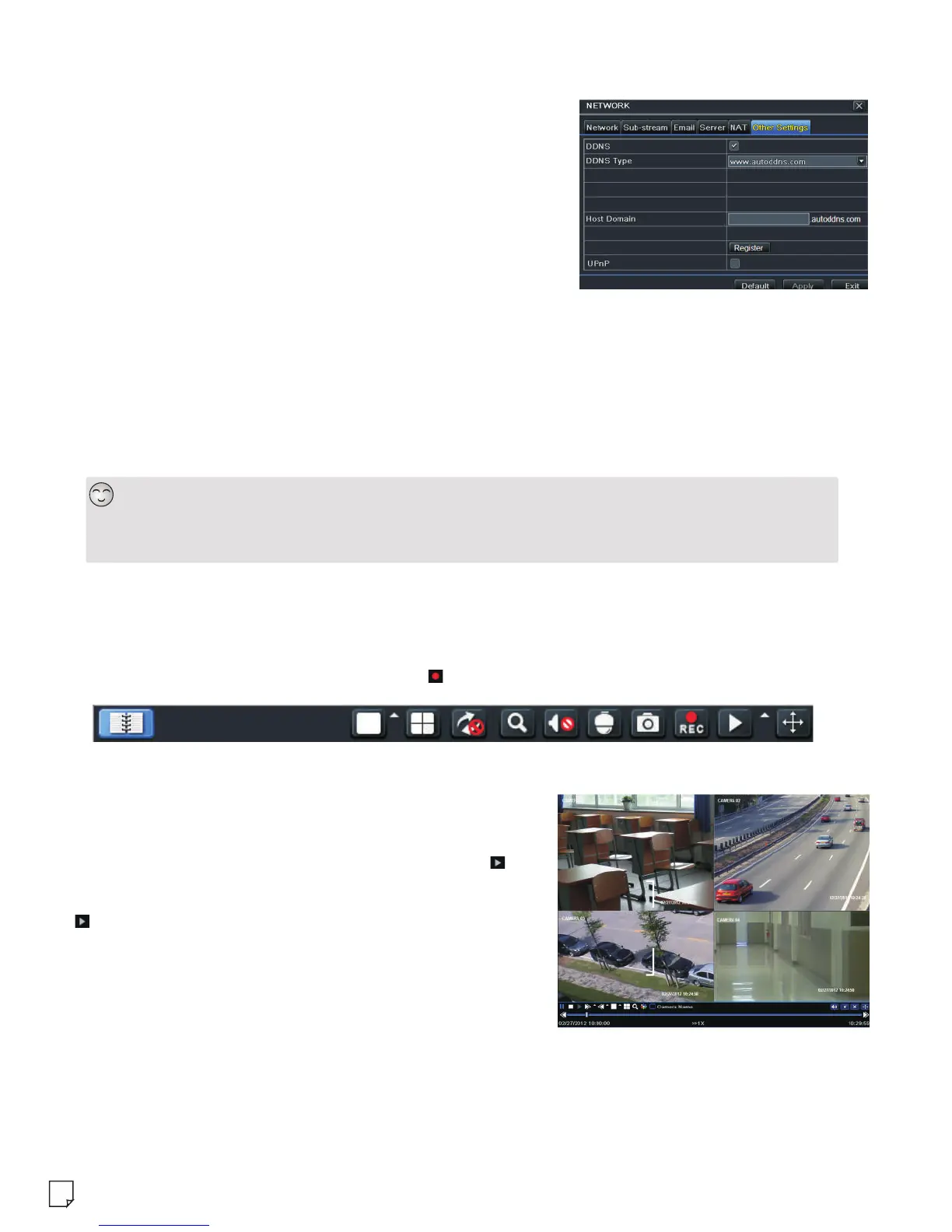
① Go to Main Mneu→Setup→Network→Other Settings.
② Enable DDNS and select “www.autoddns.com”
in the dropdown list of the DDNS Type. Then self-define
the host name. After you register it successfully, save
the settings by clicking “Apply” button. Now, you can
remotely access the DVR using the domain name via WAN.
►UPnP Setup
You can use the UPnP function to enable the fast connection of the device to WAN via a router
without port mapping.
① Go to Other Settings tab and enable UPnP and then click “Apply” button to save.
② Enable the UPnP function in the router.
9. Manual Recording
Before recording, please install and format a HDD. Right click the mouse in the live interface
to pop up the following menu toolbar. Click button to start recording.
10. Playback
Right click the mouse in the live interface to pop up the
menu toolbar. Click the little triangle button beside
button to set playback time (eg. 5 minutes). Then click
button to play back the record from the past 5 minutes.
* Before setting UPnP, please configure the correct local IP address, subnet mask, gateway and DNS according
to the router. Make sure the HTTP port and data port are correctly set. Make sure the router supports UPnP
function.



 To Previous Page