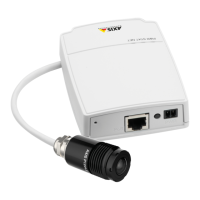
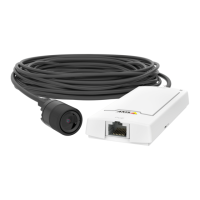
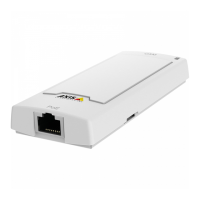
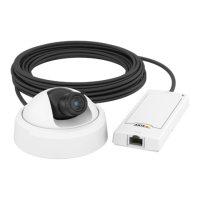
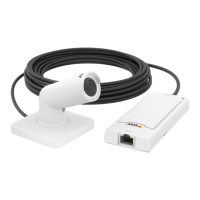
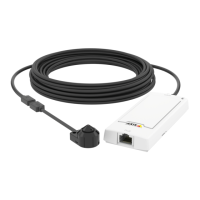
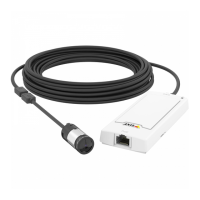
AXISP1204NetworkCamera
AccessingtheProduct
AccessfromtheInternet
Onceconnected,theAxisproductisaccessibleonyourlocalnetwork(LAN).ToaccesstheproductfromtheInternetyoumust
congureyournetworkroutertoallowincomingdatatrafctotheproduct.Todothis,enabletheNAT-traversalfeature,which
willattempttoautomaticallyconguretheroutertoallowaccesstotheproduct.ThisisenabledfromSetup>SystemOptions>
Network>TCP/IPAdvanced.
Formoreinformation,seeNATtraversal(portmapping)forIPv4,onpage35.SeealsoAXISInternetDynamicDNSService
atwww.axiscam.net
ForTechnicalnotesonthisandothertopics,visittheAxisSupportwebatwww.axis.com/techsup
SettheRootPassword
ToaccesstheAxisproduct,youmustsetthepasswordforthedefaultadministratoruserroot.ThisisdoneintheCongureRoot
Passworddialog,whichappearswhentheproductisaccessedforthersttime.
Topreventnetworkeavesdropping,therootpasswordcanbesetviaanencryptedHTTPSconnection,whichrequiresanHTTPS
certicate.HTTPS(HypertextTransferProtocoloverSSL)isaprotocolusedtoencrypttrafcbetweenwebbrowsersandservers.The
HTTPScerticateensuresencryptedexchangeofinformation.SeeHTTPS,onpage34.
Thedefaultadministratorusernamerootispermanentandcannotbedeleted.Ifthepasswordforrootislost,theproductmustbe
resettothefactorydefaultsettings.SeeResettoFactoryDefaultSettings,onpage40.
TosetthepasswordviaastandardHTTPconnection,enteritdirectlyinthedialog.
TosetthepasswordviaanencryptedHTTPSconnection,followthesesteps:
1.ClickCreateself-signedcerticate.
2.ProvidetherequestedinformationandclickOK.Thecerticateiscreatedandthepasswordcannowbesetsecurely.A
certicateiscreated,enablingencryptionofalltrafctoandfromtheproduct,andthepasswordcannowbesetsecurely.
3.Enterapasswordandthenre-enterittoconrmthespelling.
4.ClickOK.Thepasswordhasnowbeencongured.
8



 To Next Page