Need help?
Do you have a question about the Axis P1275 and is the answer not in the manual?
Steps to access the device via a web browser using its IP address or hostname.
Recommendations for setting strong passwords to protect data and services.
Instructions for setting the initial root password for the administrator account.
Discusses capture modes and exposure modes to optimize image quality.
Details different exposure modes (Automatic, Flicker-free, Flicker-reduced, Hold current).
Settings to reduce noise, like adjusting exposure mode and max shutter.
Settings to reduce motion blur by adjusting shutter speed and gain.
Tips to reduce bandwidth usage, like using H.264, Zipstream, or dynamic FPS.
Steps to configure network storage for saving recordings.
How to record video locally (SD card) or remotely and how to view recordings.
Creating rules to trigger actions based on specific events like motion detection.
Guides on creating rules, selecting conditions, and defining actions.
Example setup for recording video triggered by motion detection with pre/post buffering.
Detailed steps to reset the device to its factory default configuration.
Important notes and steps for upgrading the device's firmware.
The AXIS P12 Series comprises several network cameras, including the AXIS P1244, P1245, P1254, P1264, P1265, and P1275, all detailed in this user manual. This series is designed for surveillance and monitoring, offering various features to optimize image quality, manage data streams, and enhance security.
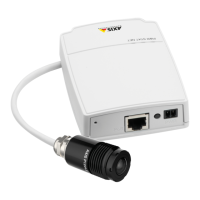
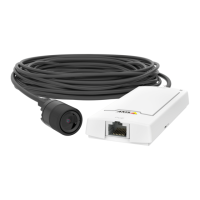
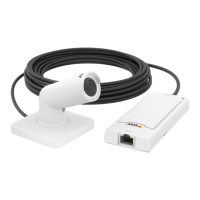
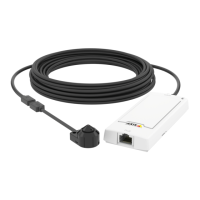
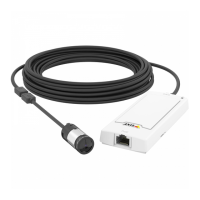
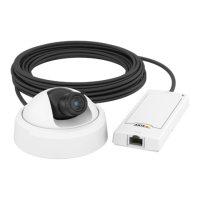
The core function of the AXIS P12 Series network cameras is to capture and stream video over a network. These devices consist of a main unit and a sensor unit, which are connected via an RJ12 connector. The main unit features a Status LED, a control button, an RJ12 connector for the sensor unit, a network connector (PoE) for power and data, and an SD card slot for local storage.
The cameras are designed to be integrated into a network, allowing users to access the live view page through a web browser using the device's IP address or hostname. For initial setup, a root password must be configured to secure access to the device. The default administrator username is "root," and it is crucial to set a strong, secure password to protect data and services. Axis devices send the initially set password in clear text, so it's recommended to establish a secure and encrypted HTTPS connection after the first login and then change the password. Password policies are flexible, but using a password of at least 8 characters, preferably generated by a password generator, and changing it annually is advised.
The cameras support various image quality settings, including different capture modes that adjust frame rate and resolution based on surveillance requirements. Users can select exposure modes such as Automatic exposure, Flicker-free (for artificial lighting), and Flicker-reduced (for mixed artificial and bright light conditions). The current exposure settings can also be locked using "Hold current."
To manage image quality in challenging lighting, the cameras offer features to reduce noise in low-light conditions by adjusting exposure mode to automatic, slowing down shutter speed, reducing sharpness, and lowering max gain. Conversely, to reduce motion blur in low-light, users can increase shutter speed and gain. The cameras also handle scenes with strong backlight using Wide Dynamic Range (WDR), which makes both dark and bright areas visible. WDR can be enabled and adjusted via a contrast slider, though users should be aware that it may cause artifacts.
For monitoring long and narrow areas, the corridor format can be utilized, which rotates the view by 90° or 270° to optimize the field of view. Facial recognition can be improved by setting optimal pixel resolution using the camera's pixel counter, allowing users to adjust a rectangle around the area of interest to determine the necessary resolution.
Privacy masks are a key feature, allowing users to define areas in the video stream that are obscured by solid color blocks or blurred elements. These masks appear on all snapshots, recorded video, and live streams, ensuring privacy in sensitive areas.
Overlays can be superimposed on the video stream to provide additional information, such as timestamps or custom text messages. For example, a text overlay like "Motion detected" can be displayed when the camera detects motion, triggered by AXIS Video Motion Detection.
Streaming and storage management are crucial for network cameras. The AXIS P12 Series offers bitrate control options: Variable Bitrate (VBR) ensures constant image quality by adjusting bandwidth based on scene activity, requiring storage margins. Maximum Bitrate (MBR) allows users to set a target bitrate to manage bandwidth limitations, prioritizing either image quality or frame rate. Average Bitrate (ABR) automatically adjusts bitrate over time to meet specified targets and optimize video quality based on available storage, allowing users to define total storage needed for a given retention time.
The cameras support different video compression formats, including Motion JPEG (MJPEG) for individual JPEG images streamed sequentially, and H.264 (MPEG-4 Part 10/AVC) for significantly reduced file sizes and bandwidth consumption without compromising image quality. H.264 is a licensed technology, and the product includes one viewing client license.
To reduce bandwidth and storage, users can enable Zipstream functionality, dynamic GOP (Group of Pictures) with a high GOP length, increase compression, and turn on dynamic FPS. Network storage can be set up by specifying the IP address of a host server and the shared location, with optional login credentials. Video recording can be initiated from the camera's live view, and recordings can be watched from the storage section of the web interface.
The AXIS P12 Series cameras offer a range of features to enhance usability and automation. Users can create rules and alerts to trigger specific actions based on events. These rules consist of conditions (e.g., motion detection, tampering) and actions (e.g., start recording, send email, show overlay text). For instance, a rule can be configured to record video to an SD card five seconds before motion is detected and stop one minute after. Another example is sending an email notification if the lens is spray-painted or covered, triggered by the "Tampering" condition.
The cameras support AXIS Camera Application Platform (ACAP), an open platform for third-party analytics and applications. AXIS People Counter, an embedded analytic application, is available for counting people in retail or other environments, eliminating the need for a dedicated computer.
Maintenance of the AXIS P12 Series involves several troubleshooting and upkeep options. The device can be reset to factory default settings, which clears all configurations including the IP address. This can be done by disconnecting power, pressing and holding the control button while reconnecting power for 15-30 seconds until the status LED flashes amber, and then releasing the button when the LED turns green. Alternatively, a factory reset can be performed through the web interface under Settings > System > Maintenance.
Firmware upgrades are crucial for maintaining device functionality and resolving issues. Users can check the current firmware version via the help menu on the product's webpage. Firmware files can be downloaded from axis.com/support and installed through the web interface. Preconfigured and customized settings are generally saved during firmware upgrades, though this is not guaranteed. It's important to ensure the product remains powered during the upgrade process and to review release notes for new firmware versions. AXIS Device Manager can be used for multiple upgrades.
Troubleshooting resources are available on axis.com/support. Common issues addressed include firmware upgrade failures (often due to incorrect firmware files), problems after firmware upgrades (which can be resolved by rolling back to a previous version), and issues with setting IP addresses (such as being on a different subnet or IP address conflicts). If the device is inaccessible from a browser, users should check HTTPS settings, reset the password if lost, or use AXIS IP Utility/Device Manager if the IP address has changed due to DHCP. Certificate errors when using IEEE 802.1X can be resolved by synchronizing date and time settings with an NTP server.
Performance considerations are also detailed, highlighting factors that affect bandwidth and frame rate. High image resolution, lower compression, rotating the image in the GUI, access by many clients, simultaneous viewing of different streams, and heavy event settings usage can all impact performance. Using identical stream profiles, avoiding simultaneous MJPEG and H.264 streams, and ensuring sufficient network bandwidth are recommended for optimal performance. Poorly performing client computers can also affect perceived performance. The Status LED provides visual indications of the device's operational status, including normal operation, startup, firmware upgrades, and upgrade failures. The SD card slot allows for local storage, and users are cautioned to handle SD cards carefully to prevent damage or data loss, unmounting them from the webpage before removal.
 General
| Model | Axis P1275 |
|---|---|
| Type | Network Camera |
| Image Sensor | 1/2.8" Progressive Scan RGB CMOS |
| Resolution | 1920x1080 |
| Frame Rate | Up to 30 fps |
| Audio Compression | AAC, G.711 |
| Day/Night | Yes |
| Video Compression | H.264, MJPEG |
| Audio Support | Yes |
| Ethernet | 10/100 Mbps |
| Power | Power over Ethernet (PoE) |
| Operating Conditions | -20 °C to 50 °C |
| Weather Resistance | IP66 |

 To Next Page