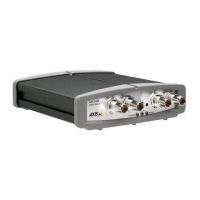
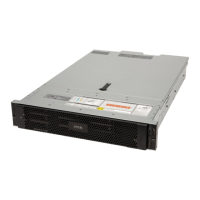
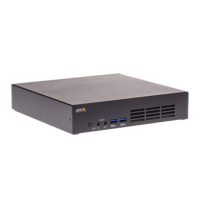
AXISCameraStationS2108Appliance
Configureyourdevice
2.Selectthecamerayouwanttoexportrecordingsfrom.
3.Click
todisplaytheselectionmarkers.
4.Dragthemarkerstoincludetherecordingsthatyouwanttoexport.
5.Click
toopentheExporttab.
6.ClickExport....
PlayandverifyrecordingsinAXISFilePlayer
1.Gotothefolderwiththeexportedrecordings.
2.Double-clickAXISFilePlayer.
3.Clicktoshowtherecording’snotes.
4.Toverifythedigitalsignature:
4.1GotoTools>Verifydigitalsignature.
4.2SelectValidatewithpasswordandenteryourpassword.
4.3ClickVerify.Thevericationresultpageappears.
Note
DigitalsignatureisdifferentfromSignedvideo.Signedvideoallowsyoutotracevideobacktothecameraitcamefrom,
makingitpossibletoverifythattherecordingwasn'ttamperedwith.SeeSignedvideoandthecamera’susermanualfor
moreinformation.
Networkconguration
WhenAXISCameraStationclient,AXISCameraStationserver,andtheconnectednetworkdevicesareinstalledondifferentnetworks,
youmightneedtocongureproxyorrewallsettingsbeforeusingAXISCameraStation.
Clientproxysettings
Whentheclientandtheserverareseparatedbyaproxyserver,conguretheclientproxysettings.
1.Double-clicktheAXISCameraStationclienticon.
2.ClickChangeclientproxysettings.
3.Changetheclientproxysettings.
4.ClickOK.
Serverproxysettings
Whennetworkdevicesandtheserverareseparatedbyaproxyserver,conguretheserverproxysettings.
1.Double-clicktheAXISServiceControliconinWindowsnoticationarea.
2.SelectModifysettings.
3.IntheProxysettingssection,usethedefaultSystemaccountinternetoptionorselectUsemanualproxysettings.
4.ClickSave.
NATandFirewall
18



 To Next Page