Connect to your favourite device
o Turn on Bluetooth on your device (phone, computer, tablet, etc.) to scan for new
devices.
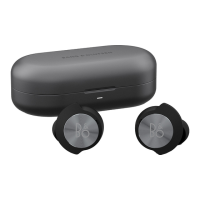
o Beoplay EQ will appear as an available connection.
o Tap Beoplay EQ to connect.
o Your Beoplay EQ are now ready for use.
Note: When switched on, they will attempt to reconnect to previously paired
devices automatically.
1. 5
Alternative Bluetooth pairing procedure
o Place both earphones in the charging case and close the case lid.
o Now fully open the case lid.
o Allow for the battery status light indicator on the charging case to turn off after
approx. 5 seconds. If the battery status light indicator does not turn off, close the
case lid and open it fully again.
o Once the battery status light indicator has turned off, press and hold the touch
field on both the left and right earphone for 6 seconds to trigger Bluetooth pairing
mode.
o The light indicator on the charging case will flash blue until paired successfully.
Beoplay EQ are ready to be connected to your device (phone, computer, tablet,
etc.)
o If not paired with a device within 1 minute, Beoplay EQ will go out of pairing
mode, and you will have to start over again.
Note: Make sure that the earphones are removed from the charging case to
initiate the alternative Bluetooth pairing procedure.
If your device is already paired with and connected to Beoplay EQ, and you would like to
Bluetooth pair with another device, you can initiate Bluetooth pairing from the Bang & Olufsen
app. Once Beoplay EQ are added to the app and selected, you are directed to the product page as
shown below.


 To Next Page
 Loading...