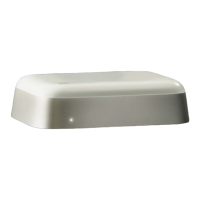
Beoconnect Core
6
FAVOURITES
Beoconnect Core supports Favourites through the Bang & Olufsen App or a paired remote
control that has Favourite buttons (MyButtons).
On your product page in the Bang & Olufsen App, go to Radio and then Search to pick a
station. Tap the More icon to assign it to a favourite.
The buttons are pre-programmed with the most popular radio stations in your area and
can be easily customised to your preferences: switch to other stations using Bang & Olufsen
Radio or access playlists through Spotify Connect, Deezer Connect, or Tidal Connect.
To save a favourite, begin playing either radio or a playlist on your Beoconnect Core. Then
press and hold the Favorite button that you wish to assign the favourite to on the remote
control for two seconds. A conrmation sound will indicate that your selection has been
saved. In the Bang & Olufsen app, press and hold the Favourite button to save the currently
playing radio station or playlist to that button. Once saved, simply access your favourite with
a short press of the button.


 To Next Page
 Loading...