Need help?
Do you have a question about the Barracuda ADC and is the answer not in the manual?
Login with admin/admin and configure TCP/IP settings like IP address, netmask, gateway, DNS, and optional VLAN ID.
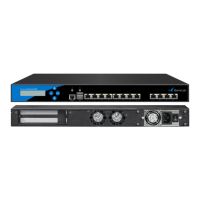
The Barracuda Load Balancer ADC is a network appliance designed to optimize application delivery and ensure high availability for web-based services. It acts as a central point for managing and distributing network traffic across multiple servers, enhancing performance, reliability, and security for your applications.
The primary function of the Barracuda Load Balancer ADC is to intelligently distribute incoming network requests among a group of backend servers. This load balancing capability prevents any single server from becoming a bottleneck, ensuring that applications remain responsive even under heavy traffic loads. By distributing requests, the device improves the overall performance and scalability of your web infrastructure.
Beyond basic load balancing, the Barracuda Load Balancer ADC offers advanced application delivery features. It can perform health checks on backend servers, automatically taking unhealthy servers out of rotation and redirecting traffic to healthy ones. This ensures continuous service availability and prevents users from encountering unresponsive applications. The device also supports various load balancing algorithms, allowing administrators to choose the most suitable method for their specific application needs, such as round-robin, least connections, or IP hash.
Security is another critical aspect of the Barracuda Load Balancer ADC's functionality. It can act as a reverse proxy, shielding backend servers from direct exposure to the internet. This provides an additional layer of defense against various cyber threats. The device integrates with corporate firewalls, requiring specific ports to be opened for proper operation, including those for technical support, DNS, firmware updates, activation, application security, and Network Time Protocol (NTP). It also supports the configuration of 1:1 NATs as needed to access VIP addresses of load-balanced services, further enhancing network security and flexibility.
The Barracuda Load Balancer ADC is designed to integrate seamlessly into existing network environments. It supports both two-armed and one-armed deployment configurations, providing flexibility to adapt to different network topologies. In a two-armed deployment, the device sits between the internet/firewall and the backend servers, managing traffic flow in both directions. In a one-armed deployment, it operates on a single network segment, acting as a proxy for the servers. These deployment options allow organizations to choose the setup that best fits their infrastructure and security requirements.
Setting up the Barracuda Load Balancer ADC involves a straightforward installation process. The device needs to be securely placed in your environment, and then connected to your network switch via its management port. A monitor and keyboard can be connected for initial configuration, and the device is powered on using a standard AC input (100-240 volts, 50/60 Hz).
Initial configuration is performed through a web-based interface. After the device boots up, you log in using default credentials (admin/admin) to configure the management IP address and other network settings. This includes setting the management IP address/netmask, gateway address, optional management VLAN ID, primary/secondary DNS servers, and optional proxy server configuration. These settings are crucial for the device to communicate within your network and access external resources.
Subscription activation is a key usage feature that ensures the device receives Energize Updates. This process can be done automatically if the device has internet access, or manually by entering an activation code. Energize Updates provide the latest security definitions, application templates, and firmware improvements, keeping the device protected and optimized.
The web interface provides comprehensive tools for configuring network settings and creating services. Administrators can define virtual IP (VIP) addresses, which are the public-facing IP addresses that users connect to. These VIPs are then associated with backend server pools, allowing the load balancer to distribute traffic among them. The interface allows for detailed configuration of load balancing algorithms, health checks, and other application delivery policies.
The device's architecture supports multiple virtual IP addresses, as shown in the deployment diagrams (e.g., 192.168.9.110, 192.168.9.120, 192.168.9.130), allowing for the management of various applications or services through a single appliance. The integration with managed switches (e.g., 192.168.9.2) and backend server networks (e.g., 10.10.10.x or 192.168.9.x) demonstrates its capability to handle complex network environments.
Regular maintenance is crucial for the optimal performance and security of the Barracuda Load Balancer ADC. Firmware updates are a core maintenance feature, ensuring the device runs on the latest software version with bug fixes, performance enhancements, and new functionalities. The web interface provides an "ADVANCED > Firmware Update" section where administrators can check for the latest general release. Updates are downloaded and applied through the interface, with the device automatically rebooting upon completion. It is important not to power off the device during this process.
Security best practices dictate changing default credentials immediately after initial setup. The Barracuda Load Balancer ADC facilitates this through the "BASIC > Administration" section, where the administrator password can be easily changed. This prevents unauthorized access and strengthens the device's security posture.
Monitoring the subscription status is another important maintenance task. The "BASIC > Status" page displays the Energize Updates subscription status. If the status is "Not Activated," administrators can initiate the activation process. Keeping the subscription active ensures continuous access to critical updates and support.
The device's comprehensive documentation, available on the Barracuda TechLibrary, serves as a valuable maintenance resource. It provides detailed guides on deployment options, configuration of network settings and services, and troubleshooting. This ensures that administrators have access to the information needed to effectively manage and maintain the Barracuda Load Balancer ADC throughout its lifecycle. The TechLibrary also offers an overview of the device, helping users understand its capabilities and how to leverage them.
In summary, the Barracuda Load Balancer ADC is a robust and versatile appliance designed to enhance the performance, reliability, and security of web applications. Its intuitive web interface, combined with comprehensive documentation and essential maintenance features like firmware updates and password management, makes it a powerful tool for modern network infrastructures.
 General
| Model | Barracuda ADC |
|---|---|
| Category | Network Hardware |
| Function | Application Delivery Controller |
| Load Balancing | Yes |
| SSL Offloading | Yes |
| High Availability | Yes |
| Traffic Management | Yes |
| Layer | Layer 4-7 |
| SSL Acceleration | Yes |
| Throughput | Varies by model |
| SSL/TLS Transactions Per Second | Varies by model |
| Compression | Yes |
| Caching | Yes |
| IPv6 Support | Yes |
| Security Features | Web Application Firewall, DDoS Protection |
| Load Balancing Methods | Round Robin, Least Connections |
| Management Interface | Web GUI, CLI, API |
| Application Security | Web Application Firewall (WAF) |

 To Next Page