EasyManua.ls Logo

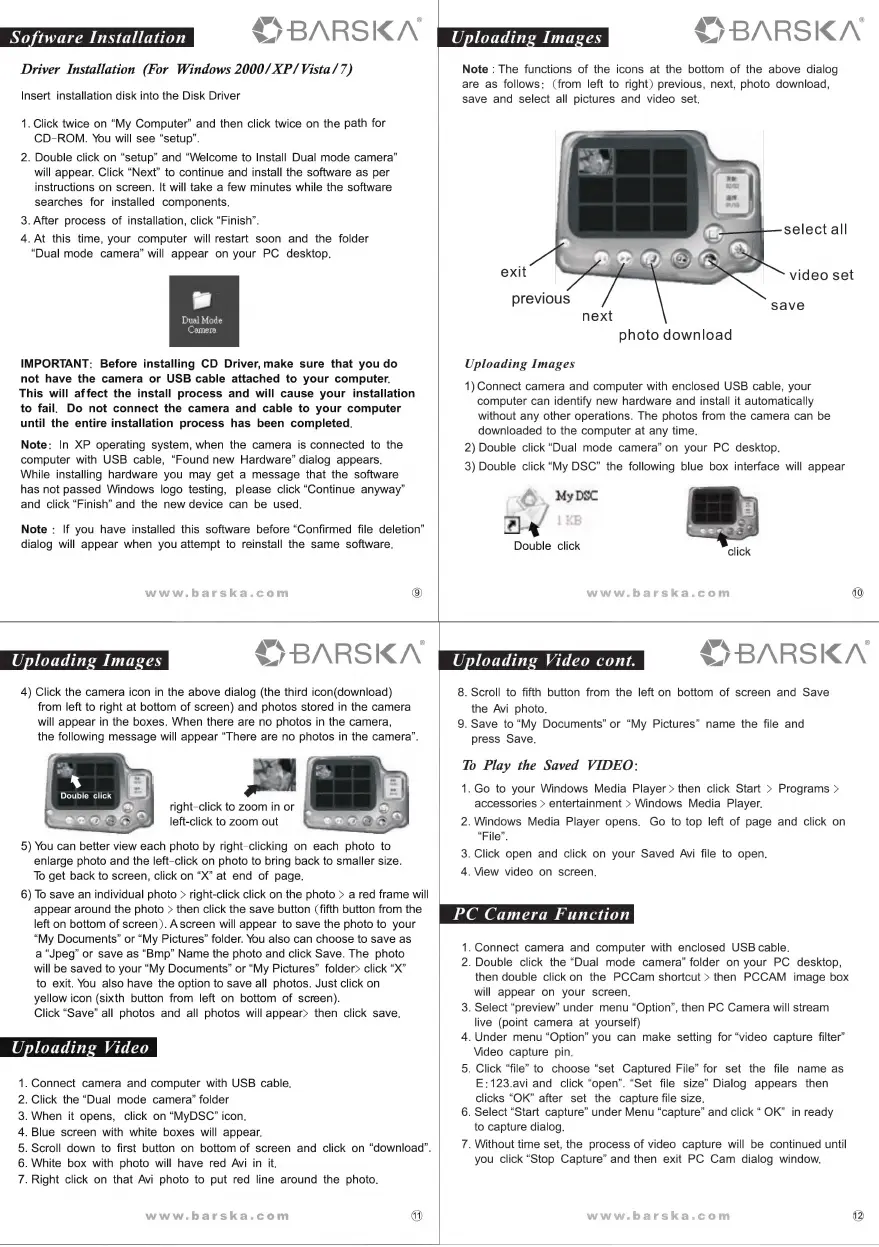
Barska Point 'n View - Software Installation Guide; Driver Installation (Windows); Important Installation Notes; Uploading Images from Camera

Barska Point 'n View
3 pages
Print Icon
To Previous Page IconTo Previous Page
Loading...
Software
Installation
Driver
Installation
(For
Windows
2000/
XP/Vista/7)
Insert
installation
disk
into
the
Disk
Driver
1.
Click
twice
on
“My
Computer”
and
then
click
twice
on
the
path
for
CD-ROM.
You
will
see
“setup”.
2.
Double
click
on
“setup”
and
“Welcome
to
Install
Dual
mode
camera”
will
appear.
Click
“Next”
to
continue
and
install
the
software
as
per
instructions
on
screen.
It
will
take
a
few
minutes
while
the
software
searches
for
installed
components.
3.
After
process
of
installation,
click
“Finish”.
4.
At
this
time,
your
computer
will
restart
soon
and
the
folder
“Dual
mode
camera’
will
appear
on
your
PC
desktop.
IMPORTANT:
Before
installing
CD
Driver,make
sure
that
you
do
not
have
the
camera
or
USB
cable
attached
to
your
computer.
This
will
affect
the
install
process
and
will
cause
your
installation
to
fail.
Do
not
connect
the
camera
and
cable
to
your
computer
until
the
entire
installation
process
has
been
completed.
Note:
In
XP
operating
system,
when
the
camera
is
connected
to
the
computer
with
USB
cable,
“Found
new
Hardware”
dialog
appears.
While
installing
hardware
you
may
get
a
message
that
the
software
has
not
passed
Windows
logo
testing,
please
click
“Continue
anyway”
and
click
“Finish”
and
the
new
device
can
be
used.
Note
:
If
you
have
installed
this
software
before
“Confirmed
file
deletion”
dialog
will
appear
when
you
attempt
to
reinstall
the
same
software.
\
L
®
$
-BARSKA
4)
Click
the
camera
icon
in
the
above
dialog
(the
third
icon(download)
from
left
to
right
at
bottom
of
screen)
and
photos
stored
in
the
camera
will
appear
in
the
boxes.
When
there
are
no
photos
in
the
camera,
the
following
message
will
appear
“There
are
no
photos
in
the
camera”.
right-click
to
zoom
in
or
left-click
to
zoom
out
5)
You
can
better
view
each
photo
by
right-clicking
on
each
photo
to
enlarge
photo
and
the
left-click
on
photo
to
bring
back
to
smaller
size.
To
get
back
to
screen,
click
on
“X”
at
end
of
page.
6)
To
save
an
individual
photo
>
right-click
click
on
the
photo
>
a
red
frame
will
appear
around
the
photo
>
then
click
the
save
button
(fifth
button
from
the
left
on
bottom
of
screen).
A
screen
will
appear
to
save
the
photo
to
your
“My
Documents”
or
“My
Pictures”
folder.
You
also
can
choose
to
save
as
a
“Jpeg”
or
save
as
“Bmp”
Name
the
photo
and
click
Save.
The
photo
will
be
saved
to
your
“My
Documents”
or
“My
Pictures”
folder>
click
“X”
to
exit.
You
also
have
the
option
to
save
all
photos.
Just
click
on
yellow
icon
(sixth
button
from
left
on
bottom
of
screen).
Click
“Save”
all
photos
and
all
photos
will
appear>
then
click
save.
Uploading
Video
.
Connect
camera
and
computer
with
USB
cable.
.
Click
the
“Dual
mode
camera”
folder
.
When
it
opens,
click
on
“MyDSC”
icon.
.
Blue
screen
with
white
boxes
will
appear.
.
White
box
with
photo
will
have
red
Avi
in
it.
.
Right
click
on
that
Avi
photo
to
put
red
line
around
the
photo.
NOOR
WD
=
\aiN
BARSKA
Uploading
Video
cont.
.
Scroll
down
to
first
button
on
bottom
of
screen
and
click
on
“download”.
VS
BARSKN
Note
:
The
functions
of
the
icons
at
the
bottom
of
the
above
dialog
are
as
follows:
(from
left
to
right)
previous,
next,
photo
download,
save
and
select
all
pictures
and
video
set.
select
all
exit
video
set
previous
eae
nex
photo
download
Uploading
Images
1)
Connect
camera
and
computer
with
enclosed
USB
cable,
your
computer
can
identify
new
hardware
and
install
it
automatically
without
any
other
operations.
The
photos
from
the
camera
can
be
downloaded
to
the
computer
at
any
time.
2)
Double
click
“Dual
mode
camera”
on
your
PC
desktop.
3)
Double
click
“My
DSC”
the
following
blue
box
interface
will
appear
A.
MyDsc
2}
y
Double
click
W
*SBARSKN
8.
Scroll
to
fifth
button
from
the
left
on
bottom
of
screen
and
Save
the
Avi
photo.
9.
Save
to
“My
Documents”
or
“My
Pictures”
name
the
file
and
press
Save.
To
Play
the
Saved
VIDEO:
1.
Go
to
your
Windows
Media
Player
>
then
click
Start
>
Programs
>
accessories
>
entertainment
>
Windows
Media
Player.
2.
Windows
Media
Player
opens.
Go
to
top
left
of
page
and
click
on
“File”.
3.
Click
open
and
click
on
your
Saved
Avi
file
to
open.
4.
View
video
on
screen.
PC
Camera
Function
1.
Connect
camera
and
computer
with
enclosed
USB
cable.
2.
Double
click
the
“Dual
mode
camera”
folder
on
your
PC
desktop,
then
double
click
on
the
PCCam
shortcut
>
then
PCCAM
image
box
will
appear
on
your
screen.
3.
Select
“preview”
under
menu
“Option”,
then
PC
Camera
will
stream
live
(point
camera
at
yourself)
4.
Under
menu
“Option”
you
can
make
setting
for
“video
capture
filter”
Video
capture
pin.
5.
Click
“file”
to
choose
“set
Captured
File”
for
set
the
file
name
as
E:123.avi
and
click
“open”.
“Set
file
size”
Dialog
appears
then
clicks
“OK”
after
set
the
capture
file
size.
6.
Select
“Start
capture”
under
Menu
“capture”
and
click
OK”
in
ready
to
capture
dialog.
7.
Without
time
set,
the
process
of
video
capture
will
be
continued
until
you
click
“Stop
Capture”
and
then
exit
PC
Cam
dialog
window.

Related product manuals