WINDOWS
TM
SETTINGS FOR LINE INPUT
You will need to make sure that the computer is ready to accept your
recordings into the line input socket on the sound card.
Double–click on the loudspeaker icon on the toolbar. This should bring
up the WINDOWS
TM
mixer. Click Options then Properties, select
the Recording button and look in the Show the following volume
controls window. Make sure there is a check in the LINE box, if not,
click in the box and then click OK. Your computer will now record line
level input, usually via a 3.5mm stereo jack socket and on lap-top
computers, this is often the same socket as the microphone input.
CREATING .WAV FILES
Transfer the bat recording to a format that the computer can recognise
e.g. .WAV file. This just requires an audio connecting lead between the
tape recorder and the computer sound card.
If you do not have an audio recording program, the WINDOWS
TM
recorder
will record adequately, but make sure that you use the 44.1kHz sampling
rate, for best results. This can be accessed in WINDOWS
TM
from Start-
Programs-Accessories-Entertainment. To change the sample-rate,
go to: File-Properties-Choose from: select Recording formats from
the drop-down menu, then click Convert Now. Choose 44100 16 Bit
Stereo and click OK.
You will need to go to the OPTIONS tab and select the line input for
record, as described earlier. Remember to label the recording with a
cryptic file name related to the place, date or species recorded.
You should always have a ‘new folder’ for more than one clip, from a
particular place. This means that you can use the same file-name for two
different places e.g. ‘45pip’.
The software that you use for analysis should have a Normalise function.
Normalising brings the signal to the maximum level possible (0dB) without
distorting it. You should normalise the recording to get the optimum
results from analysis software.
Use 44.1kHz sampling rate on digital recordings, including the recording
to .wav files into the computer. This sample rate, currently, is the format
most easily transferred to CD writer, for the copying of files from one
computer to another or for archiving.
ANALYSIS USING BATSCAN
Analysis of the recordings can be quickly and easily achieved, using BatScan
The BatScan computer program is designed for examination of the time
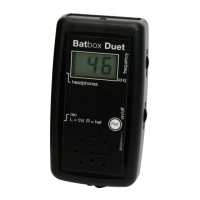
and frequency characteristics of the Batbox Duet frequency division


 To Next Page