Plug into USB port
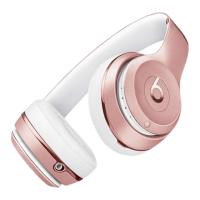
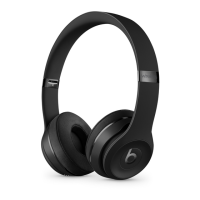
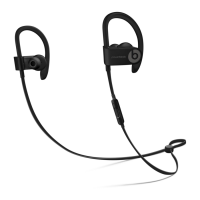
Plug your Beats product directly into the USB port of your computer using the appropriate
cable:
Beats Pill
+
and Beats
x
: Lightning-to-USB cable
Other Beats products: micro-USB-to-USB cable that supports data transfer
Check for firmware updates
Click the Beats status icon in your menu bar, then click the name of your product to go to the
Beats Updater website.
If a firmware update is available, and your battery is at least 20% charged, you'll see an
Update button in your browser window.
Update your firmware
Click Update, then follow the onscreen instructions.
If Beats Updater doesn't see your device or complete the update
Make sure that the USB cable is securely connected to your computer and Beats product.
Use another USB port on your computer. Don't use a USB hub.
Turn off your Beats product, then turn it back on.
Reset your Beats product.
Reset your computer.
Clean and store your Beats earphones or headphones
Learn how to clean, store, and care for your Beats by Dre earphones or headphones.


 To Next Page