Belinea 10 20 35W - Operating Instructions - 6
ENGLISH
OSD MENU FUNCTIONS
BRIGHTNESS / CONTRAST
Brightness: Adjusts brightness by using the
buttons
< or > (
and
in fi g. 4).
Contrast: Adjusts screen contrast by using the
buttons
< or > (
and
in fi g. 4).
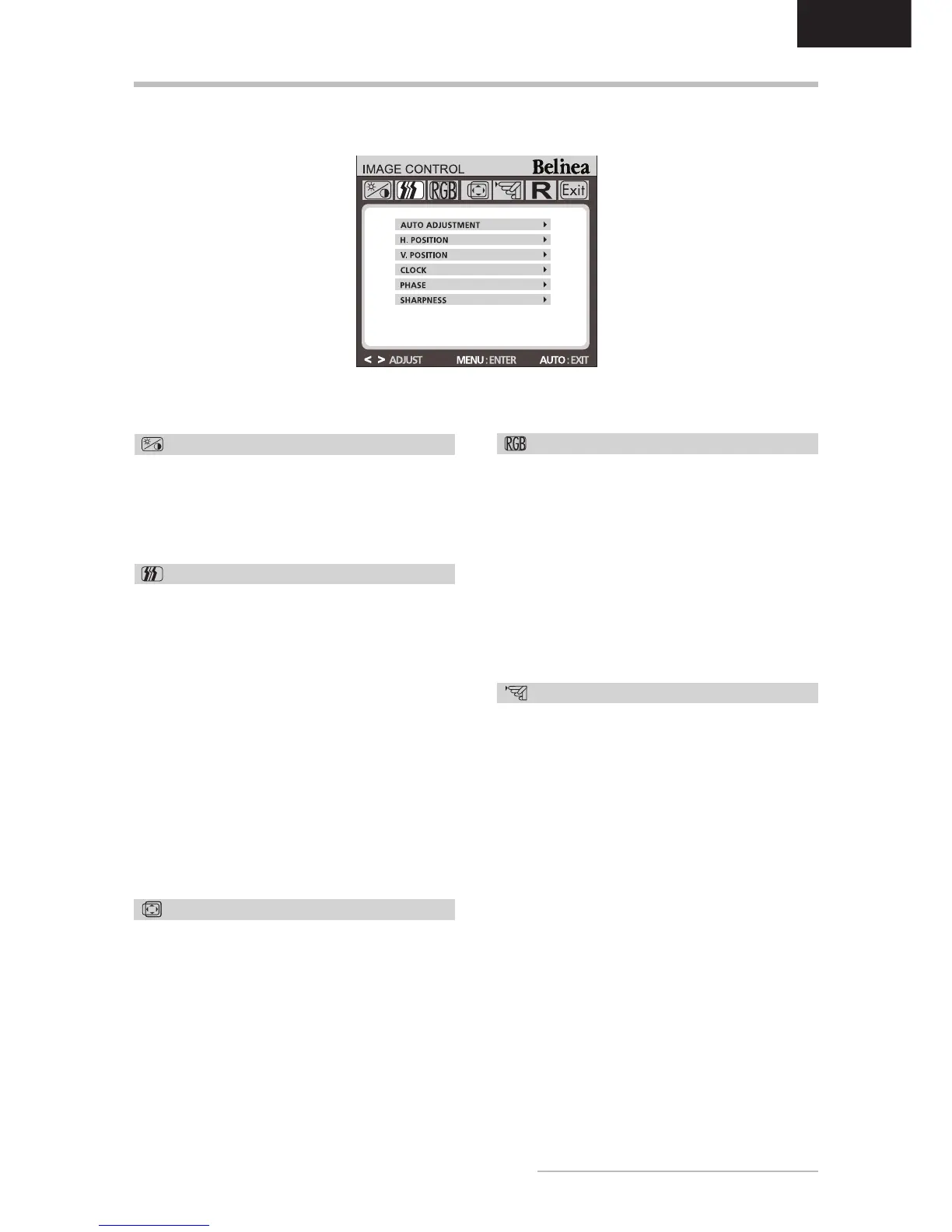
IMAGE CONTROL
Auto Adjustment: Automatically selects the
optimal settings for image parameters (image
position, phase, etc.) by using the button MENU
(
in fi g. 4).
H. Position: Controls the picture’s horizontal
position.
V. Position: Controls the picture’s vertical posi-
tion.
Clock: Sets up the internal clock. Larger values
make the displayed image appear wider; smaller
values make it appear compressed.
Phase: Adjusts the internal clock’s time lag in
order to optimize the screen image.
Sharpness: Controls image sharpness (only for
resolutions less than 1680 × 1050 pixels).
OTHER
Language: OSD menu language selection:
English, French, German, Italian, Spanish, Dutch,
Russian, Polish.
Input: Controls the selection of the input signal.
The monitor allows you to make the following con-
nections: analog graphics card via the 15-pin mini
D-Sub interface (see fi g. 2a), digital graphics card
via the 24-pin DVI-D interface (see fi g. 2b).
Speaker Volume: Adjusts the monitor loud-
speaker output volume.
Information: There is an optional OSD window
(on/off) that displays the newly adjusted screen
resolution settings.
Autoswitch: This option allows you to decide if
the Auto Adjustment function should take effect
after each change to the monitor’s resolution.
OSD CONTROL
H. OSD Position: Controls the OSD menu’s
horizontal position.
V. OSD Position: Controls the OSD menu’s
vertical position.
OSD Timeout: Determines how long (in seconds)
the OSD menu waits before closing automatically
after no action has been performed.
COLOR
This menu lets you select a preset color tem-
perature (9300 K, 6500 K or sRGB (D65)) by
pressing the OSD buttons
< or > (
and
in
fi g. 4). Changes to the color temperature take
immediate effect on screen. If you wish to set
individual color values, select the Custom Color
option. Then press the MENU button (
in fi g.
4) to select the red, green and blue settings and
set the desired value using the OSD buttons
< or > (
and
in fi g. 4). The current settings
are automatically saved when you return to the
previous level or exit the OSD menu.


 To Next Page