EasyManua.ls Logo

Belkin F5D7050 - User Manual

Belkin F5D7050
44 pages
Print Icon
To Next Page IconTo Next Page
Loading...




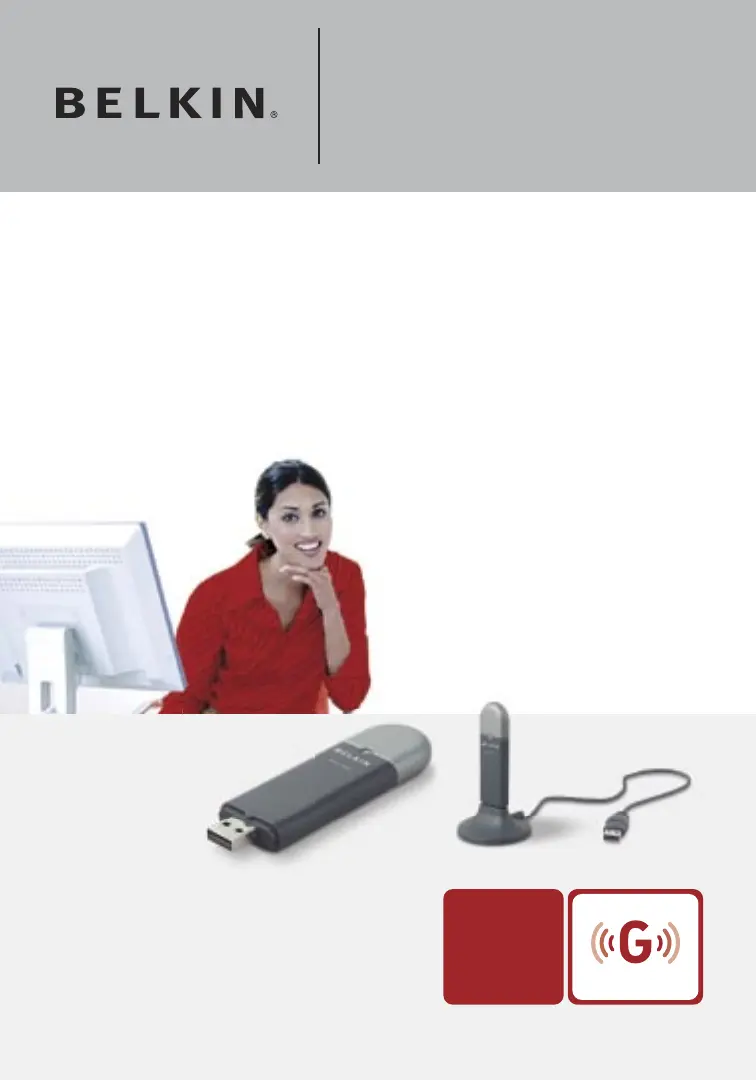
User Manual
F5D7050
Connect your desktop or notebook
computer to a wireless network
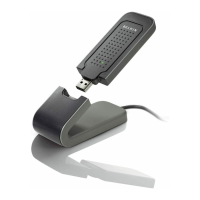
Wireless G USB
Network Adapter

Questions and Answers

  • C
    Caroline OliverAug 17, 2025
    What to do if the Power LED does not come ON and my Belkin F5D7050 Adapter is not working?
    • I
      ifloresAug 17, 2025
      If the adapter's power LED doesn't turn on and the adapter isn't working, first verify that the Adapter is firmly plugged into your computer's USB slot. Also, check that the drivers for the Card have been installed. You can also right-click the “My Computer” icon, choose “Properties”, go to “Device Manager”, and check if your Adapter is listed without errors.
  • A
    Ashlee WoodAug 20, 2025
    What to do if Link LED is solid but I cannot connect to the Internet with my Belkin Network Card?
    • M
      Matthew RussellAug 20, 2025
      If the Link LED is solid but you cannot connect to the Internet, there may be a mismatch between the encryption key settings in your computer and wireless router (or access point). Verify that the WEP key settings match.
  • U
    ufernandezAug 22, 2025
    Why is the Link LED blinking slowly on my Belkin Network Card, and I cannot connect to a wireless network or the Internet?
    • L
      Lisa BrownAug 22, 2025
      A slowly blinking Link LED, coupled with an inability to connect to a wireless network or the Internet, suggests a mismatch between the network name (SSID) settings in your wireless network properties. Check the SSID settings to ensure they match. Remember that the SSID is case-sensitive, and the spelling must be exactly the same on each computer.
  • L
    Larry GordonAug 25, 2025
    How to fix a Belkin Network Card if the Power LED does not come ON and the Adapter is not working?
    • R
      Robert MooreAug 26, 2025
      If the Power LED does not come ON and the adapter isn't working, it's possible that the Adapter is not correctly connected or installed. Make sure that the Adapter is plugged firmly into the USB slot of your computer.
  • C
    Charles GentryAug 27, 2025
    What to do if the Installation CD-ROM does not start Wireless Networking Utility for Belkin Network Card?
    • C
      Chelsea BlakeAug 27, 2025
      If the Installation CD-ROM does not automatically start the Wireless Networking Utility, it could be due to other applications interfering with the CD drive. Open your CD-ROM drive by double-clicking on the 'My Computer' icon, then double-click on the CD-ROM drive where the Installation CD has been placed to start the installation.
  • M
    Matthew MyersAug 30, 2025
    Why can't I connect to the Internet even though the Link LED is solid on my Belkin F5D7050?
    • K
      Kathy RiveraAug 30, 2025
      If the Link LED is solid but you cannot connect to the Internet, there may be a mismatch between the Encryption key settings on your computer and router. Check the WEP key settings to ensure they match.
  • T
    Timothy SellersSep 2, 2025
    How to fix Belkin F5D7050 Adapter when it can’t connect to the Internet wirelessly?
    • M
      Mrs. Julia WilliamsSep 2, 2025
      If you can’t connect to the Internet wirelessly, make sure your Router’s power cord is plugged in and all cables are connected between the Router and modem. Check if all the modem LEDs are functioning; if not, consult your modem’s user manual. You can also try rebooting both the Router and the modem.
  • C
    Catherine ReedSep 4, 2025
    What to do if Link LED is blinking slowly on Belkin F5D7050 Adapter and I cannot connect to a wireless network?
    • M
      Mr. William CochranSep 4, 2025
      If the Link LED is blinking slowly and you cannot connect to a wireless network or the Internet, there may be a mismatch between the settings in your wireless network properties. Check the settings to see if they match.
  • J
    Jennifer McclureSep 6, 2025
    Why does the name of my wireless network NOT appear in AP List on my Belkin F5D7050 Adapter?
    • T
      thomassoniaSep 6, 2025
      If the name of your wireless network does not appear in the AP List, try temporarily moving the computer five to ten feet away from the router. Then, close and re-open the wireless utility. Also, using a computer connected to the Wireless Router (or Access Point) via a network cable, ensure that “Broadcast SSID” is enabled.
  • P
    Paula JohnsonSep 9, 2025
    Why is data transfer sometimes slow using my Belkin Adapter?
    • L
      Lindsay WilliamsSep 9, 2025
      If data transfer is sometimes slow, it may be because wireless technology's connectivity and throughput decreases as the distance between devices increases. If possible, temporarily move the computer five to ten feet from the Wireless Router.

Summary

Installation and Setup Guide

Step 1: Software Installation Process

Guides users through installing the adapter software from the CD.

Step 2: Connecting the USB Adapter to PC

Instructs on physically plugging the adapter into a computer's USB port.

Step 3: Windows Driver Installation

Details how Windows detects and installs the adapter's drivers automatically.

Uninstalling Software and Drivers

Using the Belkin Wireless LAN Monitor Utility

Step-by-Step Profile Creation

Guides through the process of creating a new network profile with specific settings.

Setting Up Network Authentication and Encryption

Configures security settings like authentication mode and encryption type.

Configuring WPA-PSK in Windows XP

Provides detailed steps for setting up WPA-PSK security in Windows XP.

Setting Network Authentication Types

Covers selecting WPA-PSK (no server) or WPA (with server) for authentication.

WPA Setup using Windows XP WZC

Explains how to configure WPA security using the Windows XP WZC utility.

Securing Your Wi-Fi Network

Overview of Wireless Encryption Methods

Compares 64-bit WEP, 128-bit WEP, WPA-TKIP, and WPA-AES security options.

Configuring 64-Bit WEP Encryption

Guides users through the process of setting up 64-bit WEP encryption.

Configuring 128-Bit WEP Encryption

Guides users through the process of setting up 128-bit WEP encryption.

Setting Up WPA-PSK (No Server)

Instructions for configuring WPA-PSK for home and small office networks.

Setting Up WPA (With Server)

Instructions for configuring WPA with a radius server for business networks.

Connecting Computer with WEP Key Requirements

Steps for connecting a computer to a network secured with WEP.

Connecting Computer with WPA-PSK Key

Steps for connecting a computer to a network secured with WPA-PSK.

WPA-PSK Setup via Windows XP WZC

Detailed steps for configuring WPA-PSK using the Windows XP WZC utility.

Troubleshooting Common Issues

Diagnosing No Internet Connection

Guides on checking router lights and utility status for connectivity problems.

Connecting When Network Name is Visible

Provides steps to connect when the network name appears in the AP list.

Connecting When Network Name is Hidden

Offers troubleshooting steps when the network name is not found in the AP list.

Resolving Solid Link LED with No Internet

Addresses problems where the link LED is solid but internet access is unavailable.

Belkin F5D7050 Specifications

General IconGeneral
ModelF5D7050
Wireless Standard802.11g
Maximum Data Rate54 Mbps
InterfaceUSB 2.0
Frequency Band2.4 GHz
SecurityWEP, WPA, WPA2
StandardsIEEE 802.11g, IEEE 802.11b
CategoryAdapter
Operating Systems SupportedWindows 2000, Windows XP, Windows Vista

Related product manuals