®
Self Help Guide
TSG-UK-1-001 | www.belkin.com | Page 1 of 1
®
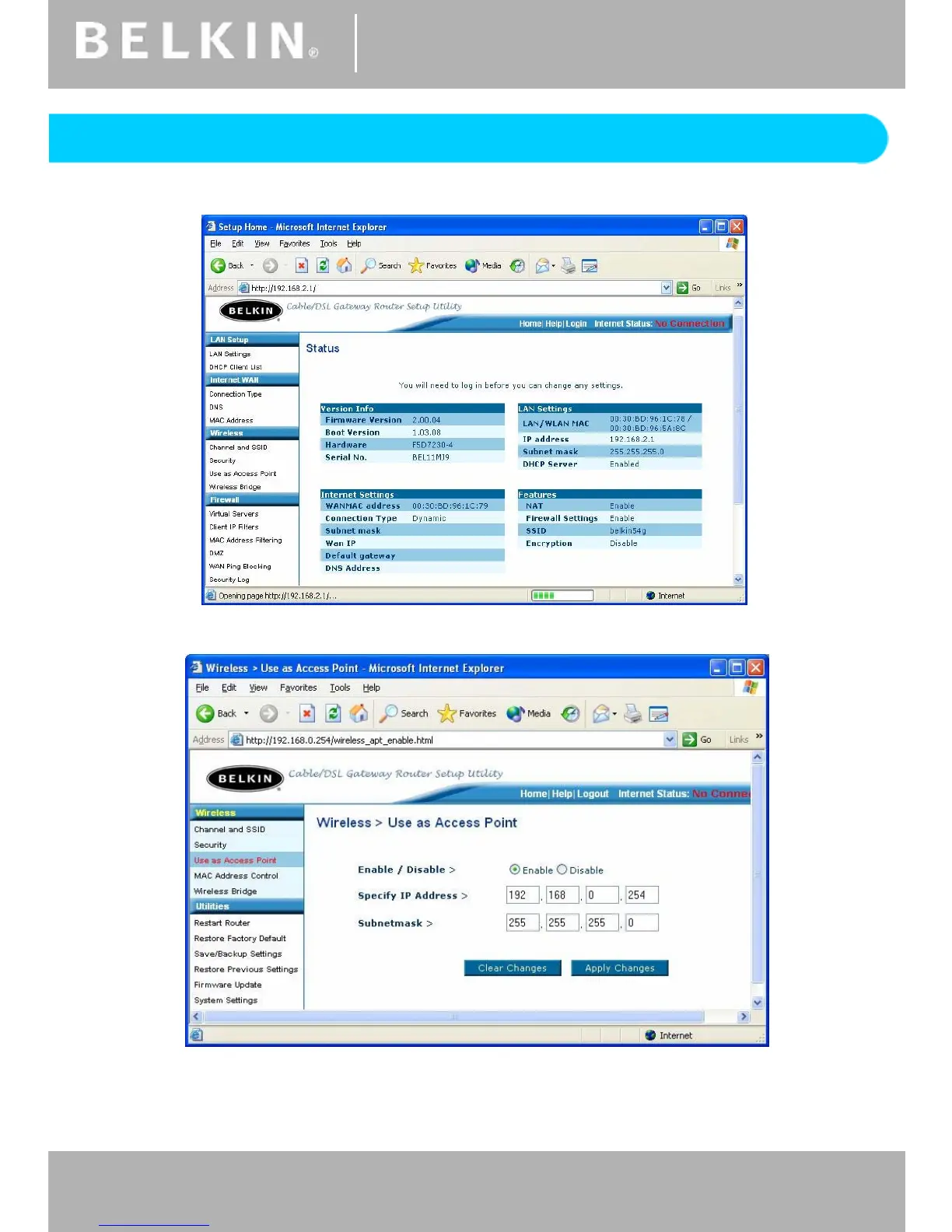
Connect to the Routers Web Interface (192.168.2.1)
Once logged on, Click on the Menu Item ‘Use As Access Point’.
Click on ‘Enable’ and you get this screen. Enter the IP Address you want for the Access Point. By default
it will be ‘192.168.2.254’ like a normal Access Point, for this test we will use 192.168.0.254 to show how to
access it from a dif
ferent IP. Apply the changes and now you will no longer be able to access the Router
under 192.168.2.1.
Self Help Guide
TSG-UK-1-001 | www.belkin.com | Page 2 of 3
Using The F5D7230 Router As An Access Point


 To Next Page