EasyManua.ls Logo

Belkin F5D8635-4 - User Manual

Belkin F5D8635-4
93 pages
Print Icon
To Next Page IconTo Next Page
Loading...
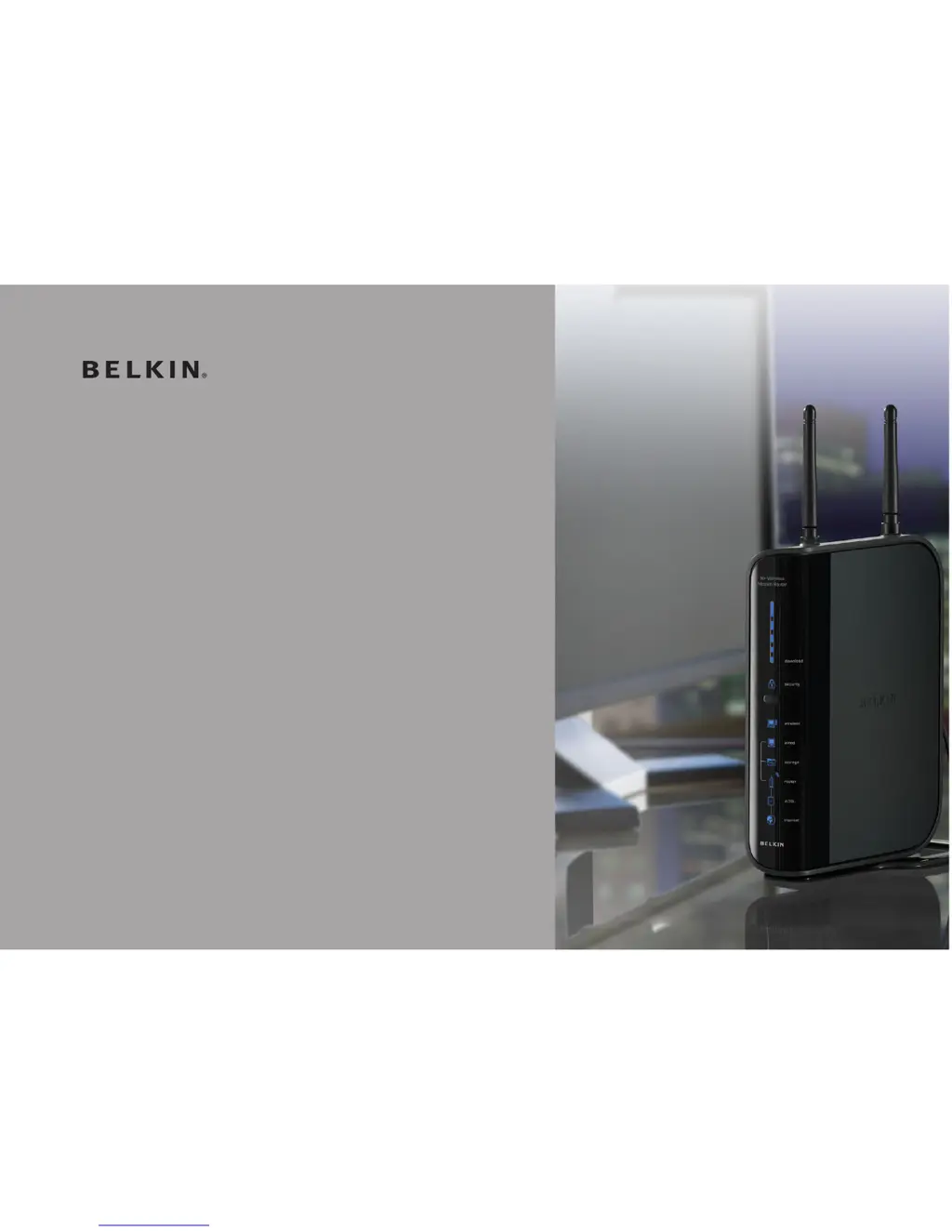
N+ Wireless
Modem Router
User Manual
PM00781ea F5D8635-4
English
Français
DEutsch
nEDErlanDs
Español
italiano

Questions and Answers

  • T
    Traci ColeAug 13, 2025
    How to connect to my Belkin F5D8635-4 when my network name is listed but I can't connect?
    • E
      Elizabeth MarksAug 13, 2025
      If you can't connect to the Internet wirelessly but your network name is listed, click on the correct network name in the “Available Networks” list and enter the network key. The tray icon in the lower, left-hand corner of your screen should turn green, indicating a successful connection to the network.
  • T
    Tina JordanAug 17, 2025
    What to do if the Belkin F5D8635-4 Setup Assistant cannot find my Router?
    • M
      monroejulieAug 17, 2025
      If the Setup Assistant cannot find your Belkin Router, temporarily turn off any third-party firewall software installed on the computer. Also, check to make sure that the AC adapter is connected to the Router and plugged into a wall outlet. Ensure that you have a cable connected between (1) the network (Ethernet) port on the back of the computer and (2) one of the “to Wired Computers” ports on the back of the Router. Try shutting down and restarting your computer, then rerunning the Setup Assistant.
  • A
    Andre AlvarezAug 21, 2025
    What to do if my Belkin F5D8635-4 Wireless Router Setup Assistant CD does not automatically start?
    • S
      Scott HallAug 21, 2025
      If the Setup Assistant CD does not automatically start, it may be due to running other applications that are interfering with the CD drive. Open up your CD-ROM drive by double-clicking on the “My Computer” icon that is located on your desktop. You can also double-click on the CD-ROM drive that the Setup Assistant CD has been placed in to start the installation or double-click on the icon labeled “SetupAssistant”.
  • S
    sara71Aug 25, 2025
    What to do if my Belkin Wireless Router network name is not listed and I can't connect to the internet wirelessly?
    • K
      Kelly WangAug 25, 2025
      If you can’t connect to the Internet wirelessly and your network name is not listed, temporarily move your computer, if possible, five to 10 feet from the Router. Also, ensure that “Broadcast SSID” is enabled.
  • M
    mariamillerAug 28, 2025
    What to do if Belkin Wireless Router Setup Assistant cannot connect my Router to the Internet?
    • S
      Stacy FitzgeraldAug 28, 2025
      If the Setup Assistant cannot connect your Router to the Internet, use the troubleshooting suggestions within the Setup Assistant. Also, make sure that you have typed in your user name and password correctly.
  • J
    Jonathan ThompsonSep 1, 2025
    What to do if my Belkin F5D8635-4 Wireless Router Setup Assistant completed, but my web browser doesn't work?
    • J
      Jake Sanchez DDSSep 1, 2025
      If the Setup Assistant completed installation but your web browser isn't working, ensure the network cable between the modem and the Router is connected. If that doesn't work, unplug the cable or DSL modem from its power source for three minutes. As another step, unplug the power to your Router, wait 10 seconds, and then reconnect the power. You can also try shutting down and restarting your computer.
  • M
    Michael WelchSep 4, 2025
    How to set up WPA security on my Belkin Wireless Router for a home network?
    • A
      Amber BrownSep 4, 2025
      If you are having difficulty setting up Wireless Protected Access (WPA) security on your Belkin Router for a home network, select “WPA-PSK (no server)” from the “Security Mode” drop-down menu. For “Encryption Technique”, select “TKIP” or “AES”. This setting will have to be identical on the clients that you set up. Click “Apply Changes” to finish.
  • D
    debra72Sep 8, 2025
    How to set up WEP security on my Belkin F5D8635-4 Wireless Router?
    • N
      nicholsfeliciaSep 8, 2025
      To set up WEP security on your Belkin Router, log into your Router. Select “128-bit WEP” from the drop-down menu and click “Apply Changes” to finish.

Summary

Introduction to Your Wireless Modem Router

Advantages of a Wireless Network

Explains the benefits of setting up a Belkin Wireless Network.

N+ Wireless Technology with MIMO

Discusses the N+ Wireless Modem Router's MIMO technology for enhanced performance.

Optimal Router Placement and Interference Avoidance

Provides guidelines for optimal router placement and avoiding signal interference.

Cordless Phone Interference and Channel Selection

Offers advice on mitigating interference from cordless phones and selecting wireless channels.

Secure Connections and VPNs

Discusses the nature of secure connections, VPNs, and their requirements.

Product Overview and Features

Key Product Features

Lists the key features of the N+ Wireless Modem Router.

PC and Mac Compatibility

Details compatibility with various operating systems.

USB Port for External Storage

Explains the functionality of the USB port for storage devices.

Network Status Display LEDs

Describes the LED indicators for network status.

Web-Based Advanced User Interface

Highlights the ease of use of the router's web interface.

NAT IP Address Sharing Explained

Explains Network Address Translation for sharing a single IP address.

SPI Firewall for Network Security

Describes the router's built-in firewall for security.

Integrated 4-Port Network Switch

Details the built-in network switch for wired connections.

Universal Plug and Play (UPnP)

Explains UPnP technology for seamless application operation.

VPN Pass-Through Support

Discusses support for VPN connections.

Built-In DHCP Server

Explains DHCP for automatic IP address assignment.

Setup Assistant Software

Describes the software for easy router setup.

Integrated Wireless Access Point

Highlights the wireless access point functionality using N MIMO.

MAC Address Filtering for Security

Explains MAC address filtering for network security.

Knowing Your Router: Components and Requirements

Package Contents

Lists all items included in the router package.

System Requirements

Outlines the necessary system requirements for setup and operation.

Setup Assistant Software Requirements

Details system requirements for the Setup Assistant and Storage Manager.

Internet Connection Settings

Explains the information needed from the ISP for internet connection setup.

Router Overview and Status Indicators

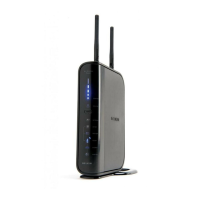
Describes the router's physical design and status indicators.

Router Ports and Buttons

Identifies and explains the router's ports and buttons.

Connecting and Configuring Your Router

Verify Box Contents and Use Setup Assistant

Lists package contents and guides on using the Setup Assistant.

Step 1: Hardware Connections

Guides through the physical hardware connections for router setup.

Step 1.1: Brand-New Setup

Provides step-by-step hardware connection instructions for new installations.

Step 1.2: Replacing Existing Modem

Details hardware connection steps for replacing an old modem.

Step 2: Run Setup Assistant Software

Guides on how to launch and use the Setup Assistant software.

Setup Assistant Screens: Settings and Verification

Explains setup screens for checking settings and verifying connections.

Naming Your Wireless Network

Guides on setting the wireless network name (SSID).

Requesting Internet Account Information

Explains how to provide ISP account details to the Setup Assistant.

Step 2.5: Configuring the Router

Describes the router configuration process via the Setup Assistant.

Step 2.6: Checking Internet Connection

Explains how the Setup Assistant checks the internet connection.

Troubleshooting Setup Assistant Issues

Provides troubleshooting steps if the Setup Assistant fails to connect.

Step 3: Set Up Wireless Security

Guides on launching the Security Assistant for wireless security setup.

Picking Wireless Security Type

Explains how to select a wireless security type (WPA2, WEP, etc.).

Creating and Transferring Network Keys

Guides on creating and transferring network keys for wireless security.

Verifying Wireless Connection

Guides on verifying computer connectivity after security setup.

Storage Manager Application

Explains the Storage Manager application for accessing USB storage devices.

Alternate Setup Method

Hardware Connections and Initial Steps

Refers to hardware connection steps and initial network settings.

Accessing the Routers Web Interface

Guides on accessing and logging into the router's web interface.

Logging Out and Navigating the Web Interface

Explains how to log out and navigate the router's web UI.

Router Interface Settings Overview

Explains various settings and indicators within the router interface.

Configuring Router for ISP Connection

Guides on configuring the router for various ISP connection types.

Setting ISP Connection Type: PPPoE;PPPoA

Details how to set up PPPoE or PPPoA connection types.

Setting ISP Connection Type: Dynamic;Fixed IP

Explains how to set up Dynamic/Fixed IP connection types.

Setting ISP Connection Type: Static IP

Provides instructions for configuring a Static IP connection.

Setting ISP Connection Type: Static IP (IPoA)

Details how to set up Static IP (IPoA) connection types.

Setting Connection Type: Modem Only

Explains how to configure the router in Modem Only mode.

Setting Custom DNS Servers

Guides on configuring custom DNS settings.

Using the Web-Based Advanced User Interface

Viewing LAN Settings

Explains how to access and view LAN settings in the web UI.

Changing LAN Settings

Guides on modifying LAN settings like IP address and DHCP.

DHCP Lease Time and Local Domain Name

Explains DHCP lease time and setting a local domain name.

Viewing DHCP Client List

Explains how to view the list of connected DHCP clients.

Configuring Wireless Network Settings

Guides on configuring wireless network settings.

Changing Wireless Network Name (SSID)

Guides on changing the wireless network name (SSID).

Changing Wireless Channel and Mode

Explains how to change the wireless channel and switch modes.

Protected Mode and WMM QoS

Explains Protected Mode and WMM QoS for network performance.

Changing Wireless Security Settings

Guides on changing wireless security standards like WPA2 and WEP.

Using Wi-Fi Protected Setup (WPS)

Explains how to use Wi-Fi Protected Setup (WPS) for simplified security.

WPA2 Security Requirements

Lists requirements for using WPA2 security.

Setting WPA;WPA2-Personal (PSK) Security

Guides on setting up WPA/WPA2-Personal (PSK) security.

Setting WPA Security

Details how to configure WPA security settings.

Setting WEP Encryption

Guides on setting up WEP encryption.

Using Hexadecimal Keys for Encryption

Explains how to use hexadecimal keys for encryption.

Guest Access Feature

Explains the Guest Access feature for temporary internet access.

Access Point Mode Configuration

Guides on configuring the router to function as an access point.

Configuring the Firewall

Details how to configure the router's firewall.

Configuring Internal Forwarding Settings

Explains how to configure internal forwarding settings using Virtual Servers.

Access Control Configuration

Guides on configuring access control rules for network services.

Enabling the Demilitarized Zone (DMZ)

Explains how to enable the DMZ feature.

Using Dynamic DNS Service

Guides on using the Dynamic DNS service.

Setting Up Dynamic DNS Update Client

Details how to set up the router's Dynamic DNS update client.

Blocking ICMP Ping for Security

Explains how to block ICMP ping for enhanced security.

Router Utilities: Restarting and Defaults

Guides on how to restart, restore defaults, and save/restore configurations.

Updating Router Firmware

Guides on how to update the router's firmware.

Changing System Settings

Guides on changing system settings like passwords and time zones.

Enabling Remote Management and UPnP

Guides on enabling remote management and UPnP.

Firmware Update and ECO Mode

Guides on firmware updates and ECO Mode for power saving.

Manually Configuring Network Settings

Manual Network Settings for Mac OS (up to 9.x)

Guides on manually configuring network settings on older Mac OS versions.

Manual Network Settings for Mac OS X

Guides on manually configuring network settings on Mac OS X.

Manual Network Settings for Windows (2000;NT;XP)

Guides on manually configuring network settings for Windows 2000/NT/XP.

Recommended Web Browser Settings

Microsoft Internet Explorer Settings

Provides recommended settings for Internet Explorer.

Netscape Navigator Settings

Provides recommended settings for Netscape Navigator.

Troubleshooting Common Issues

Setup Assistant CD Issues

Provides troubleshooting for the Setup Assistant CD not starting or finding the router.

Internet Connection Problems

Troubleshooting steps for connection issues after setup.

Browser Issues After Setup

Troubleshooting for browser issues after setup.

LED Status Troubleshooting

Troubleshooting for specific LED status indicating connection problems.

Wireless Internet Connectivity

Troubleshooting steps for wireless internet connectivity.

Network Name Visibility Issues

Steps to take when the network name is not visible.

Inconsistent Wireless Performance

Addresses issues with inconsistent wireless performance.

Slow Data Transfer and Poor Signal Strength

Troubleshooting for slow data transfer speeds and poor signal strength.

VPN Connection Difficulties

Troubleshooting for VPN connection difficulties.

WEP Security Setup Troubleshooting

Guides on troubleshooting WEP security setup on the router and client card.

WPA Security Setup Troubleshooting

Troubleshooting WPA security setup without a Belkin client card.

Wireless Standards Comparison (802.11 b;g;n)

Compares different wireless networking standards.

Information and Compliance

FCC Statement and Compliance

Declaration of conformity with FCC rules for electromagnetic compatibility.

EU Declaration of Conformity

EU Declaration of Conformity in multiple languages.

Modifications and EU Notices

Notices regarding FCC modifications and CE marking.

Belkin Limited Lifetime Product Warranty

Details Belkin's limited lifetime product warranty terms and coverage.

Warranty and State Law Relation

Explains how state laws relate to the warranty terms.

Belkin F5D8635-4 Specifications

General IconGeneral
BrandBelkin
ModelF5D8635-4
TypeWireless Router
Frequency Band2.4 GHz
Max Data Rate300 Mbps
SecurityWEP, WPA, WPA2
Wireless Standards802.11b, 802.11g
Ports4 x Ethernet, 1 x WAN

Related product manuals