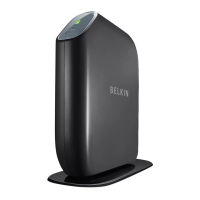
27460_8820-00775_F9K1003_N450_Wireless_N_Router_041811-ok
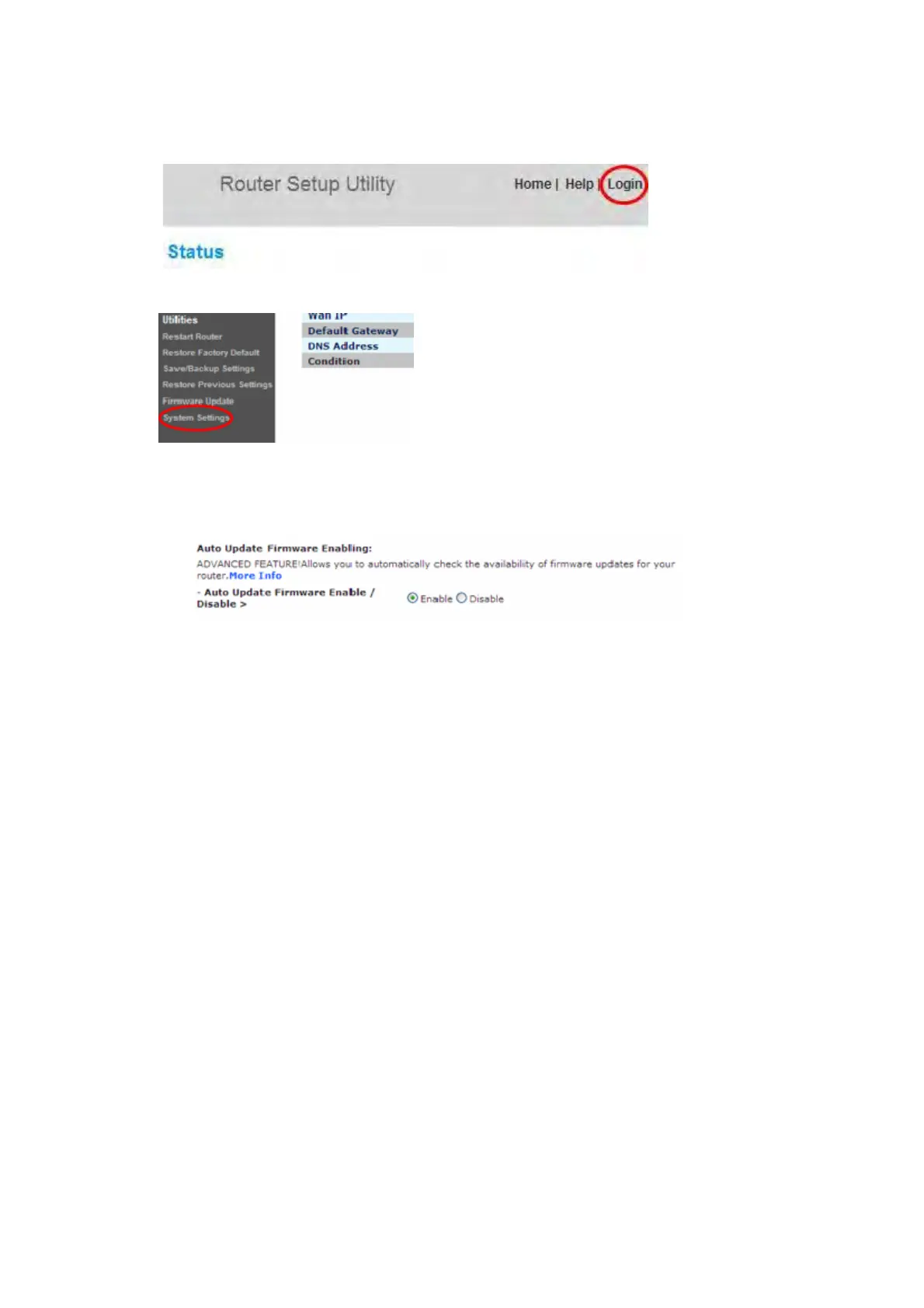
4. Click on “System Settings” in the left-hand column under the “Utilities” heading.
5. Toward the lower-half side of the screen you will find “Auto Update Firmware Enabling”.
6. Select “Enable” by clicking the radio button and then click “Apply Changes” at the bottom of
the screen.
Updating Your Router via Your System Tray (Windows) or Menu Bar (Mac)
Once you have completed the setup process, you will need to update the new software for
your Router. This can be done easily via your computer’s system tray or menu bar.
Setup steps:
1. Click on the green Belkin Router Manager icon (right-click for Windows) in your system
tray (Windows) or menu bar (Mac).
2. Select “Check for Updates” or “Update Available” from the menu.
3. You should now see the Belkin Updater window.
4. Click on the “Install Update” icon.
Updating the Router’s Firmware via the Web Interface



 To Next Page