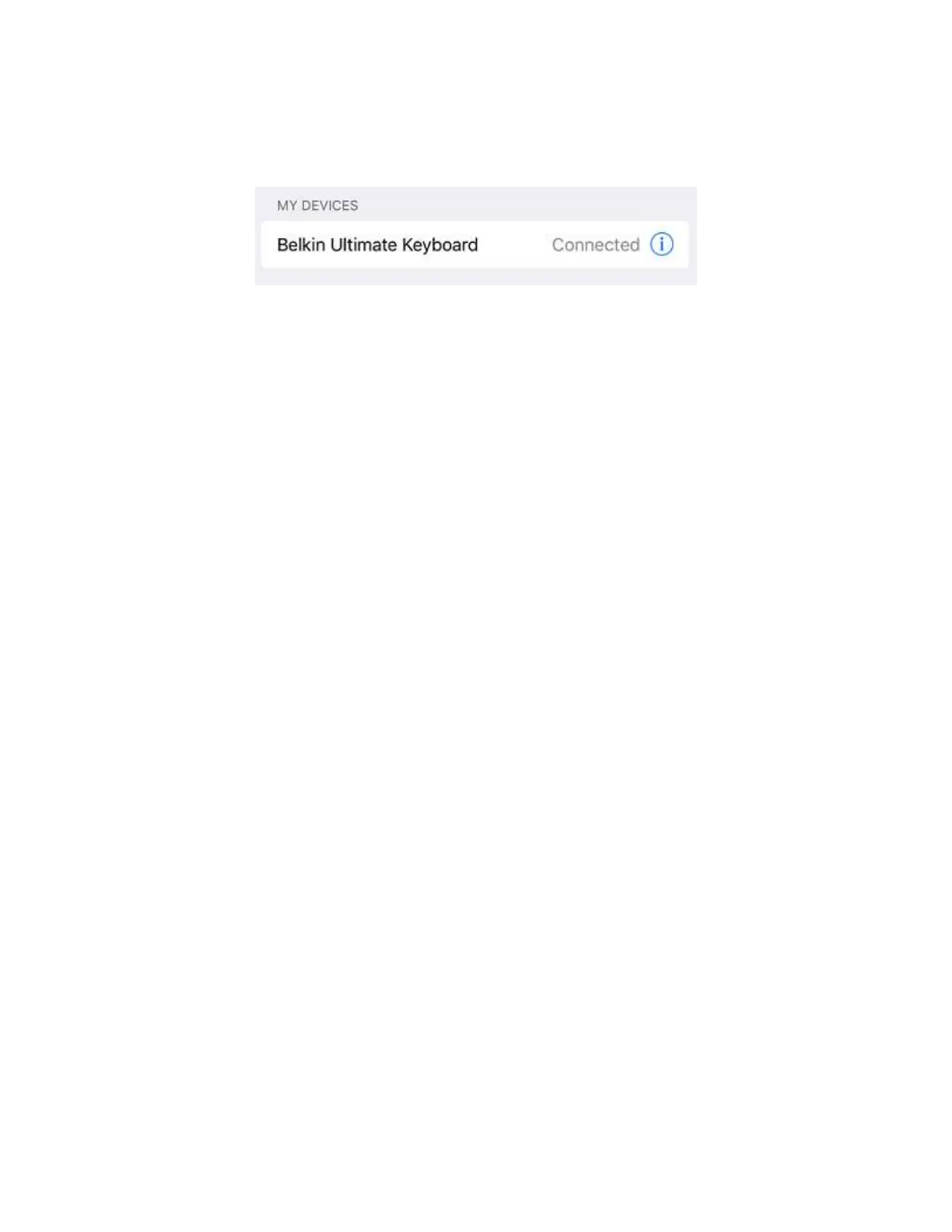
Before using your Belkin QODE Keyboard, make sure to disconnect the Bluetooth® devices
previously connected to it. Also, if the keyboard layout of your device is different from that of your
Hardware Keyboard, you must change the keyboard language to update the output.
This article will guide you on how to troubleshoot the keyboard output interchanged issue for
Android™.
Scenario: You set up a Belkin QODE Keyboard using an Android device with the keyboard layout set
to QWERTZ. However, you notice that every time you tap the "Z" key, the letter "Y" appears on the screen
instead.
NOTE: In this example, a Samsung Galaxy Tab® S2 and a Belkin Mobile Wireless
Keyboard, F5L175 are used.
Step 1:
Tap the Settings icon.
Step 2:
Tap the Language and input option.


 To Next Page