Problem:
I am having difficulty setting up Wired Equivalent Privacy (WEP)
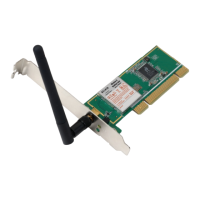
security on a Belkin client card (Wireless Network Card or Adapter).
Solution:
The client card must use the same key as the Wireless G Plus
Router. For instance, if your Wireless Router or access point uses
the key 00112233445566778899AABBCC, then the client card must
be set to the exact same key.
1. Double-click the “Signal Indicator” icon to bring up the “Wireless
Network Utility” screen. The “Advanced” button will allow you to
view and configure more options of your client card.
2. Once the “Advanced” button is clicked, the Belkin Wireless LAN
Utility will appear. This Utility will allow you to manage all the
advanced features of the Belkin client card.
3. Under the “Wireless Network Properties” tab, select a
network name from the “Available Networks” list and click the
“Properties” button.
4. Under “Data Encryption”, select “WEP”.
5. Ensure the box “The key is provided for me automatically” at
the bottom is unchecked. If you are using this computer to
connect to a corporate network, please consult your network
administrator if this box needs to be checked.
6. Type your WEP key in the “Network key” box.
Important: A WEP key is a combination of numbers and letters
from A–F and 0–9.
7. For 128-bit WEP, you need to enter 26 keys. This network
key needs to match the key you assign to your Wireless G
Plus Router.
For example:
C3 03 0F AF 4B B2 C3 D4 4B C3 D4 E7 E4 = 128-bit key
8. Click “OK”, and then “Apply” to save the settings.
If you are NOT using a Belkin wireless client card, please consult
the manufacturer’s user manual for that wireless client card.








 To Next Page