In order for your computer to properly communicate with your Router, you
will need to change your PC’s TCP/IP settings to DHCP.
Manually Configuring Network Adapters in Windows 2000, NT, or XP
1.
Click “Start”, “Settings”, then “Control Panel”.
2. Double-click on the “Network and dial-up connections” icon
(Windows 2000) or the “Network” icon (Windows XP).
3. Right-click on the “Local Area Connection” associated with your
network adapter and select “Properties” from the drop-down menu.
4. In the “Local Area Connection Properties” window, click “Internet
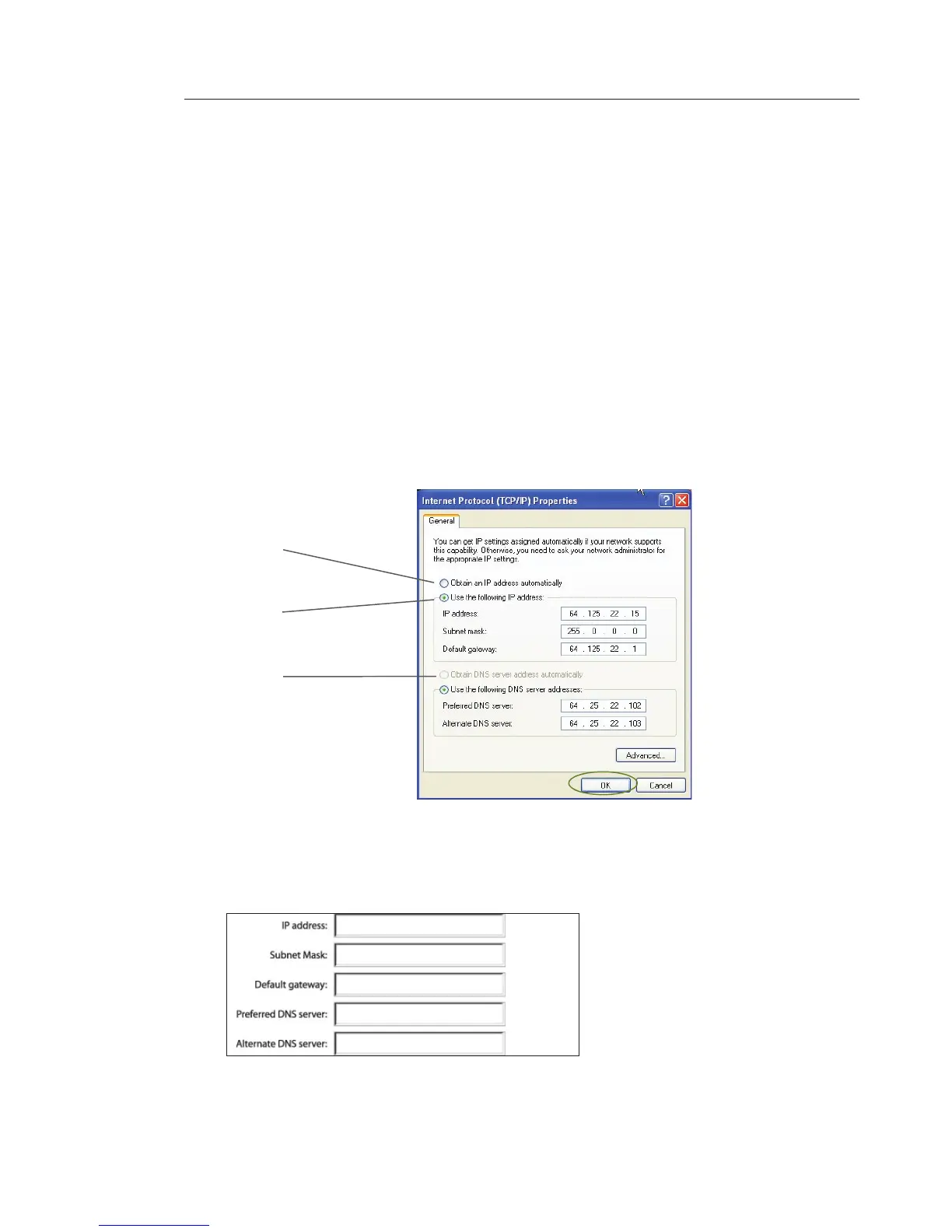
Protocol (TCP/IP)” and click the “Properties” button. The following
screen will appear:
5. If “Use the following IP address” (2) is selected, your Router
will need to be set up for a static IP connection type. Write the
address information in the table below. You will need to enter this
information into the Router.
6. If not already selected, select “Obtain an IP address automatically”
(1) and “Obtain DNS server address automatically” (3). Click “OK”.
Your network adapter(s) are now configured for use with the Router.
(1)
(2)
(3)








 To Next Page