56
Appendix G
G1: How to Generate Wingman
®
Diagnostic Trouble Code Report with ACom
®
Diagnostics
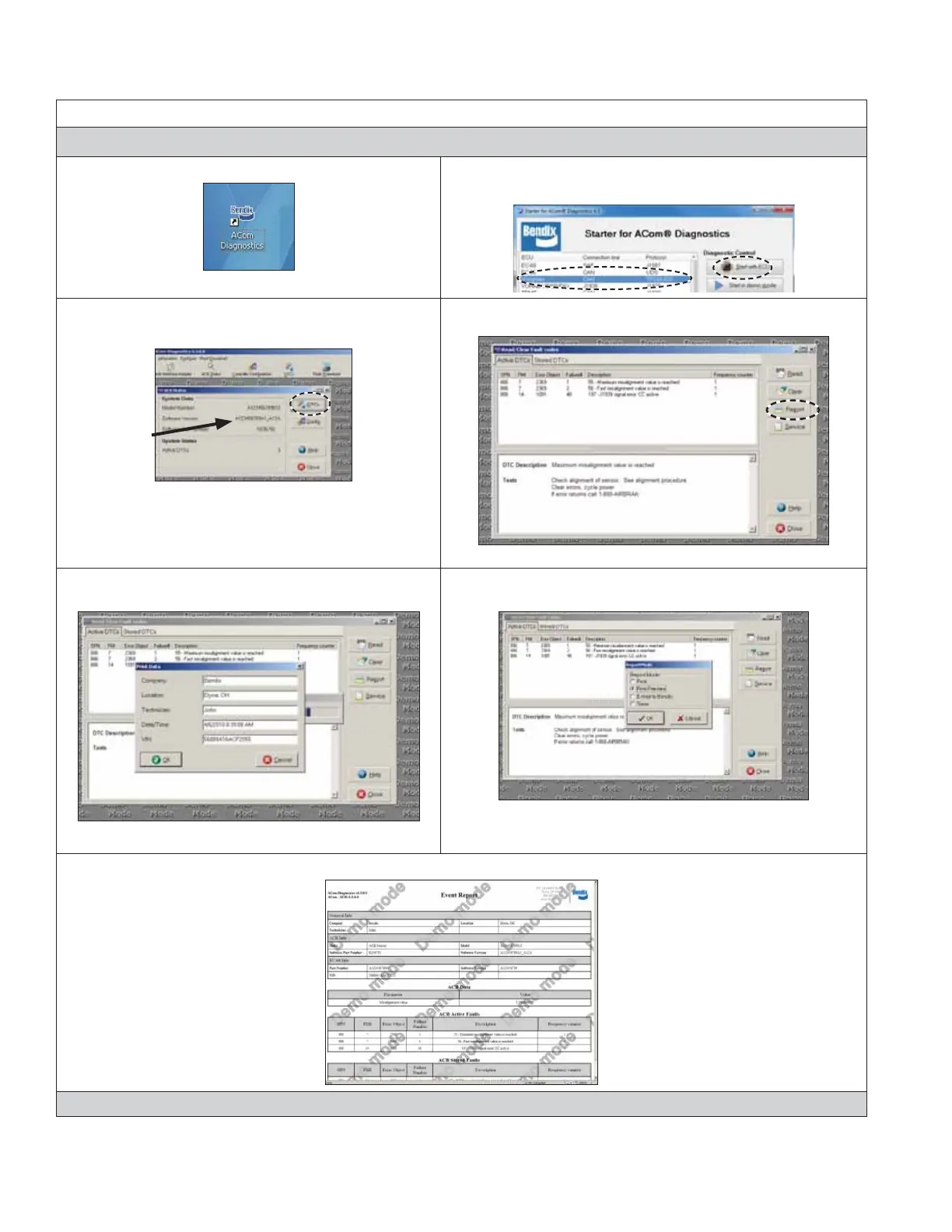
1. Select the Bendix
®
ACom
®
desktop icon 2. Select “Wingman” from the starter screen. Select “start with
ECU”
3. Select “DTC”.
For reference
4. To generate the ACom report, select “Report”.
5. Fill in the requested information: Company, location,
technician, date/time, VIN, and click “OK”
6. Select how you want the report displayed or printed. Then click
“OK”
7. The ACom DTC report is generated. This can be saved and emailed to Bendix if desired.
Call the Bendix Tech Team at 1-800-AIR-BRAKE (1-800-247-2725, option 2) for troubleshooting assistance.
APPENDIX G - HOW TO GENERATE, READ AND RESET THE BENDIX
®
WINGMAN
®
SYSTEM
DIAGNOSTIC TROUBLE CODES USING BENDIX
®
ACOM
®
DIAGNOSTICS SOFTWARE
Appendix G-


 To Next Page