21
... continues from previous list:
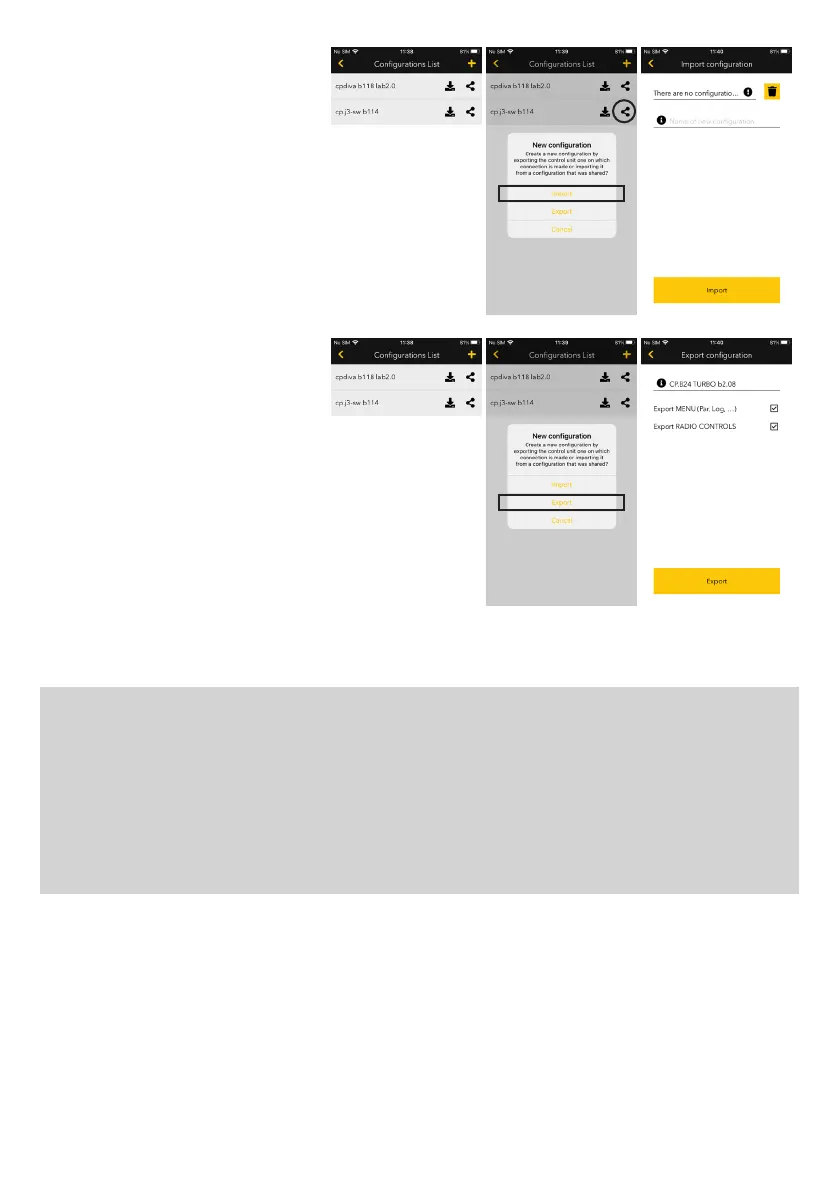
> Import a configuration: to import a
configuration on your list of configurations,
you can press the button + on the top right
and choose «Import».
You can then choose the file to import and
assign it a name.
Once the configuration is imported, a list
will appear of the configurations of the
start page.
> Export a configuration: you can also
export the configuration to the control unit
to which pro.UP is connected. A new config-
uration is created starting with reading the
data set on the control unit.
You can choose whether to export only part
of the menu or part of the radio or both.
Once configuration is created, a list will ap-
pear of the configurations of the start page.
NOTE: the configurations created when
connected locally with pro.UP (point-point)
must be synchronised manually with the
server as soon as the smartphone avails of
a connection to the Internet To synchronise
them, simply press the specific button on
the side of the name of the configuration.
RESET pro.UP:
Attention! The reset brings pro.UP to default conditions, all information present is deleted including the association with the
installer account and any log record.
1. Disconnect pro.UP: the power supply LED switches off.
2. Keeping button P1 of pro.UP pressed, power again: power LED L2 switches on with a fixed red light, while the green con-
nection LED L1 starts to flash every 0.2s. Keep the button pressed for approx. 5s, until the green LED L1 is switched on
fixed.
3. Release the button. The green LED L1 stays on for approx. 5s, after which it switches off.
At this point, the reset procedure has concluded.
To return pro.UP to WiFi access point mode, press the button for 5s.


 To Next Page
 Loading...