BenQ DC 5530 User’s Manual
English
Using the DC C520 15
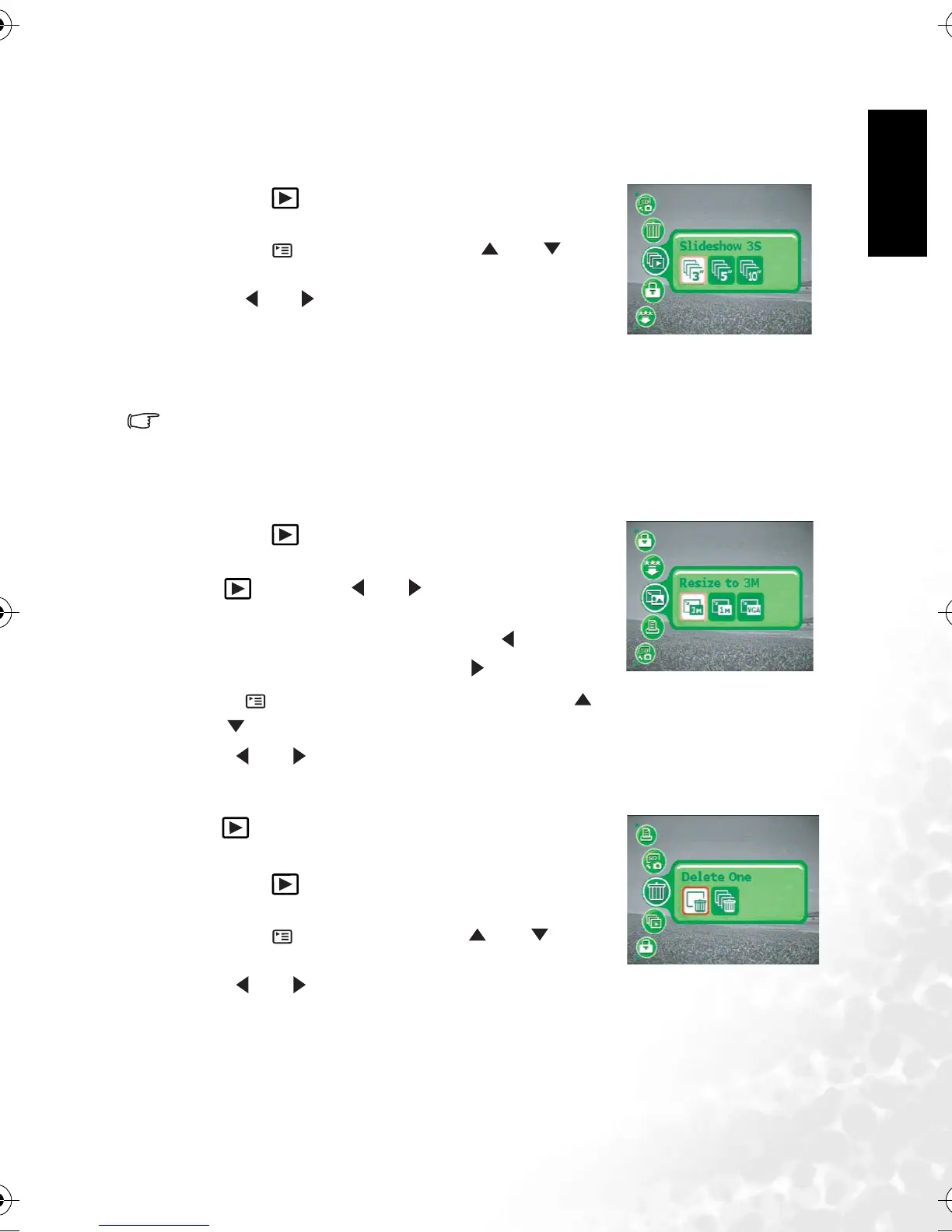
3.4.3.3.4 Slideshow display
The slide show function enables you to play your images back automatically in sequential
order. This is very useful and entertaining feature for reviewing captured images and for
presentations.
1. Press the [ ] button.
The last captured image appears on the LCD monitor.
2. Press the [ ] button, and then press [ ] or [ ] to
scroll to [Slideshow] menu.
3. Press [ ] or [ ] to select the playback interval, and then
press the OK button.
• The slide show starts.
• The video clips are displayed from the first frame image, and not played back.
• To stop slide show, press the OK button.
• You can adjust the slide show display interval within the range of 3 sec., 5 sec., 10 sec.
3.4.3.3.5 Resizing an image
You can change the resolution of a captured image to one of the following sizes: 2048 x 1536
pixels, 1280 x 960 pixels and 640 x 480 pixels.
1. Press the [ ] button.
The last captured image appears on the LCD monitor.
2. In [ ] mode, use [ ] or [ ] to select the desired
images.
• To view the previous image, press the [ ] button.
• To view the next image, press the [ ] button.
3. Press [ ] to access Playback menus, and then use [ ]
or [ ] to scroll to [Resize] menu.
4. Use [ ] or [ ] to select the desired setting, and then press the OK button to confirm.
3.4.3.4 Playback menu
In the [ ] menu, set which settings are to be used for
playback.
1. Press the [ ] button.
The last captured image appears on the LCD monitor.
2. Press the [ ] button, and then use [ ] or [ ] to
scroll to the desired menu.
3. Use [ ] or [ ] to select the desired setting, and then
press the OK button to confirm.
DC_C520_UM.book Page 15 Monday, July 4, 2005 4:40 PM



 To Next Page