30 Operation (under Launcher source)
6. If you chose a secured SSID for the first time, a window appears prompting you to enter the
appropriate password. Use the virtual keypad to enter the password. After you have entered the
password, select Next and the projector will automatically connect.
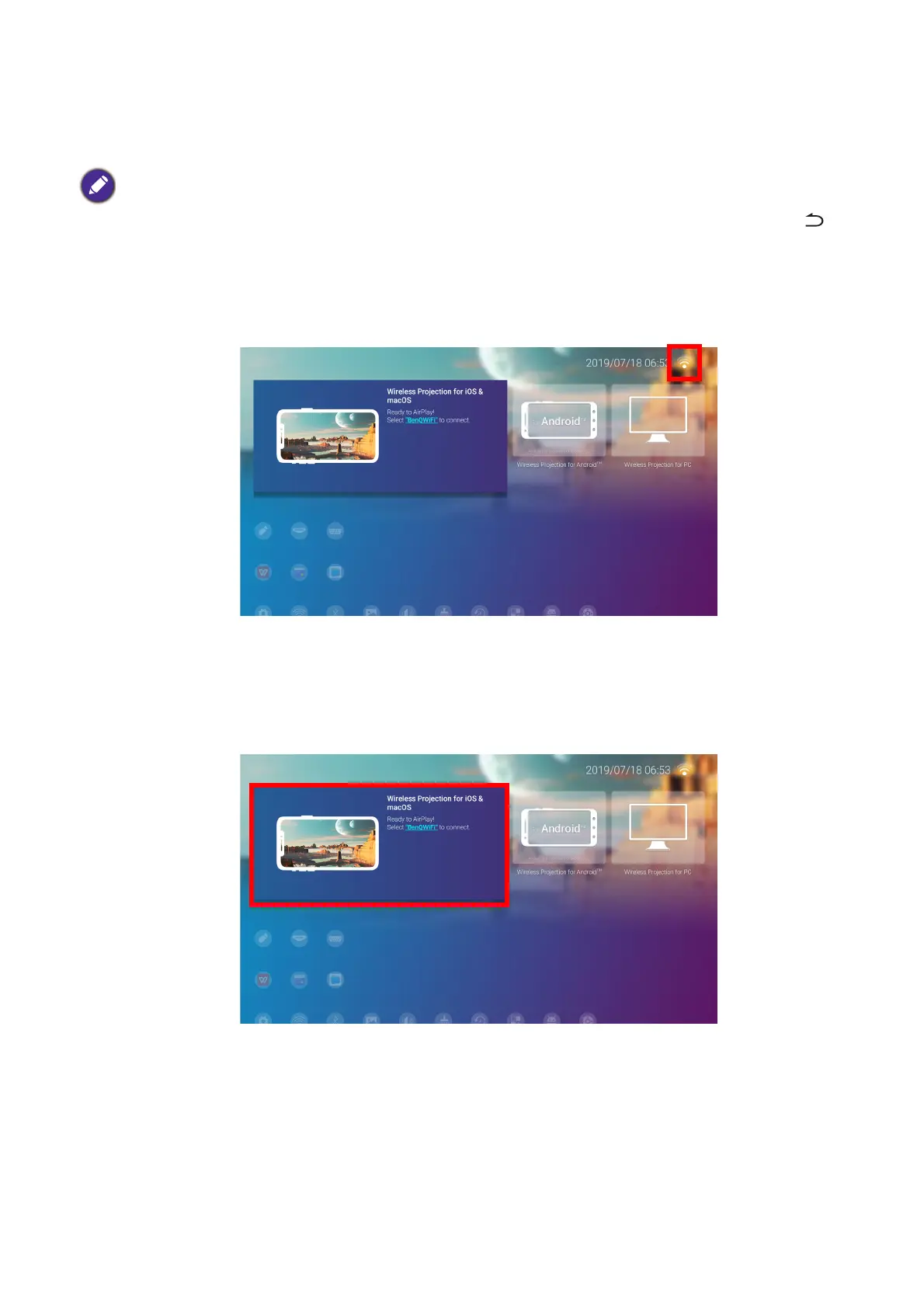
7. Once you have successfully connected to the wireless AP a wireless connection icon will appear at
the top right corner of the BenQ Launcher interface. You can now connect your devices
wirelessly to the projector to cast your device’s screen.
Wireless Projection for iOS & macOS
®
To connect an iOS device to the projector and cast your device’s screen via AirPlay:
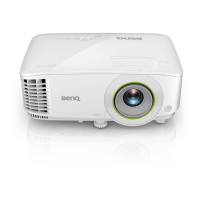
1. On the home screen of the BenQ Launcher interface, select Wireless Projection for iOS &
macOS and press OK.
• The password will be stored in the projector’s memory. In the future, if you select the same SSID again, you will
not be prompted to enter a password unless you delete the SSID from the projector’s memory.
• If the password is typed incorrectly, you can select either re-enter the password or press the back button to
return to the list of SSIDs.






 To Next Page