Operation24
Correcting keystone
Keystoning refers to the situation where the projected image is noticeably wider at either the
top or bottom. It occurs when the projector is not perpendicular to the screen.
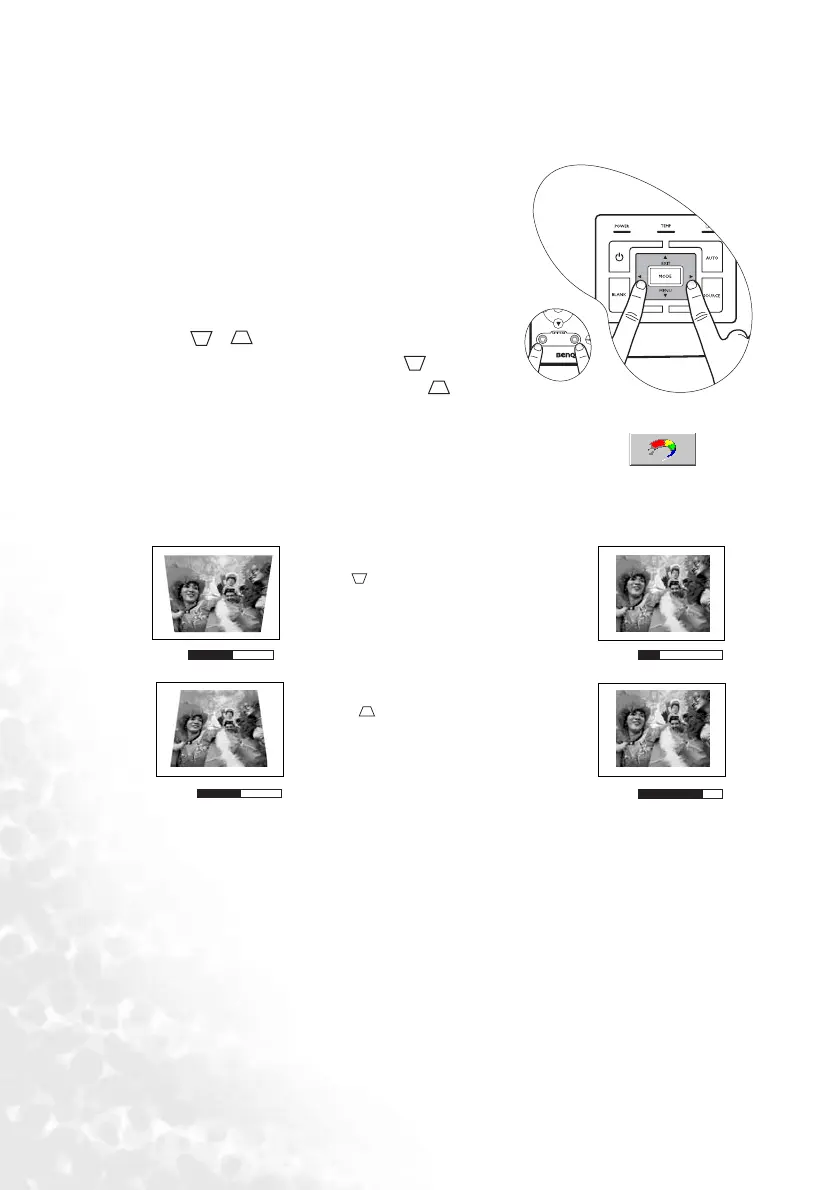
To cor re c t t hi s , be s i de s a djusting the height of the
projector, you will need to manually correct it following
ONE of these steps.
1. Press 3 Left/ Right 4 on the control panel of the
projector to display the status bar labelled Keystone.
Press Left 3to correct keystoning at the top of the
image. Press Right4 to correct keystoning at the
bottom of the image.
2. Press / on the remote control to display the
status bar labelled Keystone, then press to correct
keystoning at the top of the image or press to
correct keystoning at the bottom of the image.
3. Press 6 Menu on the projector or Menu on the remote control. Go to
Picture
--> Keystone and adjust the values by pressing Left 3/ Right 4 on the projector or Left 3/
Right 4on the remote control.
For example,
0
Keystone
-6
Keystone
0
Keystone
+6
Keystone
1. Press Left 3 on the projector or
2. Press on the remote control or
3. Press Left 3on the projector or 3 on the
remote control when you are in Picture -->
Keystone menu.
1. Press Right 4 on the projector or
2. Press on the remote control or
3. Press Right
4 on the projector or 4 on
the remote control when you are in Picture -
-> Keystone menu.



 To Next Page