Connection20
Connecting a monitor
If you want to view your presentation close-up on a monitor as well as on the screen, you
can connect the D-SUB OUT signal output socket on the projector to an external monitor
with a VGA or VGA to DVI-A cable by following the instructions below.
To connect the projector to a monitor (either through a VGA cable or VGA to
DVI-A cable):
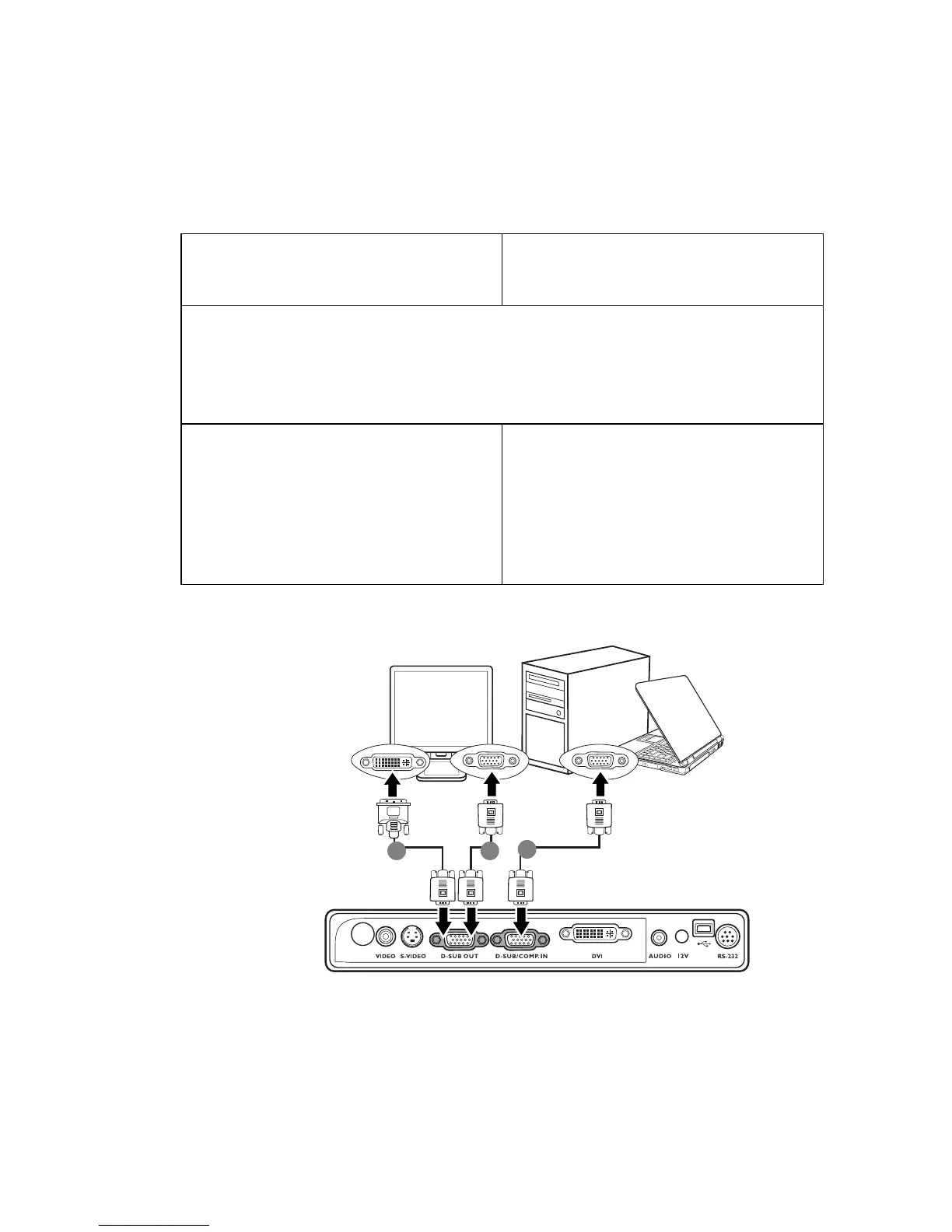
The final connection path should be like that shown in the following diagram:
• With a VGA cable: • With a VGA to DVI-A cable:
Note: Your monitor must be equipped with
a DVI input socket.
1. Connect the projector to a computer as described in "Connecting a computer" on
page 18.
The D-SUB output only works when an appropriate D-SUB input is made to the
projector. Be sure the projector is connecting with the computer using the D-SUB/
COMP. IN socket, not the DVI socket.
2. Take a suitable VGA cable (only one
supplied) and connect one end of
the cable to the D-Sub input socket
of the video monitor.
3. Connect the other end of the cable
to the D-SUB OUT socket on the
projector.
2. Take a VGA to DVI-A cable and
connect the DVI end of the cable to
the DVI input socket of the video
monitor.
3. Connect the VGA end of the cable to
the D-SUB OUT socket on the
projector.
notebook or desktop
computer
(VGA)
(DVI)
iii
iii
i. VGA to DVI-A cable
ii. VGA cable
iii. VGA cable



 To Next Page