10 Introduction
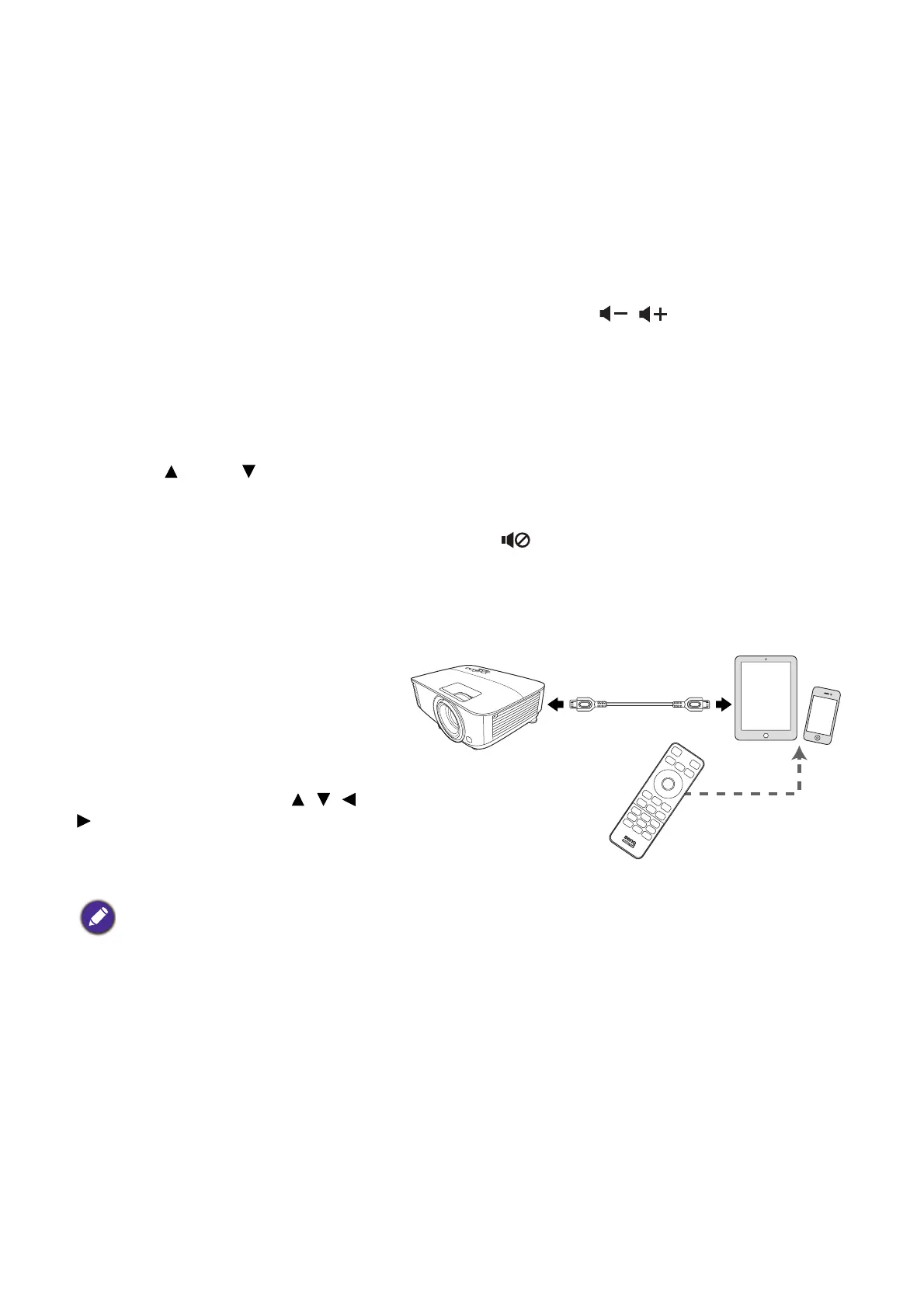
Controlling your smart device with the remote control
When the projector projects the content
from your MHL compatible smart device,
you can use the remote control to
control your smart device.
To enter the MHL mode, press and hold
AUTO for 3 seconds. The following
buttons are available for controlling your
smart device: Arrow keys ( , , ,
), MENU, BACK, OK.
To leave the MHL mode, press and hold
AUTO for 3 seconds.
8. OK
Confirms the selected On-Screen Display
(OSD) menu item.
9. AUTO
Automatically determines the best picture
timings for the displayed image when PC signal
(analog RGB) is selected.
10. MENU
Turns on the On-Screen Display (OSD) menu.
11. Source selection button: PC 1
Selects PC 1 input source for display.
12. Source selection button: HDMI
Selects HDMI input source for display.
13. PAGE /PAGE
Operate your display software program (on a
connected PC) which responds to page
up/down commands (like Microsoft
PowerPoint).
14. SMART ECO
Displays the Lamp Mode menu for selecting
a suitable lamp operating mode.
15. FREEZE
Freezes the projected image.
16. ASPECT
Selects the display aspect ratio.
17. Volume keys /
Decreases or increase the projector volume.
18. ZOOM+/ZOOM-
Magnifies or reduces the projected picture
size.
19. QUICK INSTALL
Quickly selects several functions to adjust the
projected image and displays the test pattern.
20.
Toggles projector audio between on and off.
When the projector is under MHL mode, the keypad on the projector should be with the same definition of the keys
on the remote control.


 To Next Page