26 How to adjust your monitor
Controlling the display with Display Pilot (selected models only)
The provided Display Pilot software on the CD is an alternative to control the display. The
main functions include:
• Control of the OSD menus.
• Access to more game modes through Game Mode Loader.
For more information, go to System > Options > User Manual in Display Pilot.
Picture optimization
The easiest way to obtain an optimal display from an analog (D-Sub) input is to use the Auto
Adjustment
function. Go to Display and Auto Adjustment to optimize the currently displayed
image to the screen.
If you wish, you can always adjust the screen geometric settings manually using geometry menu
items. To assist you in this endeavour, BenQ has provided a screen test image utility which you
can use to check for screen color, grayscale and line gradient display.
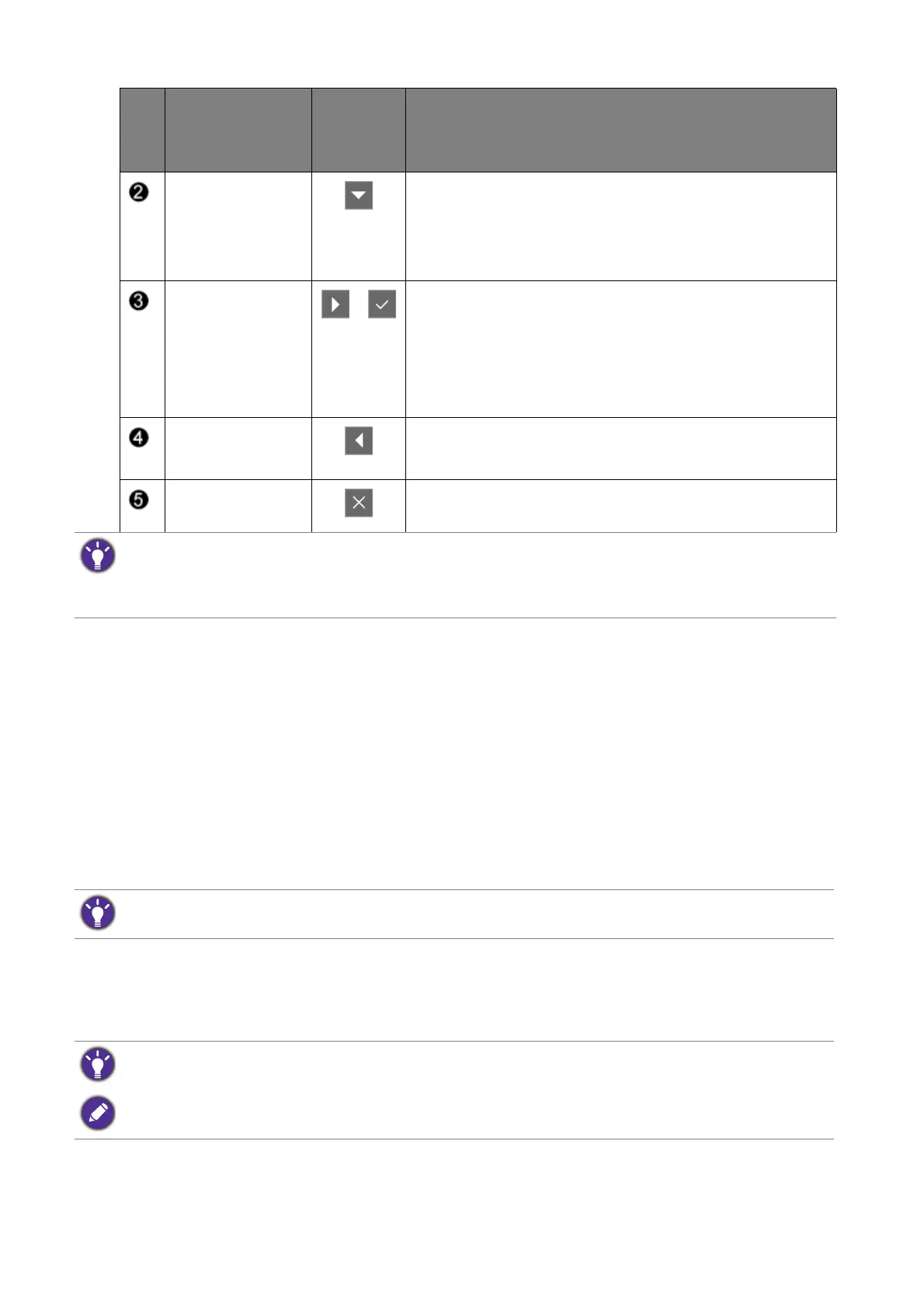
Custom Key 2
• By default, the key is the hot key for Black eQualizer.
To change the default settings, see Customizing the
hot keys on page 27.
• For Down/Decrease adjustment.
Custom Key 3
/
• By default, the key is the hot key for Picture Mode.
To change the default settings, see Customizing the
hot keys on page 27.
• Enters sub menus.
• Selects menu items.
MENU • Activates the main menu.
• Returns to the previous menu.
Exit Exits OSD menu.
• OSD = On Screen Display.
The hot keys only operate while the main menu is not currently displaying. Hot key displays will disappear after
a few seconds of no key activity.
• To unlock the OSD controls, press and hold any key for 10 seconds.
No.
OSD in hot key
menu
OSD icon
in main
menu
Function
The default picture mode is Fighting, which is designed for fighting games. If you prefer other picture modes, go
to
Picture Advanced and change setting in Picture Mode.
When you connect a digital video output using a digital (DVI or HDMI) cable to your monitor, the Auto
Adjustment
function will be disabled, because the monitor will automatically display the best image.
Please ensure that the connected graphic card on your computer is set to the native resolution of the monitor
when you use the
Auto Adjustment function.


 To Next Page