11
operating instructions TC75
www.superwise.eu
SuperWise Helpdesk
(B)
Save as TXT format (i.e. without formatting) to a USB
stick (FAT32 formatted). Insert the USB stick in your TC75
during normal operation mode (no buttons to be pressed
during startup).
If the transfer was successful „W.Set“ appears and the
TXT file on the USB stick is deleted.
If a (properly named) textfile was found but empty or
containing incorrect syntax, TC75 shows „W.Err“. In this
case textfile is not deleted and the WiFi setup preserved
(applies to a.) and b.)). If your controller is now online the
WiFi symbol is flashing
.
2. Create a user account on www.superwise.eu eit-
her on a PC/tablet or download the app (scan QR
code above left).
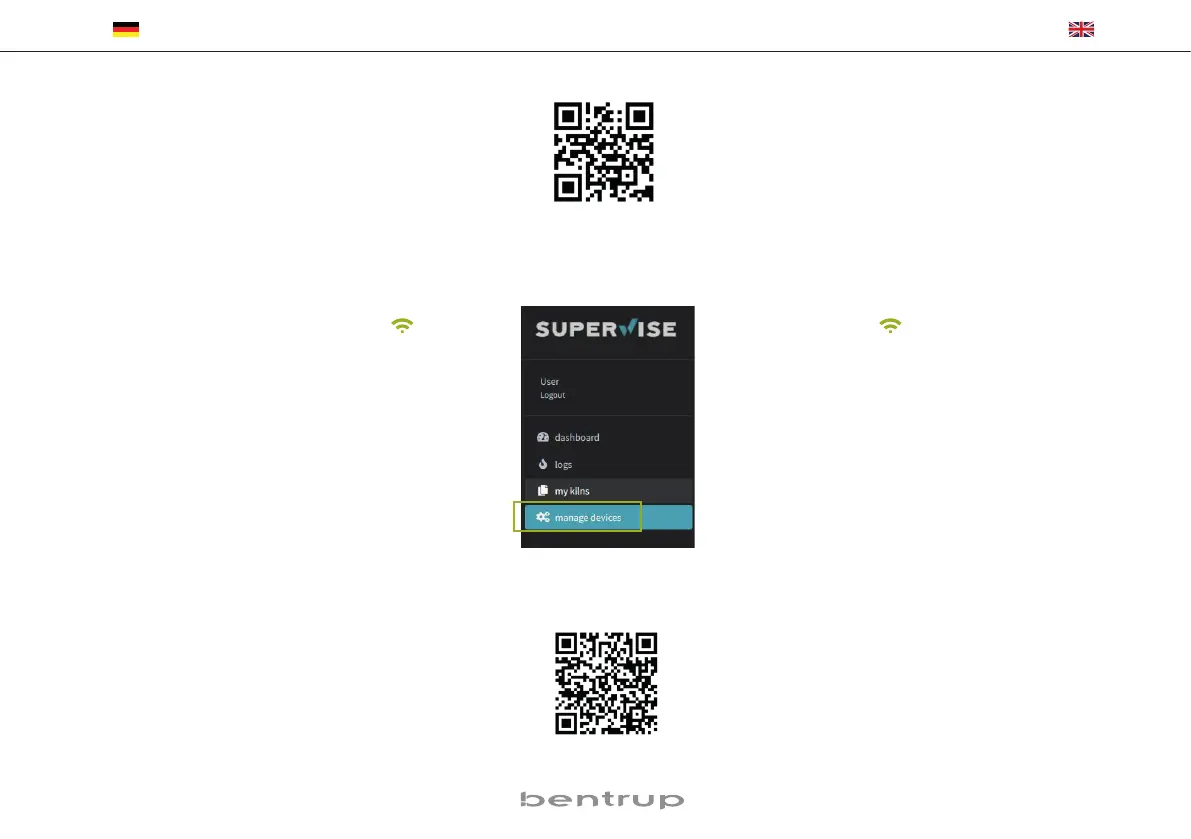
Go to „manage devices“ (fig. B) and click „add
controller“.
After entering the controller serial number (see type
Label on the back) in SuperWise, press „Request
Pin“ which is prompted by a 4 digit PIN on your TC75.
Enter this PIN into SuperWise and complete the pa-
ring pressing “confirm”.
If the registration was successful your TC75 is now shown
in SuperWise and the WiFi LED lights continuously on.
In case of any difficulties please scan QR Code on the left
for our latest advices.
Speichern Sie die Datei im TXT-Format (d. h. ohne For-
matierungen) auf einen USB-Stick (FAT32-formatiert).
Dieser wird nun in den TC75 gesteckt (Regler normal
eingeschaltet, keine Tastenbetätigung notwendig).
Bei erfolgreicher Übernahme erscheint „W.Set“ und
die TXT-Datei auf dem Stick wird gelöscht.
Falls entsprechend benannte Datei gefunden wurde
aber leer ist bzw. Inhalt mit falschem Syntax enthält,
erscheint „W.Err“, Datei und WiFi-Setup bleiben
erhalten (gilt für a.) und b.)) . Bei erfolgreicher Inter-
net-Verbindung blinkt das WiFi-Symbol
.
2. Registrieren Sie sich bei www.superwise.eu entwe-
der auf einem PC/Tablet oder laden Sie die App herun-
ter (QR-Code oben rechts scannen).
Gehen Sie um Menüpunkt „Geräteverwaltung“
(Bild B) und wählen Sie „Regler hinzufügen“.
Nach Eingabe der Regler-Seriennummer (siehe Typen-
schild auf der Rückseite) in SuperWise drücken Sie
„Pin Anfordern“, nun wird im Display des TC75 eine
vierstellige PIN angezeigt. Diese PIN geben Sie in Su-
perWise ein und bestätigen sie.
Bei erfolgreicher Registrierung ist Ihr TC75 nun in Su-
perWise sichtbar und die WiFi-LED leuchtet dauerhaft.
Bei Problemen sehen Sie bitte unsere aktuellsten Hinweise
(nur Englisch), QR-Code rechts unten scannen.


 To Next Page
 Loading...