EasyManua.ls Logo

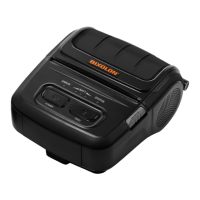
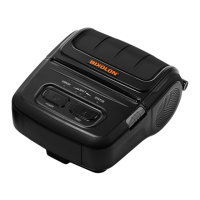
BIXOLON SPP-L310 - User Manual

BIXOLON SPP-L310
11 pages
Print Icon
To Next Page IconTo Next Page
Loading...
Wi-Fi Connection Manual
SPP-L310
Rev. 1.00
http://www.bixolon.com
Question and Answer IconNeed help?

Do you have a question about the BIXOLON SPP-L310 and is the answer not in the manual?

Summary

Manual Information

Precautions

Connection Range and Status Indicators

Details connection distance limits, LED status for wireless LAN connection, and factors affecting signal.

Environmental Interference

Advises on separating the printer from devices that use the same frequency to prevent interference.

How to Connect

Connecting Printer via Serial;USB or WLAN

Explains connecting the printer via Serial/USB cable or WLAN (Infrastructure mode).

Wireless Connection Modes

Illustrates and describes connection modes: Infrastructure (via AP) and Soft AP (direct printer connection).

Checking Network Settings via Self-test

Details the self-test procedure to print the printer's setting values by pressing the feed button.

Android Soft AP Mode Connection

Step-by-step guide to connect to the printer using an Android device in Soft AP mode.

iOS Soft AP Mode Connection

Step-by-step guide to connect to the printer using an iOS device in Soft AP mode.

Changing to Infrastructure Mode

Instructions for changing the printer's Wi-Fi mode to Infrastructure via web interface login.

Factory Reset

Factory Reset Method and Default Values

Procedure to reset WLAN settings to default, including button presses and default configuration values.

Cautions When Using

Summary

Manual Information

Precautions

Connection Range and Status Indicators

Details connection distance limits, LED status for wireless LAN connection, and factors affecting signal.

Environmental Interference

Advises on separating the printer from devices that use the same frequency to prevent interference.

How to Connect

Connecting Printer via Serial;USB or WLAN

Explains connecting the printer via Serial/USB cable or WLAN (Infrastructure mode).

Wireless Connection Modes

Illustrates and describes connection modes: Infrastructure (via AP) and Soft AP (direct printer connection).

Checking Network Settings via Self-test

Details the self-test procedure to print the printer's setting values by pressing the feed button.

Android Soft AP Mode Connection

Step-by-step guide to connect to the printer using an Android device in Soft AP mode.

iOS Soft AP Mode Connection

Step-by-step guide to connect to the printer using an iOS device in Soft AP mode.

Changing to Infrastructure Mode

Instructions for changing the printer's Wi-Fi mode to Infrastructure via web interface login.

Factory Reset

Factory Reset Method and Default Values

Procedure to reset WLAN settings to default, including button presses and default configuration values.

Cautions When Using

BIXOLON SPP-L310 Specifications

General IconGeneral
Print MethodDirect Thermal
Print Resolution203 dpi
InterfaceUSB
EmulationESC/POS
BatteryLithium-ion
Paper Width25 ~ 80 mm
Paper Thickness0.06 ~ 0.12 mm
Power SupplyAC 100-240V, 50/60Hz
Print Speed4 ips (101.6 mm/sec)

Related product manuals