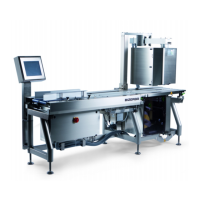
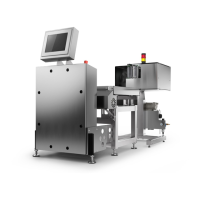
Overview of equipment
Operating instructions GLP
1 -- 14
6.562.98.5.01.18
Settings to be made on the PC:
To make settings on the PC, the device option ”SLIP” is to be set in the menu “In-
terface EDP1” of the GLP (see programming instructions). This may be done in
two different ways:
-- by carrying out a warm start using the <PAUSE> key and <SPACE> bar com-
bination (T4+T6) on the front side of the device. Flashing of all LED indicates
that SLIP is set.
This setting applies to one start only, i. e. when carrying out a new warm start,
the previous EDP1 setting is restored.
-- directy via a display/operating unit GT--240 within the EDP1 menu.
Settings to be made on the PC: dial--up connection with TCP--IP to the address
10.1.1.0.
The homepage of the GLP may be loaded to the computer via a dial--up connec-
tion set up on the PC (see separate description) by means of an Internet browser
via the address 10.1.1.2. This page is then the same in all operating modes.
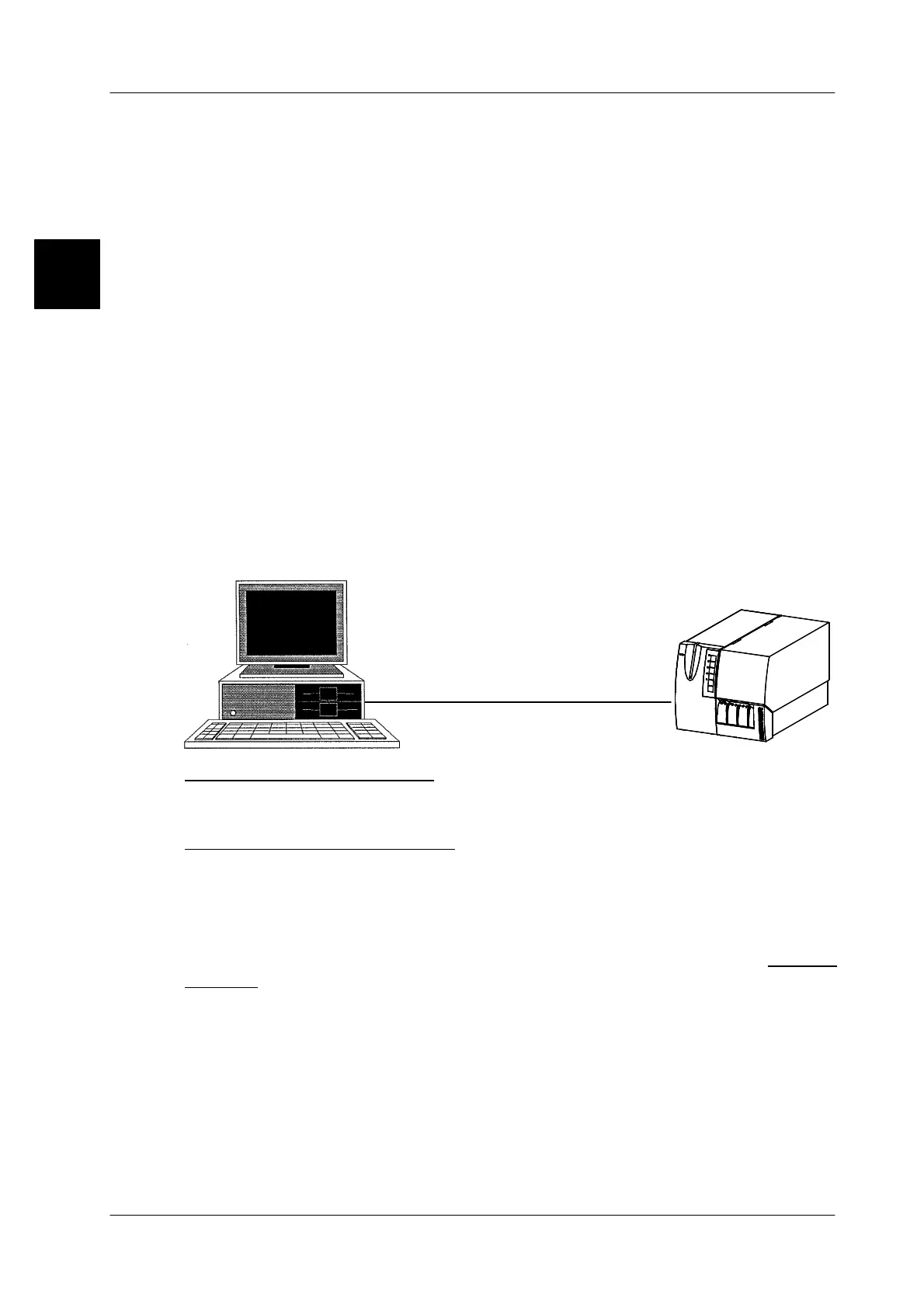
1.2.7.3 Connection between PC and GLP via network, e. g. Ethernet
If the GLP is equipped with an Ethernet card and with a network, such as Ethernet,
provided, the printer may be connected to this network via the LAN plug.
Ethernet
GLP with
Ehernet card
PC or
laptop with
network card
LANLAN
Settings to be made on GLP: enter the Ethernet address
(IP address, Subnet mask, Gateway
address)
Settings to be made on the PC: none
For connection of the GLP to the PC via Ethernet, a remote service password is
to be preset in the GLP. This is described on page 1--40 of the programming in-
structions. After activation of the Internet browser on the PC, the Ethernet address
set in the GLP must be entered. This causes the connection to the GLP to be set
up and the homepage of the GLP to be displayed on the screen. Click “Remote
Service” on the homepage and enter the network password in the appearing in-
put window. Enter “bizerba” as the user name and the remote service password
preset in the GLP. The display and the keyboard of the GLP appear on the screen.
The GLP may then be configured or operated by clicking the relevant keys of the
GLP keyboard on the screen or directly via function and numeric keys of the PC
keyboard. For function keys not provided on the PC keyboard of the GLP, key
combinations may be used as a substitute as described in the aforesaid separate
documentation.
1.2


 To Next Page
 Loading...