Page 17
724-746-5500 | blackbox.com
Chapter 4: Configuration
4. Configuration
The Wireless Ethernet Extender covers “Thin AP mode,” “AC+Thin AP mode,”
and “FAT AP mode.” The default mode is Thin AP. To allow the Wireless Ethernet
Extender to manage the thin APs, you need to switch one of the Wireless
Ethernet Extender to virtual controller mode first. To change the mode, do the
following.
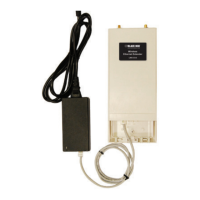
1. To connect the Wireless Ethernet Extender to your PC, plug one end of an
Ethernet cable into the LAN port of PoE injector the other end into the LAN
port of the PC. Then power on the Wireless Ethernet Extender using the PoE
from PoE injector.
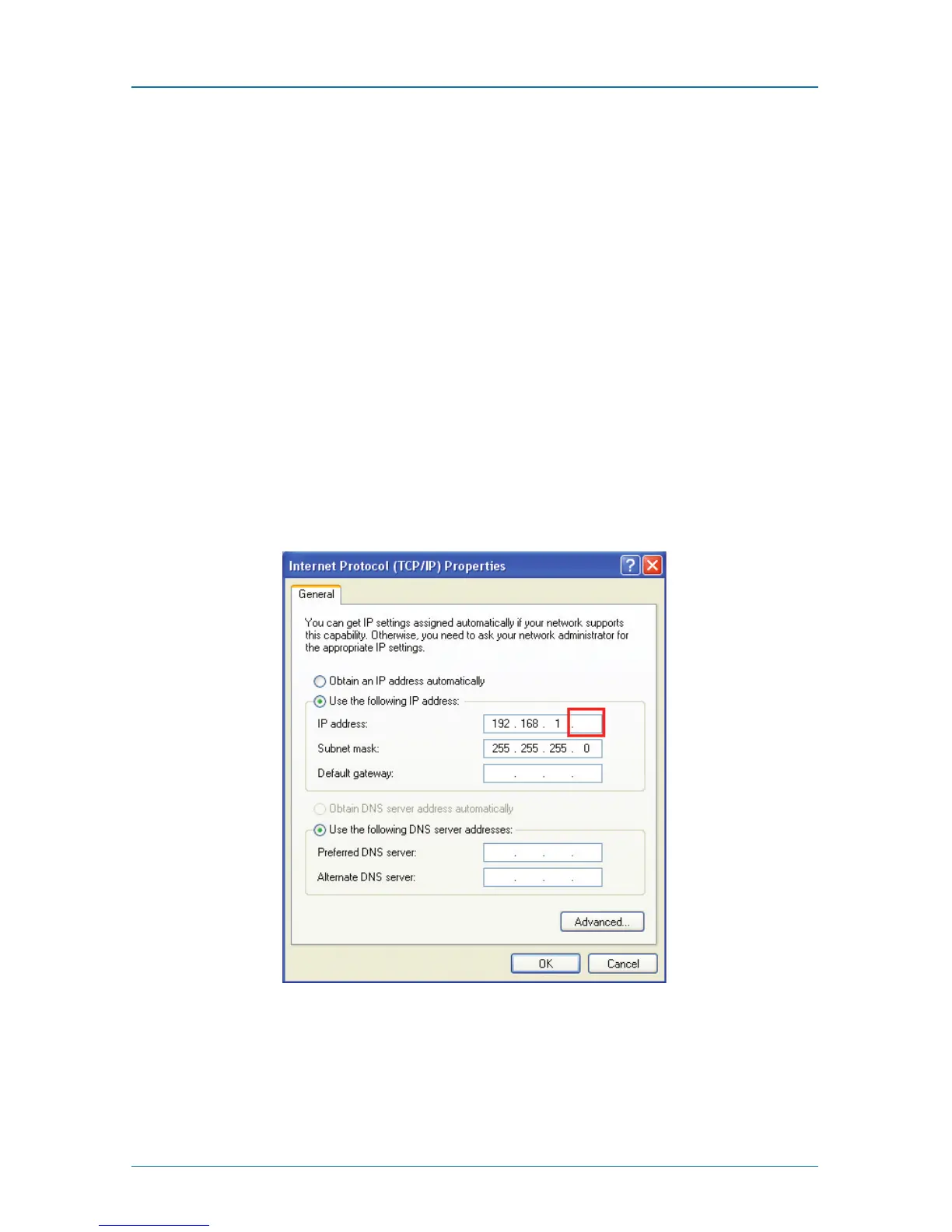
2. Assign a static IP address to your PC that should be in the same network
segment with the Wireless Ethernet Extender. The default IP address of the
extender is 192.168.1.1; you may choose from 192.168.1.2 to 192.168.1.254.
Then click “OK.”
Figure 4-1. TCP/IP properties screen, general tab.
3. Open the web browser on your PC, type in the IP address (192.168.1.1) of the
Wireless Ethernet Extender in the address bar, and then press “Enter.”



 To Next Page