Page 32
724-746-5500 | blackbox.com
Chapter 4: Configuration
Bridge Mode
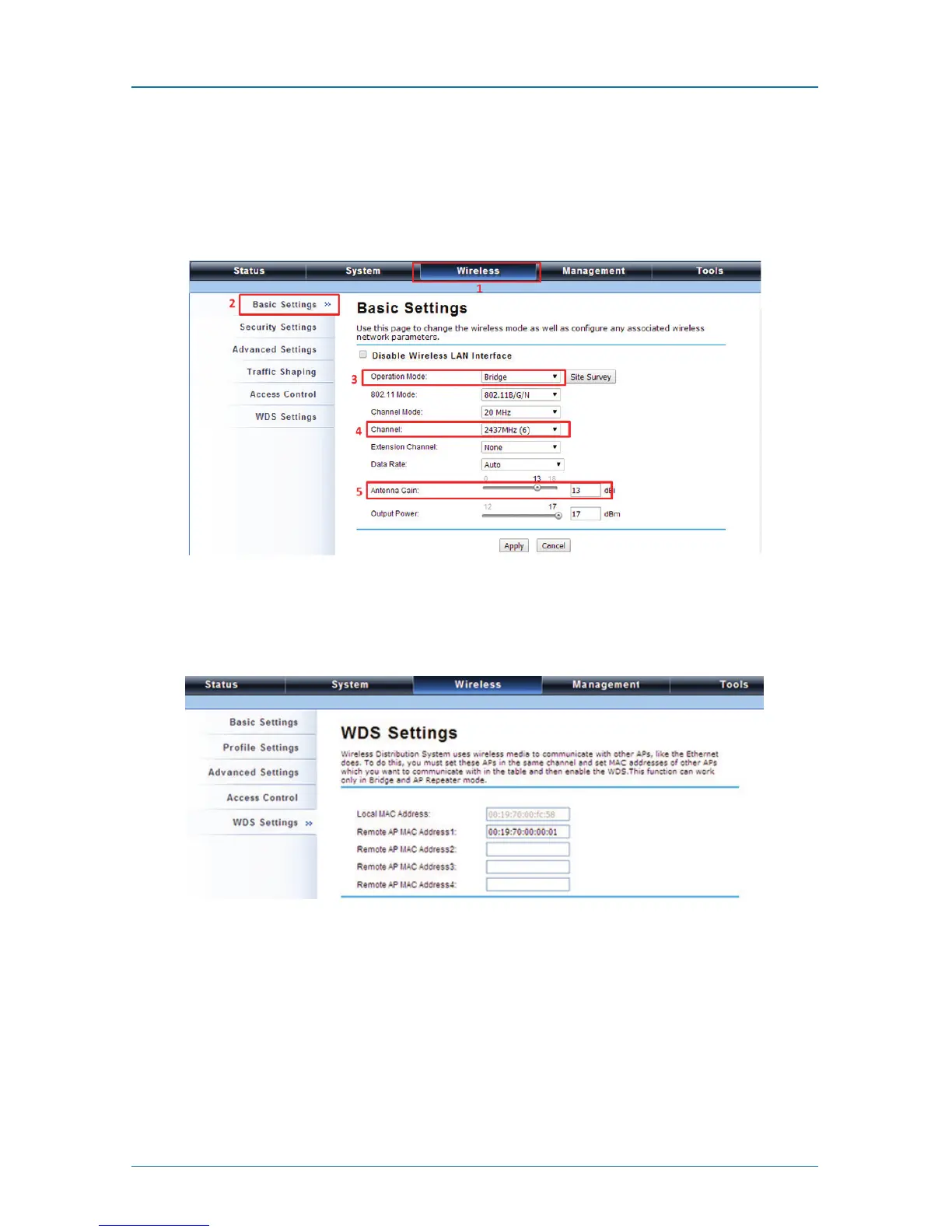
1. Choose Wireless —> Basic Settings. Then you will see the “Wireless Basic
Settings” page. Choose “Bridge” from Wireless Mode, and click “Apply” to
save it. You can change the other parameters to optimize your application
before clicking “Apply.”
Figure 4-30. Wireless Basic Settings screen.
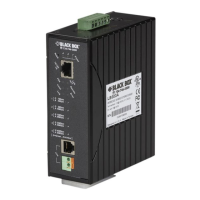
2. Go to “WDS Settings” in “Wireless,” type in the MAC address of the remote
bridge to “Remote AP MAC Address 1” field and click “Apply.”
Figure 4-31. WDS Settings screen.
NOTE: The bridge uses the WDS protocol that is not defined as the standard, so
compatibility issues between equipment from different vendors may arise.
Moreover, Tree or Star shape network topology should be used in all WDS
use-cases (i.e. if AP2 and AP3 are specified as the WDS peers of AP1, AP2
should not be specified as the WDS peer of AP3 and AP3 should not be
specified as the WDS peer of AP2 in any case). Mesh and Ring network
topologies are not supported by WDS, so do not use them.



 To Next Page