55
CHAPTER 7: Personal Organizer
7.2.3 W
ORKING IN
D
AY
V
IEW
From the Main screen, press the twice to display Day View for the currently
selected date. You can also use this method to go directly to Day View when the
Composer is switched off. For other paths to Day View, see Section 7.2.1.
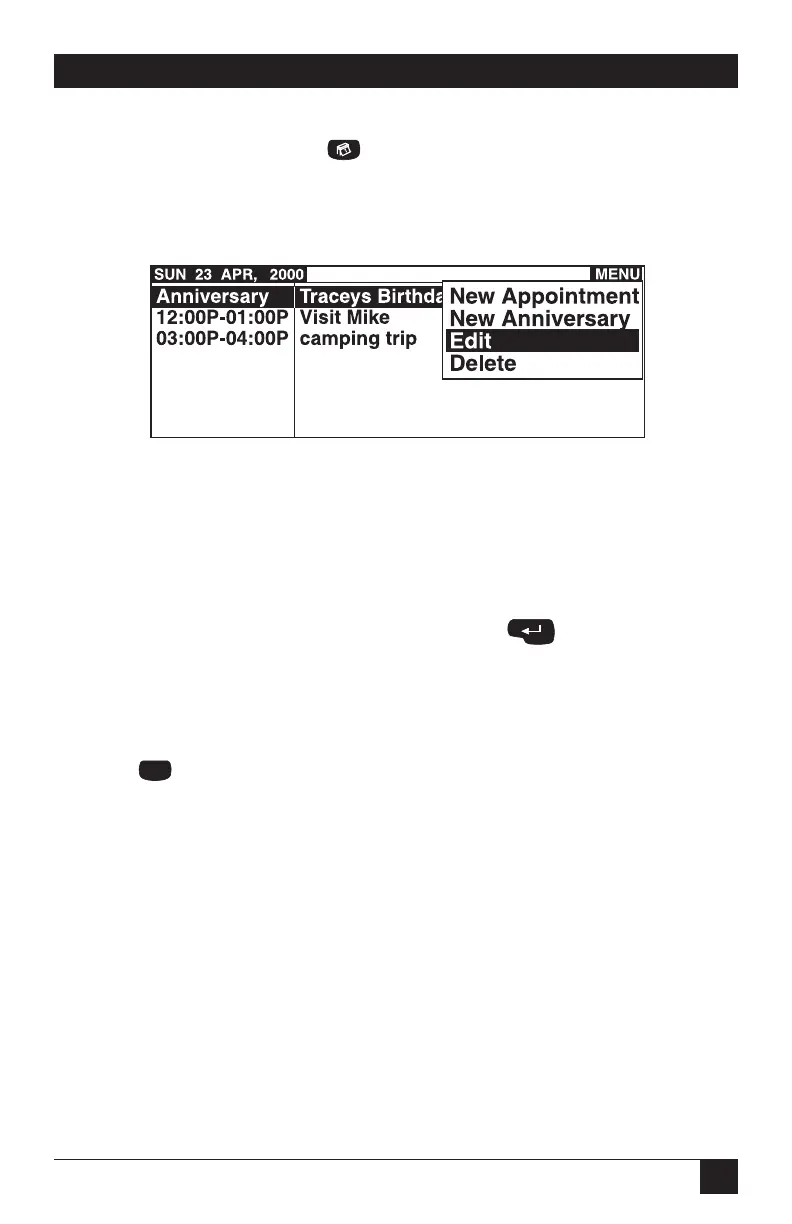
Figure 7-3. Scheduler in Day View.
Day View presents a two-column list of the day’s entries showing the type of entry
in the left column and the first 26 characters of the description in the right.
Anniversaries (Special Dates) appear at the top of the list, followed by
appointments in order of their Start Times.
Use the arrow keys to move to a particular entry. Press to display the full
details of the entry. The Bell symbol appears between the start and end times of an
appointment when the alarm is set.
Day View Menu Options
Press the button to display the following menu options.
• New Appointment: opens a blank appointment window
• New Anniversary: opens a blank anniversary (special date) window
• Edit Entry: opens the currently selected entry for editing
• Delete: displays a “Confirm Deletion” dialog for the currently selected entry
7.2.4 E
DITING AND
D
ELETING
S
CHEDULE
E
NTRIES
To edit an appointment or anniversary:
1. Go to the relevant Day View or use the Calendar View menu to view either the
list of All Appointments or the list of All Anniversaries.



 To Next Page