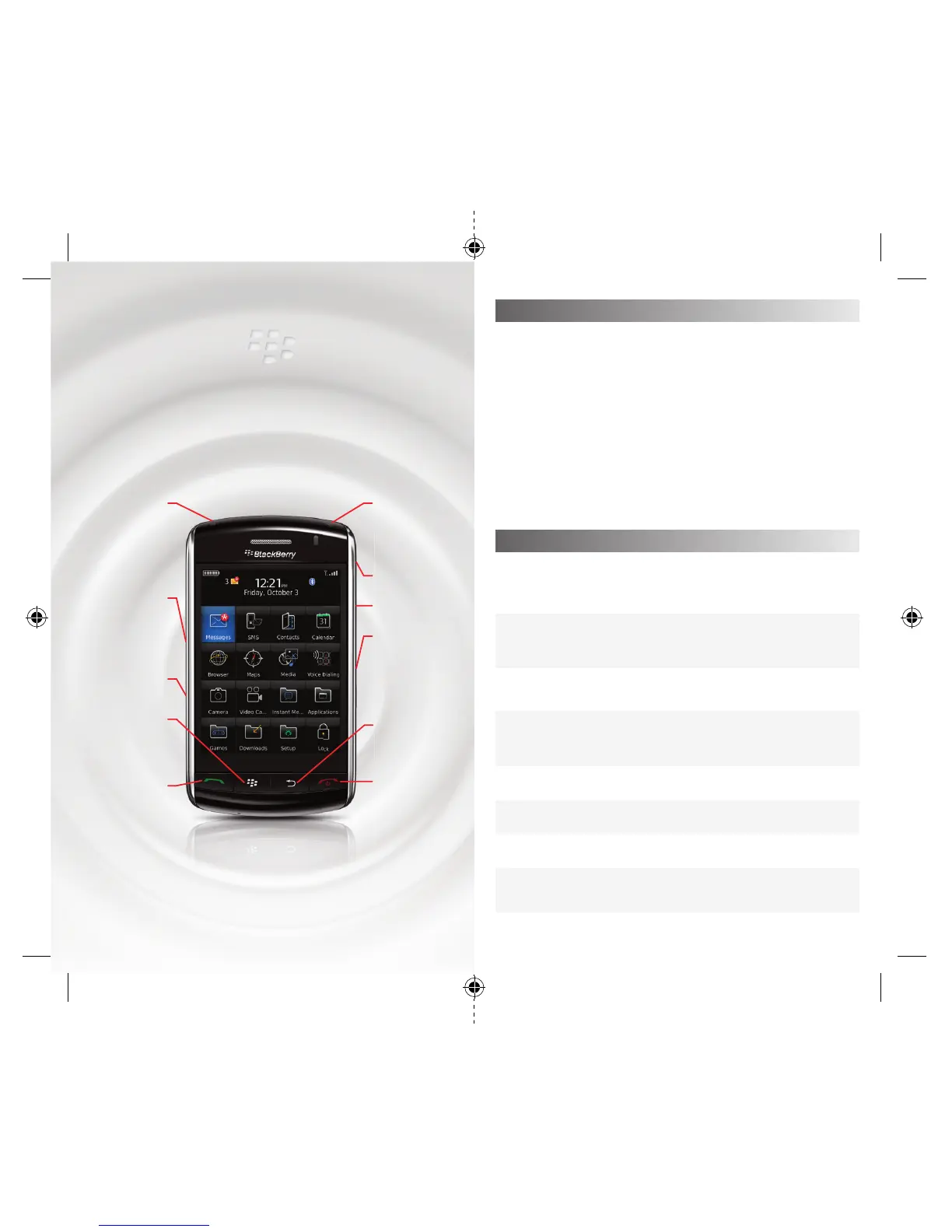
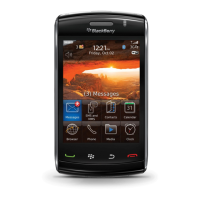
To set up the BlackBerry
®
Storm
™
smartphone, complete
the following tasks. You can also see the Getting Started
Guide (comes with the smartphone) or click Help on the
device for step-by-step instructions.
• Insert the SIM card.
• Insert the battery.
• Charge the battery.
• Complete the setup wizard.
To:
Select an item,
Highlight an item
or place the cursor,
Scroll down,
Scroll up,
Move down a screen,
Move up a screen,
Move to the next item,
Move to the previous item,
Do:
click (press) the item.
touch the screen lightly.
touch and hold near the
bottom of the screen.
touch and hold near the
top of the screen.
slide your finger up quickly.
slide your finger down quickly.
slide your finger to the left quickly.
slide your finger to the
right quickly.
Getting Started
Touchscreen Tips
BlackBerry
®
Storm
TM
smartphone
Tips
Lock key
Lock the device
Turn on
standby mode
Left
Convenience
key
Open the voice
dialing application
MicroUSB port
Menu key
Open the menu in
an application
Send key
Open the phone
Call a highlighted
phone number
Mute key
Play/pause
a media file
Mute a call
Headset Jack
Volume keys
Right
Convenience key
Open the camera
Autofocus
Take a picture
Escape key
Move back a screen
Close a menu
End/Power key
Return to the
Home screen
End a call
Turn on/off
your device
RIM21542_Storm_TipsTricks.indd 2 10/15/08 2:22:51 PM




 To Previous Page