TIP URSA Mini Pro 12K comes equipped with a PL mount. Other URSA Mini Pro
cameras come out of the box configured to accept EF lenses. To get shooting right
away, simply attach a lens as detailed below.
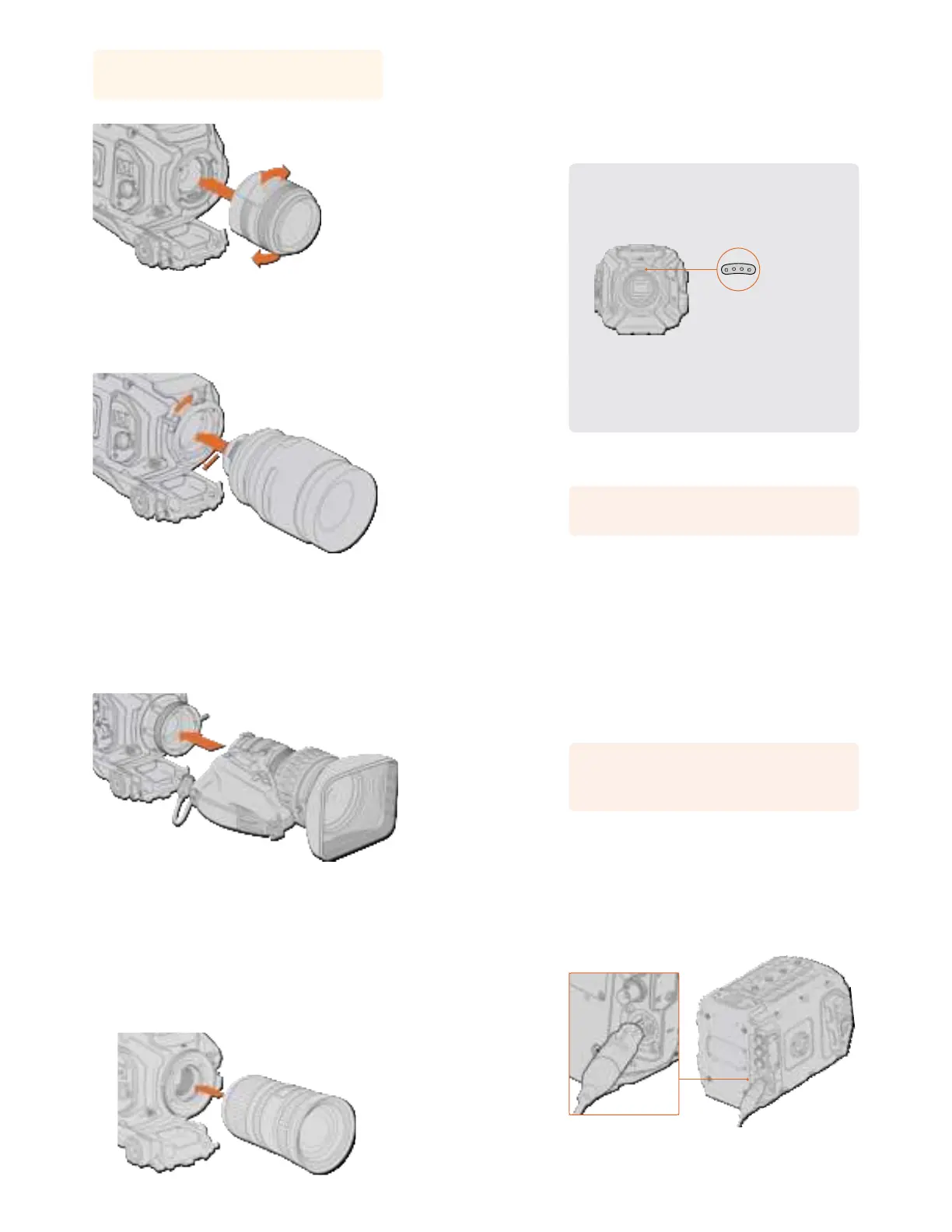
To attach an EF mount lens:
Attaching and removing an EF mount lens on Blackmagic URSA Mini EF
1 Align the dot on your lens with the dot on the camera mount. Many lenses have a visual
indicator, for example a blue, red or white dot.
2 Insert the lens into the mount and twist clockwise until it locks into place.
3 To remove the lens, hold down the locking button, rotate the lens counterclockwise
until its dot or indicator reaches the 12 o’clock position, and gently remove.
To attach a PL mount lens:
Attaching and removing a PL lens on Blackmagic URSA Mini PL and URSA Mini Pro 12K
9
Getting Started
1 Open your camera’s PL locking ring by rotating it counterclockwise until it stops.
2 Align one of the lens’ four flange notches with the locating pin on the camera mount.
Be sure to align the lens for easy viewing of the lens marks.
3 Tighten the PL locking ring by rotating it clockwise. If attaching a PL lens with a servo
unit to URSA Mini PL or URSA Mini Pro, you can also connect the 12 pin broadcast
connector for servo control.
4 To remove the lens, rotate the locking ring counterclockwise until it stops, then gently
remove the lens by pulling it directly out from the camera body. There is no need to
rotate the lens.
URSA Mini Pro PL Mount
URSA Mini Pro’s PL mount features four pins at the 12 o’clock position that are used to
communicate with lenses featuring Cooke’s /i Technology interface. The lenses that
support this interface include lenses from Canon, Cooke, Fujinon, Leica and Zeiss.
Thislets you record lens information in your clips’ metadata such as the lens model,
focal length, aperture setting, focus distance and other lens specific information.
When mounting a PLlens with /iTechnology to
URSAMini Pro, make sure the lens pins align
withthe mount pins at the 12o'clock position
The information that is recorded as metadata via Cooke’s /i Technology interface
canbe very helpful in post production and VFX. Knowing the lenses used in
productionand their precise settings can be helpful in the event that the setup
needsto be replicated at a later date.
This detailed information can also be utilized by powerful applications such as
DaVinciResolve and Blackmagic Fusion for a wide variety of advanced functions.
Forexample, the recorded metadata can be used to simulate the specific lens in
3Dspace, or correct lensdistortions.
URSA Mini Pro and URSA Mini PL support control of PL 35mm lenses with servo handgrips.
When the lens is plugged in to the 12-pin broadcast connector on the camera, URSAMini will
provide power and control signals to your lens in the same way it does with B4lenses. For more
information refer to the ‘Using Servo Zoom Lenses’ section in this manual.
NOTE When no lens is attached to the camera, the glass filter covering the
sensor isexposed to dust and other debris. Ensure that you keep the dust cap on
whenever possible.
10Getting Started
To attach a B4 mount lens:
Attaching and removing a B4 lens on
BlackmagicURSA Mini PL with B4 mount
1 Turn the B4 lens locking ring counterclockwise to reveal the alignment slot inside the
top of the mount. Align the B4 lens to your URSA Mini’s B4 mount so the alignment pin
on the lens mount matches the position of the alignment slot.
2 Hold the lens against the B4 mount so the mount plates are against each other.
Make sure the alignment pin is secured inside the alignment slot.
3 Turn the locking ring clockwise to tighten the lens against the mount and lock it
into position.
4 To power the lens and provide lens control, simply plug the lens cable into the
connector marked ‘Lens’ on the front of your URSA Mini PL or URSA Mini Pro’s turret.
Most B4 lenses will have the 12 pin connector and cable built in. This will provide power
and control signals from your URSA Mini to the lens.
For information on the types of B4 lenses and how to use them with your camera, refer
to the ‘Using Servo Zoom Lenses’ section in this manual.
To attach an F mount lens:
Attaching and removing an F mount lens on Blackmagic
URSAMiniPro 4.6K with the optional F mount fitted
11
Getting Started
1 Align the dot on your lens with the dot on the camera mount. Many lenses have a visual
indicator, for example a blue, red or white dot.
2 Insert the lens into the mount and twist counterclockwise until it locks into place.
3 To remove the lens, hold down the locking button, rotate the lens clockwise until its dot
or indicator reaches the 2 o’clock position, and gently remove.
NOTE Blackmagic URSA Mini Pro F mount features a mechanical iris adjuster. To use
older style F mount lenses with built in focus rings with this mount, your lens aperture
will need to be set and locked to its smallest setting, such as f/22. For more information
on adjusting aperture with Blackmagic URSA Mini Pro F mount’s manual iris adjuster,
see the section ‘Blackmagic URSA Mini Pro F Mount’ in this manual.
Powering your Camera
Now that you’ve attached a lens, you will need to supply power. The quickest way to power
your camera is to connect external power using the supplied AC to 12V DC adapter.
To plug in external power:
1 Connect the AC to 12V DC adapter plug to your mains power socket.
2 Connect the AC to 12V DC adapter’s 4 pin XLR connector to the 12-20V DC power
connector on the camera.
If you have both external and battery power connected, only external power will be used. If you
remove external power while a charged battery is connected, your camera will switch to battery
power without interruption.
Use the supplied AC to 12V DC adapter to power your Blackmagic URSA Mini
12Getting Started


 To Next Page
 Loading...