You can use industry standard third party external batteries such as V mount or GoldMount
batteries with your URSA Mini. Refer to the ‘mounting batteries’ section for more information
about mounting the different types of battery plates to support different batteries.
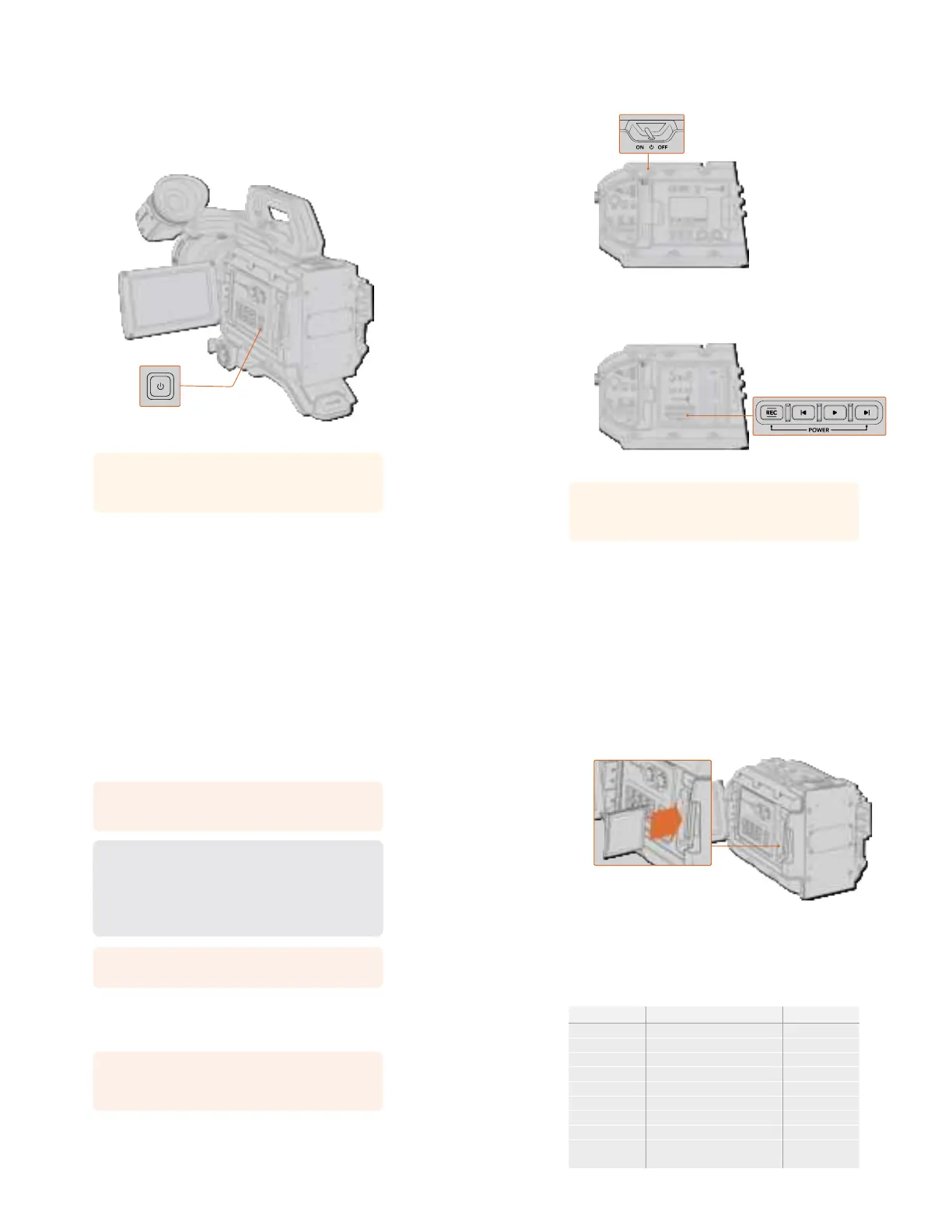
To turn on URSA Mini:
1 Press and release the ‘power’ button. On Blackmagic URSA Mini, the power button is
located on the control panel behind the fold out LCD. Simply open the LCD to access
the control panel.
2 Press and hold the ‘power’ button to turn your camera off.
You are now ready to insert CFast 2.0 cards and start recording!
To turn on your URSA Mini, open the fold out LCDtouchscreen, then press and
release the power button on the control panel. Press and hold to turn off
TIP When turning the camera on, make sure you promptly press and releasethe
button. Your camera will take approximately 10 seconds to boot up, but there is no
need to press the button again. When turning off, press and hold the button until the
camera powers off.
13Getting Started
To turn on URSA Mini Pro:
1 On Blackmagic URSA Mini Pro, a power switch is also located above the foldoutLCD.
Move the switch to the ‘on’ position to power your camera.
2 To turn the camera off, move the switch to the ‘off’ position.
Move the power switch to ‘on’ to power your camera
URSA Mini Pro also features a redundant power switch, which allows the camera to be
turned on and off by briefly holding down the ‘rec’ and ‘forward skip’ buttons on the
inside control panel. While you wouldn’t normally power your camera using this
method, it is provided as a helpful alternative if the power switch along the top edge is
obscured, for example when mounted on a custom rig.
If you need to, you can also briefly hold down the record and forward skip buttons
on the control panel behindthe LCD to power your camera on or off
TIP If your URSA Mini Pro is turned off when the power switch is set to ‘on’, your
camera may have been powered down via Bluetooth
®
control or by holding down the
record and forward skip control panel buttons. Simply toggle the power switch ‘off’ and
‘on,’ or hold down the relevant control panel buttons to power the camera on.
14Getting Started
Storage Media
Your Blackmagic URSA Mini camera has a number of storage options. All URSA Mini cameras
use CFast 2.0 cards to record video. URSA Mini Pro cameras can also record to fast UHS-II and
UHS-I SD cards.
URSA Mini Pro G2 has a USB-C 3.1 Gen 1 port and URSA Mini Pro 12K has a USB-C 3.1 Gen 2
port for recording to high speed flash disks.
Using the optional URSA Mini SSD Recorder, you can record to high capacity solid state drives,
or “SSDs”.
NOTE URSA Mini SSD Recorder is designed for use with URSA Mini Pro 4.6K G2,
URSA Mini Pro 4.6K, URSA Mini 4.6K and URSA Mini 4K. It is not compatible with URSA
Mini Pro 12K.
Important Notes About Media Speeds
Write and read speeds published by recording media manufacturers are often based
on peak speeds for small files such as still images, and may not accurately reflect write
speeds for a continuous stream of high speed video.
Blackmagic has thoroughly tested all of the cards listed below for URSA Mini.
For reliable recording with your chosen frame rates, use only the cards recommended
by Blackmagic Design.
NOTE For more information on connecting URSA Mini SSD Recorder to your camera
see the ‘Blackmagic URSA Mini SSD Recorder’ section.
CFast Cards
CFast 2.0 cards are capable of supporting very high data rates, so are perfect for recording
HDand 4K video at high frame rates. Refer to the record duration table in the ‘recording’
section for details on the maximum frame rates that can be recorded in each format.
NOTE While CFast 2.0 cards are generally high speed cards, some cards have slower
write speeds compared to read speeds, and maximum data rates can differ between
models. Toensure reliable recording in your chosen frame rates, use only the
recommended cards listed in this section.
Inserting a CFast Card
If you’re using URSA Mini Pro, your camera can record to CFast cards or SD cards. To record
using CFastcards you need to set your camera accordingly. To do this, set the storage
mediaswitch above the media slots to the ‘CFAST’ position.
15Storage Media
To insert a CFast card:
1 Open the fold out monitor to access the CFast slots.
2 Insert the CFast card into the CFast card slot until you feel it lock into place. The card
should insert easily without the need for excessive force. Push the CFast card ejector
button to eject the card.
The storage information at the bottom of the LCD touchscreen will show the name and
record time remaining of the detected CFast cards.
Blackmagic URSA Mini has two CFast slots for continuous recording
Choosing a CFast 2.0 Card
When working with high data rate video it’s important to carefully check the CFast card you
would like to use. This is because CFast 2.0 cards have different read and write speeds.
Thetables below identify the CFast cards recommended for use.
Which CFast cards should I use with Blackmagic URSA Mini Pro 12K?
The following CFast 2.0 cards are recommended for recording 12K DCI Blackmagic RAW 18:1 up
to 60 frames per second, and 8K DCI Blackmagic RAW 8:1 up to 60 frames per second.
Brand Card Name Storage
Angelbird AV Pro CF 128GB
Angelbird AV Pro CF 256GB
Angelbird AV Pro CF 512GB
Angelbird AV Pro CF 1TB
ExAscend Essential 512GB
ExAscend Essential 1TB
Fr eeTail Evoke Pro 3700x 128GB
Fr eeTail Evoke Pro 3700x 256GB
Fr eeTail Evoke Pro 3700x 512GB
Fr eeTail Evoke Pro 3700x 1TB
16Storage Media


 To Next Page
 Loading...