EasyManua.ls Logo

Blink IQ 200 - User Manual

Blink IQ 200
52 pages
Print Icon
To Next Page IconTo Next Page
Loading...
Instruction Manual
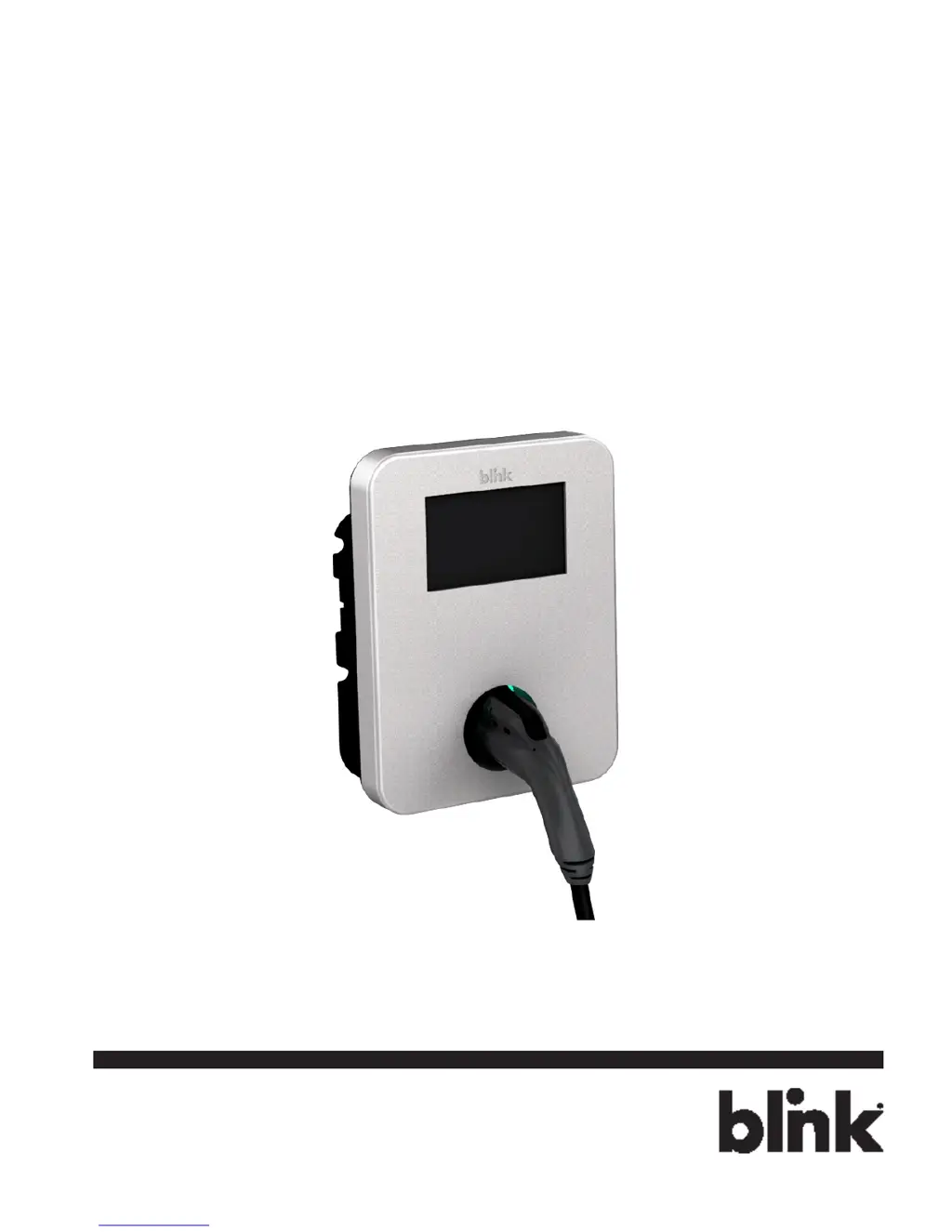
Blink IQ 200
Charge on.

Questions and Answers

Summary

IMPORTANT SAFETY INSTRUCTIONS

Safety Instructions

General safety precautions and hazard avoidance guidance for using the Blink Charger.

Repair and Maintenance Clause

Guidelines for authorized personnel regarding repair and maintenance of the device.

Introduction

Product View

Visual identification of different Blink IQ 200 models and their key components.

Specifications

Product Specifications

Detailed technical specifications for various Blink IQ 200 models.

Installation

Before Installation

Pre-installation checks, safety warnings, and grounding requirements.

Tools & Parts Required for Installation

List of necessary tools and parts for the installation process.

Install the Charger

Step-by-step instructions for physically mounting and connecting the charger.

Web Portal Login Instructions

Getting Started

Initial steps for connecting to the Blink Charger's network and accessing its interface.

Log In

Procedure for logging into the Blink Charger's web portal using credentials.

Web-page Overview

Navigation and description of the main menu items available on the web interface.

Configuration Menu

Details on accessing and using the configuration options within the web portal.

Maintenance Menu

Steps to access and utilize maintenance functions like rebooting or firmware upgrades.

LLM Status Menu

How to view the status of the Local Load Management system.

Security Menu

Accessing and managing security settings, including password changes.

Operation Hours Menu

Setting and viewing the operational hours for the charging station.

Default Price Menu

Configuring default parking and usage prices for the charger.

OQC Test Menu

Accessing functions for internal quality testing purposes.

Configuration

Factory Settings

Displaying and understanding the charger's factory-configured information.

Commissioning Settings

Configuring the charger's connection and identity for central system integration.

IP Settings

Configuring network settings, including IP addresses and connectivity modes.

OCPP Settings

Settings related to the Open Charge Point Protocol for communication.

Maintenance

Command

Performing basic commands like rebooting or resetting the charger to default settings.

Firmware Upgrade

Process for updating the charger's firmware to the latest version.

LLM Status

LLM Information

Overview of the Local Load Management status and charger roles.

Primary;Secondary Group Table

Table displaying group information when the charger acts as a master.

Security

Change Password

Procedures for changing user passwords for the charger's interface.

Operation Hours

Operation Hours

Setting and viewing the weekly schedule for charger availability.

Default Price

Default Parking Price

Configuring the default pricing structure for parking sessions.

Default Usage Price

Configuring the default pricing structure for energy usage.

OQC Test

Test Function

Accessing internal functions for quality assurance testing.

Operations

About the Charger

Explains the meaning of various LED indicators on the charger.

Charging an Electric Vehicle (EV)

Step-by-step guide on how to connect an EV and initiate the charging process.

Stop Charging

Instructions on how to safely disconnect the EV and end a charging session.

Interrupt Charging

Information on how charging sessions are interrupted and handled.

Auto Restart

Details on the charger's automatic restart behavior after temporary interruptions.

Power Outage Recovery

How the charger resumes operation after a power interruption.

Troubleshooting

Out Of Service (Station Disable)

Actions to take when the station is disabled and out of service.

Out Of Service (Internal Maintenance)

Actions to take when the station is undergoing internal maintenance.

Not Within Hours of Operation

What to do if trying to use the station outside its operating hours.

Display Hours of Operation screen

Viewing the detailed operating hours of the station.

The Station will be closed less than N minutes.

Guidance when the station is nearing its closing time.

Unable to Read Payment Card

Steps to resolve issues with reading payment cards.

Payment Card Declined

Actions to take when a payment card is declined.

Blink Code is not Valid.

Troubleshooting for invalid or expired Blink Codes.

Blink Code Access is unavailable.

Steps for when Blink Code access is temporarily unavailable.

The Selected Blink Unit is an invalid Unit.

What to do if an invalid Blink Unit is selected.

The Selected Blink Unit is currently in-use or unavailable.

Actions if the selected Blink Unit is already in use or unavailable.

Fault (Case 1).

Handling a fault condition where the system attempts an automatic reset.

Fault (Case 2).

Handling a fault condition requiring manual reset.

Fault (Case 3).

Handling a fault condition where the system waits to clear the fault.

General Care

Customer Support

Contact information for assistance if the charger is not operational.

Summary

IMPORTANT SAFETY INSTRUCTIONS

Safety Instructions

General safety precautions and hazard avoidance guidance for using the Blink Charger.

Repair and Maintenance Clause

Guidelines for authorized personnel regarding repair and maintenance of the device.

Introduction

Product View

Visual identification of different Blink IQ 200 models and their key components.

Specifications

Product Specifications

Detailed technical specifications for various Blink IQ 200 models.

Installation

Before Installation

Pre-installation checks, safety warnings, and grounding requirements.

Tools & Parts Required for Installation

List of necessary tools and parts for the installation process.

Install the Charger

Step-by-step instructions for physically mounting and connecting the charger.

Web Portal Login Instructions

Getting Started

Initial steps for connecting to the Blink Charger's network and accessing its interface.

Log In

Procedure for logging into the Blink Charger's web portal using credentials.

Web-page Overview

Navigation and description of the main menu items available on the web interface.

Configuration Menu

Details on accessing and using the configuration options within the web portal.

Maintenance Menu

Steps to access and utilize maintenance functions like rebooting or firmware upgrades.

LLM Status Menu

How to view the status of the Local Load Management system.

Security Menu

Accessing and managing security settings, including password changes.

Operation Hours Menu

Setting and viewing the operational hours for the charging station.

Default Price Menu

Configuring default parking and usage prices for the charger.

OQC Test Menu

Accessing functions for internal quality testing purposes.

Configuration

Factory Settings

Displaying and understanding the charger's factory-configured information.

Commissioning Settings

Configuring the charger's connection and identity for central system integration.

IP Settings

Configuring network settings, including IP addresses and connectivity modes.

OCPP Settings

Settings related to the Open Charge Point Protocol for communication.

Maintenance

Command

Performing basic commands like rebooting or resetting the charger to default settings.

Firmware Upgrade

Process for updating the charger's firmware to the latest version.

LLM Status

LLM Information

Overview of the Local Load Management status and charger roles.

Primary;Secondary Group Table

Table displaying group information when the charger acts as a master.

Security

Change Password

Procedures for changing user passwords for the charger's interface.

Operation Hours

Operation Hours

Setting and viewing the weekly schedule for charger availability.

Default Price

Default Parking Price

Configuring the default pricing structure for parking sessions.

Default Usage Price

Configuring the default pricing structure for energy usage.

OQC Test

Test Function

Accessing internal functions for quality assurance testing.

Operations

About the Charger

Explains the meaning of various LED indicators on the charger.

Charging an Electric Vehicle (EV)

Step-by-step guide on how to connect an EV and initiate the charging process.

Stop Charging

Instructions on how to safely disconnect the EV and end a charging session.

Interrupt Charging

Information on how charging sessions are interrupted and handled.

Auto Restart

Details on the charger's automatic restart behavior after temporary interruptions.

Power Outage Recovery

How the charger resumes operation after a power interruption.

Troubleshooting

Out Of Service (Station Disable)

Actions to take when the station is disabled and out of service.

Out Of Service (Internal Maintenance)

Actions to take when the station is undergoing internal maintenance.

Not Within Hours of Operation

What to do if trying to use the station outside its operating hours.

Display Hours of Operation screen

Viewing the detailed operating hours of the station.

The Station will be closed less than N minutes.

Guidance when the station is nearing its closing time.

Unable to Read Payment Card

Steps to resolve issues with reading payment cards.

Payment Card Declined

Actions to take when a payment card is declined.

Blink Code is not Valid.

Troubleshooting for invalid or expired Blink Codes.

Blink Code Access is unavailable.

Steps for when Blink Code access is temporarily unavailable.

The Selected Blink Unit is an invalid Unit.

What to do if an invalid Blink Unit is selected.

The Selected Blink Unit is currently in-use or unavailable.

Actions if the selected Blink Unit is already in use or unavailable.

Fault (Case 1).

Handling a fault condition where the system attempts an automatic reset.

Fault (Case 2).

Handling a fault condition requiring manual reset.

Fault (Case 3).

Handling a fault condition where the system waits to clear the fault.

General Care

Customer Support

Contact information for assistance if the charger is not operational.

Blink IQ 200 Specifications

General IconGeneral
ConnectivityWi-Fi, Bluetooth
Connector TypeSAE J1772
CategoryLevel 2 EV Charger
Voltage240 volts
CompatibilitySAE J1772 EVs
InstallationWall-mounted
Wi-Fi ConnectivityYes
Enclosure RatingNEMA 3R
DisplayLCD

Related product manuals