Need help?
Do you have a question about the Blu YHLBLUG91S and is the answer not in the manual?
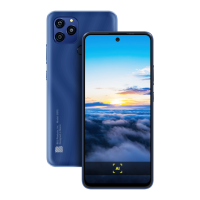
This document is a user manual for the BLU G91S mobile phone, identified by FCC ID: YHLBLUG91S. It provides essential information regarding the device's safety, technical specifications, and various functionalities.
The manual begins with crucial safety guidelines. Users are advised to use the phone safely, avoiding situations that might cause danger. Transportation safety is emphasized, urging users to observe all laws and regulations and to drive with both hands on the wheel, explicitly stating "PLEASE DRIVE RESPONSIBLY - DO NOT TEXT AND DRIVE." Hospital safety requires users to follow rules and limitations, and to turn off the mobile phone near medical instruments. Airport safety mandates adherence to all airport and flight safety regulations. Chemical warnings advise against using the phone around fuels or chemicals. Temperature warnings caution against exposing the phone to extreme temperature conditions (below -8°C (18°F) or above 43°C (110°F)). Lastly, a water hazard warning states that the phone is not waterproof and should be kept away from water or liquid to avoid damage.
For emergency calls, users must ensure the mobile phone is switched on and in a service area. From the home screen, tapping the phone key and dialing the emergency number will initiate the call.
The manual stresses the importance of using only BLU authorized batteries and accessories. For optimal performance and longer battery life, it is recommended to fully charge the battery before first use. The best performance of a new battery is typically achieved after two or three complete charge cycles. Continuous overcharging is noted to affect long-term battery life. While charging, the phone should be kept out of reach of children. Batteries should be stored in a cool, dry place away from direct sunlight and water. Users are warned to immediately stop using the battery if it produces an odor, cracks, leaks, overheats, distorts, or shows any other physical damage.
The manual includes a warning against disposing of batteries with uncontrolled daily waste. The marking in the manual indicates that batteries should not be disposed of with household trash at the end of their working life. Proper disposal according to environmental laws and guidelines is required due to substances that can harm human health and the environment.
To maintain the device, users should avoid using the handset and accessories in excessively moist areas to prevent malfunction. A soft, dry cloth should be used to clean the handset, battery, and charger. Alcohol, thinner, benzene, or any other solvent should not be used to clean the handset.
The device, G91S, features a Li-Polymer battery with a capacity of 6,000 mAh and a voltage of 3.85 V, providing 23.1 Wh of power. The charger supports an input voltage of 100V-240V~ with a current of 0.3 A, operating at 50Hz/60Hz. The charger's output is 5V with a current of 2000 mA. The phone itself operates at 3.85 V.
The device complies with Part 15 of the FCC Rules, meaning it will not cause harmful interference and must accept any interference received. The equipment has been tested and found to comply with Class B digital device limits, designed to provide reasonable protection against harmful interference in residential installations. Users are advised on measures to correct interference, such as reorienting the receiving antenna, increasing separation between equipment and receiver, connecting to a different circuit, or consulting a technician. Any unauthorized modifications could void the user's authority to operate the equipment.
The device meets government requirements for exposure to radio waves, designed and manufactured not to exceed the emission limits for radio frequency (RF) energy set by the FCC. The Specific Absorption Rate (SAR) limit set by the FCC is 1.6W/kg. SAR tests are conducted at standard operating positions (10mm) with the device transmitting at its highest certified power level across all tested frequency bands.
Power On and Off: To power on, ensure the SIM card is inserted and long-press the Power key. To power off, long-press the Power key in standby mode and select "Power Off."
Navigation Bar: This dedicated area displays system buttons for seamless control.
Notifications Bar: Located at the top of the screen, it displays useful information like signal bar, time, battery indicator, data indicator, Bluetooth, and Wi-Fi. Sliding down the bar reveals pending notifications or actions. The notification settings panel provides shortcuts to different phone settings.
At the dialing interface, users can enter a phone number and click the dial key.
Open Contacts: Access via the applications menu. Contacts are displayed from phone and Google accounts, organized alphabetically. A search interface is available. Add New Contact: Click the add contact icon. Contacts can be saved to a Google account or the phone. Enter information like picture, name, phone number, group, address, and email. Click to save. Saving to a Google account facilitates synchronization across devices. Delete Contact: Click the Contacts icon, then click and hold the contact to delete. Multiple contacts can be selected. Click the bin icon to delete. Import / Export Contacts: The phone allows importing and exporting contacts between SIM card, Gmail account, and phone storage. Access via the menu button in Contacts. Select source and destination, then choose contacts to copy.
This function allows exchanging text and multimedia messages. Conversations are saved together. Open Messaging: Access via the Application Menu. Sending an SMS: Click the contact icon to enter a recipient, compose the message, and click Send. Sending an MMS: The default message style is SMS, but it converts to MMS when an attachment is added or when exceeding 10 pages of SMS. Click the attachment icon to add attachments and create an MMS.
Bluetooth: A short-range wireless technology for exchanging information and connecting to devices like headsets.
Google's free email service. Open Gmail: Access via the Applications Menu. Sign in or create a new account. Gmail accounts streamline other Google services like Play Store, Drive, Photos, Calendar, and Wallet. Sending an Email: Click "Compose," enter recipient's email, subject, compose message, add attachment (optional), and click "Send." The Gmail inbox is separated into Primary, Social (for Facebook, Twitter, etc.), and Promotions (for commercial emails). These categories can be adjusted in Gmail settings.
Google Play allows downloading music, movies, and games. Open the Play Store: Access via the Applications Menu. Users need to log in with their Google account. Installing an Application: Browse categories or search. Click on the application, then "INSTALL," and follow instructions. Android OS Note: Native or installed applications will ask for permission on first access.
Prior to use: It is suggested to insert an SD card for maximum storage capacity for photos and videos. Open the Camera: Access via the Applications Menu. A camera shortcut icon can be placed on the screen. Taking a Picture: Aim at the subject, click the Shutter button. Photos are saved in the cameras gallery folder. View photos by clicking the preview box. Recording a Video: Aim at the subject, click the Video button to start, and click again to stop. Users can adjust settings via the Menu while in the camera interface, and switch between camera and video modes.
Google Photos organizes all pictures and videos. Open the Gallery: Access via the Applications Menu. Viewing Pictures and Videos: Click an image for full screen. Click the play button for videos. Navigate by sliding left or right. Pictures and videos are stored in separate albums and organized by date and location. Share Pictures: While viewing an image, click the Share button to send via installed applications, MMS, or Bluetooth. Adjust Image: While viewing an image, click the Edit button to adjust with filters (Light, Color, Pop) or crop. Crop Pictures: Pinch in or out to adjust size, hold down corners to keep proportion.
This function allows listening to FM radio. Wired headphones are required as an antenna. Open FM radio: Press the FM Radio icon. Scan channels automatically and add favorites. FM Radio as Background: Click the Home key to move FM Radio to the background.
Allows recording audio. Open the Sound Recorder: Access via the applications menu. Record: Keep the microphone near the sound source, click the record button to start, and click the stop button to end. It is suggested to save recordings to an SD card for maximum storage.
The Files manager allows searching and organizing stored phone files. Open the Files: Access via the applications menu. Users can scroll and search through downloaded and system files.
Helps keep track of important moments. Open the Calendar: Access via the Application Menu. Creating an Event: Long-press a date, click "Edit," enter details (name, location, start date, time), and save. Calendar information ranges from Name, Location, Date among other options.
Features include alarms, world clock, and stopwatch. Open the Alarm Clock: Access via the Application Menu. View Current Time in Other Cities: Click the Clock icon, then World Clock, and select cities. Create a New Alarm: Click the Alarm icon tab, then "Add Alarm," and set the time. Users can add, edit, or delete alarms.
About Device: Verify current device information. Mobile Network: See data usage. SIM Cards: SIM Cards selections. Wi-Fi: Power on Wi-Fi, search for networks. Unsecured networks connect directly; secured networks require a password. Bluetooth: Power on Bluetooth, add new devices. Automatically connects to paired devices. Hotspot & tethering: Setup Hotspot. More:
Connect the phone to a computer via USB cable. A connection interface appears in notification settings. Click the USB notification bar icon to access the USB computer connection menu and select the desired setting. USB Connection Options include: Charging Only (No Data Transfer), Transfer files, and Camera (PTP).
The manual provides solutions for common problems:
The information in the manual is subject to change without notice, and BLU Products disclaims responsibility for inaccuracies or omissions.
 General
| Brand | Blu |
|---|---|
| Model | YHLBLUG91S |
| Category | Cell Phone |
| Language | English |

 To Next Page