Need help?
Do you have a question about the Bluesound Powernode N150 and is the answer not in the manual?
Safety and operating instructions should be read and retained for future reference.
All warnings on the product and in the operating instructions must be adhered to and followed.
Unplug before cleaning with a dry cloth. Do not use unrecommended attachments.
Do not use the product near water or in wet locations.
Use only with recommended carts/stands. Avoid unstable surfaces and sudden movements.
Ensure openings are not blocked to prevent overheating and ensure reliable operation.
Operate from indicated power source. Ensure mains plug is accessible for disconnection.
Polarized plug fits one way for safety. Contact electrician for outlet replacement if needed.
Route power cords to prevent them from being walked on or pinched.
Ground antenna systems for surge protection. Unplug during lightning storms or long periods of disuse.
Avoid locating antennas near power lines. Do not overload outlets or extension cords.
Never push objects into openings or spill liquids on the product; this can cause fire or shock.
Refer servicing to qualified personnel for damaged cords, liquid spills, or abnormal operation.
Use manufacturer-specified parts. Perform safety checks after service/repairs.
Position unit away from heat sources like radiators and heat registers.
Batteries should not be exposed to excessive heat. Do not expose product to rain or moisture.
To prevent electric shock, match wide blade of plug to wide slot and insert fully.
FCC compliance for digital devices. Unauthorized modifications may void user authority.
Symbols indicate dangerous voltage and important instructions. Maintain ventilation space around unit.
Declaration of conformity for Wireless Streaming Music Player with EU directives.
Do not dispose of product with household waste; return for recycling.
Information on collection and disposal of waste batteries for European customers.
Lists the items included with the POWERNODE N150, such as power cords and accessories.
Provides initial instructions for connecting the device for sound and power.
Step-by-step instructions for connecting the POWERNODE N150 to your wireless network.
Instructions on how to connect to your music library and stream internet radio.
Explains the dual functions of the LED/Mute button and its blink codes.
Details the steps to perform a factory reset using the LED indicator/mute button.
Describes how to use the '+, -' buttons to adjust volume levels.
Instructions for connecting the AC power cord safely and securely.
Provides specific instructions for connecting right and left speakers to terminals.
Explains how to connect an active subwoofer to the SUBW OUT port.
Details connecting USB mass storage devices for music playback.
Describes the USB Type B Mini port for authorized service personnel only.
Instructions for setting up a wired Ethernet connection via the LAN port.
Accesses the Settings section to customize default settings like Add mode and Reindex.
Reindexes the Bluesound device to locate and identify new songs added to the library.
Activates artwork reload if albums' artwork went missing after re-indexing.
Re-arranges songs in the library in random order for playback.
Displays the iOS App version and Node software release version.
Overview of Control Panel options like setting room name, Wi-Fi, and network shares.
Specify UNC paths to digital music files stored on PCs, MACs, or NAS devices.
Log in to music service providers by entering account details.
Shows other Bluesound devices and allows sending support requests.
Clear index for instability or generate diagnostic logs.
Disconnects from network to reset to Hotspot mode or initiates device reboot.
Explains iPad gestures and icons for controlling the Bluesound device.
Informs about player notifications for software updates and prompts to update or postpone.
Presents options to upgrade, reinstall, or abort software updates.
Steps to configure multiple Bluesound devices, setting them as Master, Slave, or removing them.
Describes the main music sources: Library, Tuneln (Internet Radio), and WiMP (Cloud Service).
How to search for songs, albums, or artists and sort music by categories.
Step-by-step guide to select songs and name a new playlist.
Options to edit (delete), shuffle, clear, or save the current playlist.
Instructions on how to remove named playlists from the system.
Shows album art and playback information for the currently playing song.
Explains playback controls like volume, track skipping, and source indication in full-screen view.
Guide to accessing and selecting radio stations by category, location, or language.
How to add, delete, or find related stations in Tuneln's My Favorites.
Instructions for searching radio stations, shows, or songs within Tuneln.
Shows album art and broadcast information for the currently playing radio station.
Options to report problems, add broadcasts to presets, or view related information.
Guide to signing into the WiMP music streaming service with credentials.
Features for managing WiMP playlists, similar to Library playlist management.
Details on popular, new, and recommended songs/albums from WiMP.
Explains "My playlists", "My WiMP playlists", and "Search WiMP playlist".
Details supported file formats, sampling rates, bit depths, and album art format.
Lists network, USB, audio, and power connectivity options.
Information on app availability and push button functions.
Covers internet radio, cloud services, weight, dimensions, power consumption, and environmental specs.
 General
| Storage media type | Not available |
|---|---|
| Built-in storage media | No |
| Total storage capacity | 0 GB |
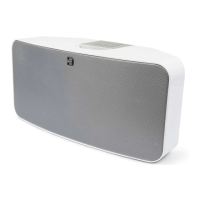
| Product color | White |
| Internet radio | Yes |
| Volume control | Digital |
| Audio formats supported | AAC, AIFF, FLAC, MP3, OGG, WAV, WMA |
| Image formats supported | JPG |
| Video formats supported | Not supported |
| Audio output channels | - channels |
| USB 2.0 ports quantity | 2 |
| Ethernet LAN (RJ-45) ports | 1 |
| USB 3.2 Gen 1 (3.1 Gen 1) Type-A ports quantity | 0 |
| Wi-Fi standards | Wi-Fi 4 (802.11n) |
| AC input voltage | 100 - 240 V |
| AC input frequency | 50 - 60 Hz |
| Power consumption (typical) | 12 W |
| Storage temperature (T-T) | -10 - 50 °C |
| Operating temperature (T-T) | 0 - 40 °C |
| Storage relative humidity (H-H) | 20 - 80 % |
| Processor frequency | 800 MHz |
| Processor architecture | Cortex-A8 |
| Cables included | AC, LAN (RJ-45) |
| Output power description | 50W x 2 |
| Compatible operating systems | Windows XP, 2000, Vista, 7\\r Mac OS |
 Weight and Dimensions
| Depth | 202.3 mm |
|---|---|
| Width | 248 mm |
| Height | 176 mm |
| Weight | 1900 g |

 To Next Page