7
INTRODUCTION
GETTING STARTED
WHAT’S IN THE BOX
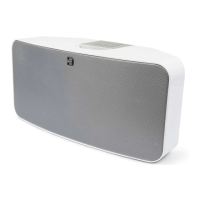
Packed with your Bluesound POWERNODE N150 you will find:
•
••
•
120V AC Power cord
•
••
•
230V AC Power cord
•
••
•
Accessory pack containing 2 pairs of Banana Plugs
•
••
•
Assembly guide for installing Banana Plugs
•
••
•
Ethernet cable (2m)
•
••
•
Safety and Warranty Guide
•
••
•
Quick Setup Guide
QUICK SETUP GUIDE
In case you simply cannot wait to experience the performance of your new POWERNODE N150, we provide the
following “Quick Setup Guide” instructions to get you underway.
CONNECT FOR SOUND
1. Using the banana plugs provided, connect them to one end of your speaker wire (not provided). Instructions for
connecting the Banana Plugs to corresponding speaker wires are included in the Banana Plug accessory pack.
2. Connect the banana plugs into the matching speaker terminals on the back panel of the POWERNODE N150.
3. Connect the other end of the speaker wires to each corresponding speaker. Make sure the “+” (red) terminal and “-
“ (black) terminal are connected to the corresponding “+” and “-“ terminals of the loudspeaker. Use extra care to
ensure that no stray wires or strands cross between posts or terminals at either end.
4. A Subwoofer can also be connected directly to the POWERNODE N150. Connect SUBW OUT to a powered (“active”)
subwoofer. Subwoofer cable not included.
CONNECT TO POWER
The POWERNODE N150 comes supplied with two separate AC power cords. Select the AC power cord appropriate for
your region.
1. Before connecting the plug to the wall outlet, connect firmly first the other end of the AC power cord to
POWERNODE N150’s AC Mains input socket.
2. Out of the box and the POWERNODE N150 plugged-in to the wall outlet for the first time, the POWERNODE N150
will have its initial reboot process that will end with the LED indicator in solid green state.
If the LED indicator did not settle in solid green state and keeps flashing, refer to the LED BLINK CODES table under
item 1 IDENTIFICATION OF CONTROLS for further guidelines.
NOTES
•
••
•
Never force the plug into a wall outlet. An adaptor may be necessary in certain regions.
•
••
•
Always disconnect the plug from the wall outlet first, before disconnecting the cable from the POWERNODE N150’s
AC Mains input socket.
CONNECT TO WiFi
1. On your iPad, search for the WiFi network matching your POWERNODE N150’s unique network ID and join it.
For example: “N150xxxx” where “xxxx” are the last four numbers of the unique Internet MAC identifier of your
POWERNODE N150. This can be found in number sticker attached to the POWERNODE N150 rear panel.
2. The “Configure player” Control Panel should automatically open. If not, open a web browser on your device and
visit
http://10.1.2.3/


 To Next Page