C44-KIT QUICK REFERENCE GUIDE
Contact: support@blustream.com.au | support@blustream-us.com | support@blustream.co.uk
Understanding the Matrix / Receiver Status Lights
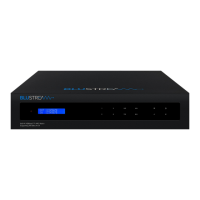
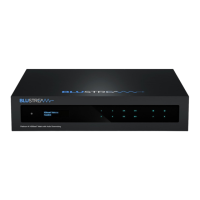
The Blustream matrix and HDBaseT™ extender solutions include status LED indicators on both the matrix and receiver
products to show all connections are active and to help diagnose possible problems.
Understanding The Status Lights
Blustream Matrix:
• The Yellow HDBaseT™ status link light will be o when the zone output has been turned o or there is a problem
with the specific matrix output
• The Yellow HDBaseT™ status link light will blink when the zone output is on and working
• The Green HDBaseT™ link light will blink if there is an unstable connection between the Blustream matrix and
HDBaseT™ receiver
• The Green HDBaseT™ link light will be lit when a there is an active HDBaseT™ receiver connected to the matrix
• The Green HDBaseT™ link light will be o when a there is no connection with a HDBaseT™ receiver
Blustream HDBaseT™ Receiver:
• The HDMI link light will be o when there is no connection with a display
• The HDMI link light will be on when there is an active connection with a display (Note: Not all HDBaseT™ RX feature
a HDMI status LED)
• The HDBaseT™ link light will be o when there is no CAT cable / active HDBaseT™ connection on the RJ45
HDBaseT™ input
• The HDBaseT™ link light will blink if there is an unstable connection between the Blustream matrix and HDBaseT™
receiver
• The HDBaseT™ link light will be lit when a CAT cable is connected to the HDBaseT™ RJ45 output on the matrix and
an active connection is achieved with the Blustream HDBaseT™ receiver
EDID (Extended Display Identification Data) is a data structure that is used between a display and a source. This data
is used by the source to find out what audio and video resolutions are supported by the display. By pre-determining
the video resolution and audio format of the source and display device you can reduce the time need for EDID hand
shaking thus making switching quicker and more reliable.
Configuration of Matrix EDID settings can be achieved in one of three ways:
1 Using EDID dip-switches located on the rear of the Matrix - (For further details see ‘C44-KIT User Manual’)
2 Using Supplied Blustream Matrix IR Remote Control (For further details see ‘C44-KIT User Manual’)
3 Using C44 Web browser interface (For further details see ‘Blustream Web GUI Manual’)
EDID Control
03
Global EDID Settings
DIP ON ▼/OFF▲ SWITCHING POSITIONS
EDID TYPE
3 2 1 0
OFF OFF OFF OFF 1080p/2.0ch
OFF OFF OFF ON 1080p/5.1ch
OFF OFF ON OFF 1080p/7.1ch
OFF OFF ON ON 1080i/2.0ch
OFF ON OFF OFF 1080i/5.1ch
OFF ON OFF ON 1080i/7.1ch
OFF ON ON OFF 4K60Hz 4:2:0/2.0ch
OFF ON ON ON 4K60Hz 4:2:0/5.1ch
ON OFF OFF OFF 4K60Hz 4:2:0/7.1ch
ON OFF OFF ON 4K30Hz 4:4:4/2.0ch
ON OFF ON OFF 4K30Hz 4:4:4/5.1ch
ON OFF ON ON 4K30Hz 4:4:4/7.1ch
ON ON OFF OFF DVI 1280x1024
ON ON OFF ON DVI 1920x1080
ON ON ON OFF DVI 1920x1200
ON ON ON ON Soware Controlled EDID
Dip-switch Position ‘0’ = O
Dip-switch Position ‘1’ = On


 To Next Page
 Loading...