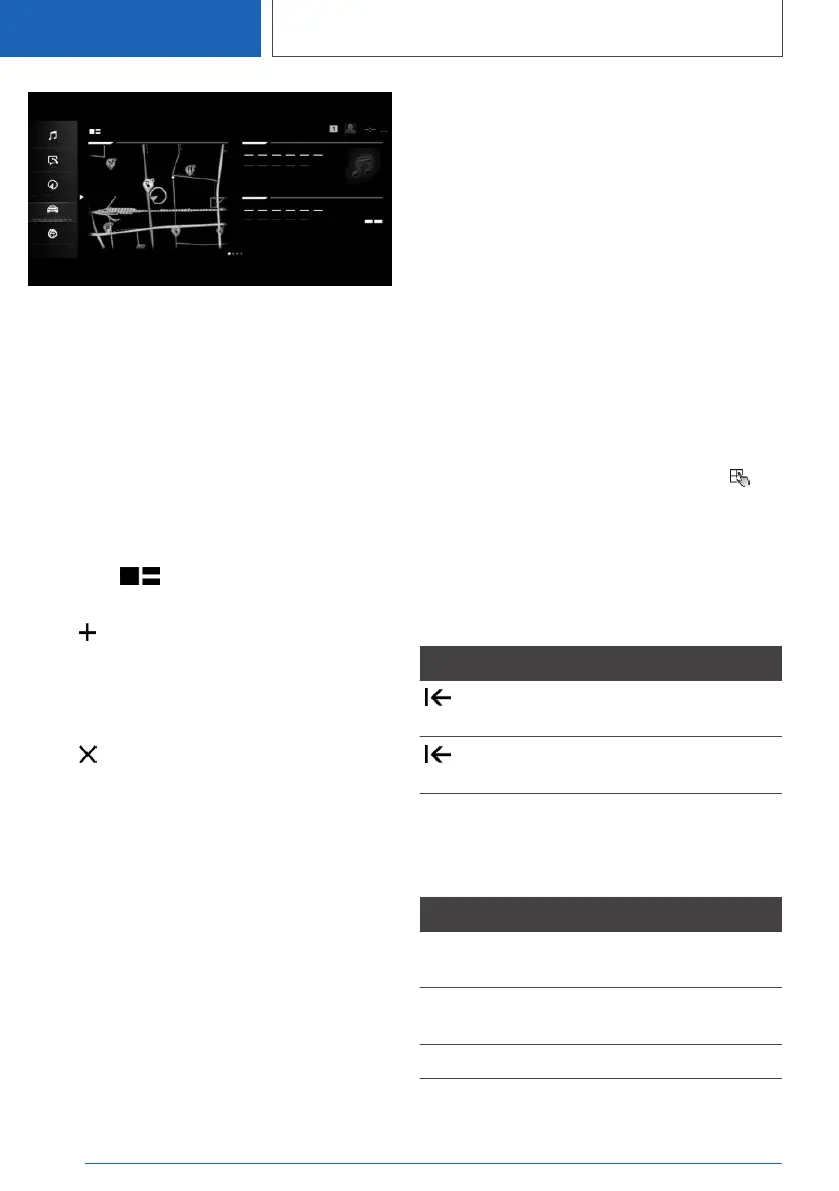
The main menu is displayed.
Adapting widgets
You can adapt the widgets in the main menu. It is
possible to create multiple pages with widgets
and switch between the pages. It is only possible
to make adaptations with the vehicle at a stand‐
still.
1.
Select the required page in the main menu. It
is only possible to adapt the page that is cur‐
rently selected.
2. Tap the symbol in the main menu.
3. Select the desired adaptation:
▷ Tap the symbol and select the desired
widget: add new widget.
The desired widget will be added at the
relevant position. It is possible to display a
maximum of four widgets per page.
▷ Tap the symbol: delete selected
widget.
▷ Add a new page: tap "Add page".
▷ Delete the selected page: tap "Delete
page".
▷ Adapt the content of the widget: tap the
centre of the widget.
4. Tap "Done".
Showing/hiding the display bar
In the top part of the control display, it is possible
to show or hide a display bar with additional func‐
tions.
▷ To show the display bar, pull down the dis‐
play bar at the top edge of the screen.
▷ To hide the display bar, pull up the display bar
at the top edge of the screen.
Switching between screens
After a menu item has been selected, a new
screen is displayed.
An arrow indicates that further screens can be
called up.
▷ Swipe to the left.
▷ Tap the arrow.
The new screen is opened.
Entering letters and numbers
Entry
1.
Depending on the equipment, tap the
symbol on the touchscreen or a keyboard will
appear on the control display when you ap‐
proach the touchscreen.
2. Enter the required letters and numbers.
Deleting
Symbol Function
Tap the symbol: to delete letter or
number.
Tap and hold the symbol: to delete
all letters or numbers.
Operating the map
The navigation map can be moved via the touch‐
screen.
Function Operation
To move the map. Swipe in the appropriate
direction.
To enlarge/reduce
the map.
Pinch together or move
apart your fingers.
To display the menu. Tap once.
Seite 62
CONTROLS
iDrive
62
Online Edition for Part no. 01405A1EA53 - X/20



 To Next Page