Displaying, setting or changing the
speed warning
Via iDrive:
1. "My Vehicle"
2. "Vehicle settings"
3. "Speed warning"
4. "Warning at:"
5. Turn the Controller until the desired speed is
displayed.
6. Press the Controller.
Activating/deactivating the speed
warning
Via iDrive:
1.
"My Vehicle"
2. "Vehicle settings"
3. "Speed warning"
4. "Speed warning"
Setting your current speed as the
speed warning
Via iDrive:
1.
"My Vehicle"
2. "Vehicle settings"
3. "Speed warning"
4. "Select current speed"
Vehicle status
General information
The status can be displayed and actions per‐
formed for several systems.
Opening the vehicle status
Via iDrive:
1.
"My Vehicle"
2. "Vehicle status"
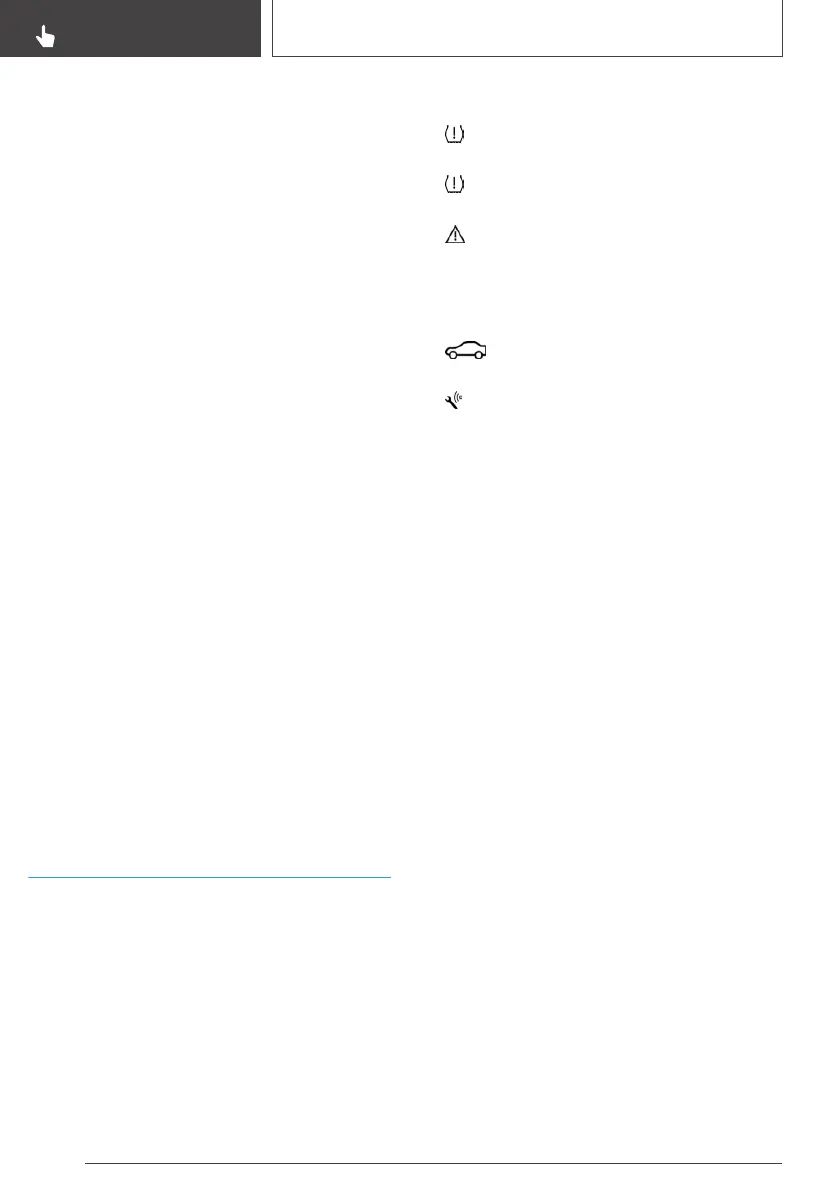
Information at a glance
▷ "Flat Tire Monitor": status of the Flat Tire
Monitor, refer to page 139.
▷ "Tire Pressure Monitor": status of the Tire
Pressure Monitor, refer to page 136.
▷ "Check Control": Check Control mes‐
sages are stored in the background and can
be displayed on the Control Display. Display‐
ing stored Check Control messages, refer to
page 121.
▷ "Service required": Displaying service
requirements, refer to page 123.
▷ "Teleservice Call": service request.
Seite 128
CONTROLS
Displays
128
Online Edition for Part no. 01402989267 - II/18


 To Next Page
 Loading...